Security Tools Directory: Search the Curated Catalog


The Security Tools Directory is the catalog for published tool entries. Its search, category, and sorting controls remain usable even when the current catalog has no matching published items.
What this feature does
The Security Tools Directory is the catalog for published tool entries. Its search, category, and sorting controls remain usable even when the current catalog has no matching published items. The walkthrough below follows the current interface in the order shown on screen, and each step includes its own matching image.
Workflow at a glance
- 1.Search by name or purpose
- 2.Choose a category
- 3.Set the sort order
- 4.Read the current catalog state
- 5.Open the interactive toolkit instead
How to use the feature
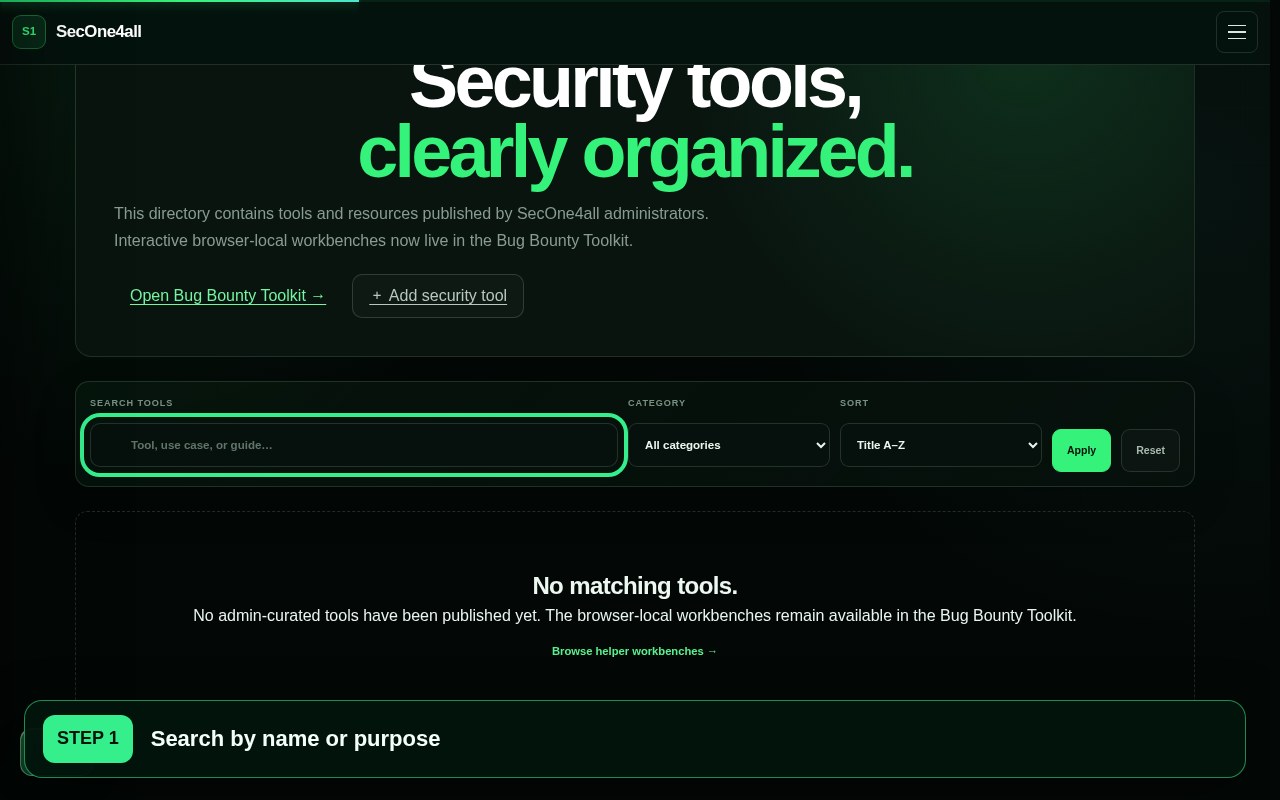
Step 1: Search by name or purpose
Enter a tool name, category phrase, or intended purpose.
What you will see: The directory checks published entries for a match.
Step 2: Choose a category
Select a category to narrow the type of tool you want to browse.
What you will see: The category works together with the search phrase.

Step 3: Set the sort order
Choose how matching entries should be ordered.
What you will see: The directory preserves the search while changing the result order.

Step 4: Read the current catalog state
Review the result area after applying the filters.
What you will see: This message means no published entry satisfies the current query; it is not a loading error.

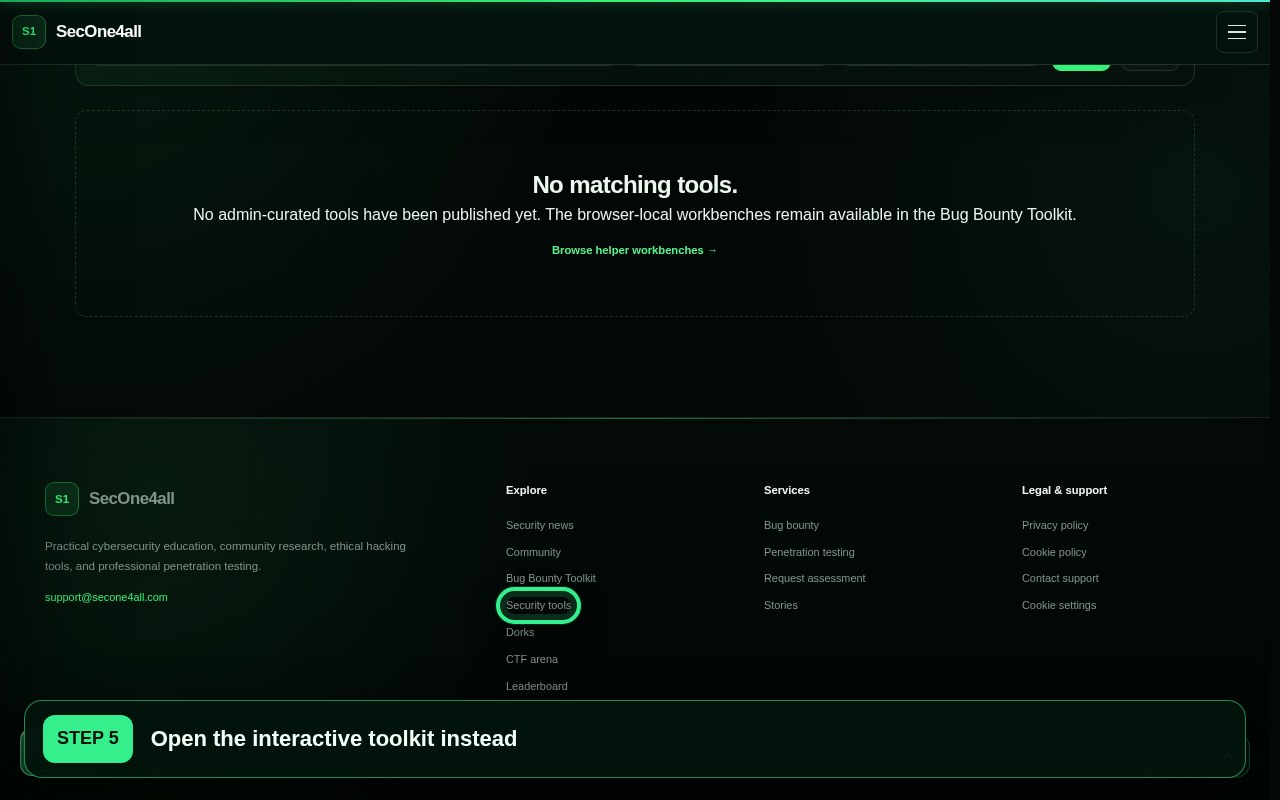
Step 5: Open the interactive toolkit instead
Use the main navigation to open the interactive Security Tools collection when you need a built-in workbench.
What you will see: The separate toolkit contains the live analyzers and generators available on the site.
Open the feature
Use the button below to open the current SecOne4all interface and follow the same five steps.


Leave a Reply