Security News: Search, Filter, and Read the Newsroom


The Security News page is a searchable newsroom that combines article summaries with source and publication details. Its filters help you move from a broad feed to the stories relevant to your research.
What this feature does
The Security News page is a searchable newsroom that combines article summaries with source and publication details. Its filters help you move from a broad feed to the stories relevant to your research. The walkthrough below follows the current interface in the order shown on screen, and each step includes its own matching image.
Workflow at a glance
- 1.Search the newsroom
- 2.Filter by source
- 3.Limit the publication window
- 4.Choose the result order
- 5.Open and share an article
How to use the feature
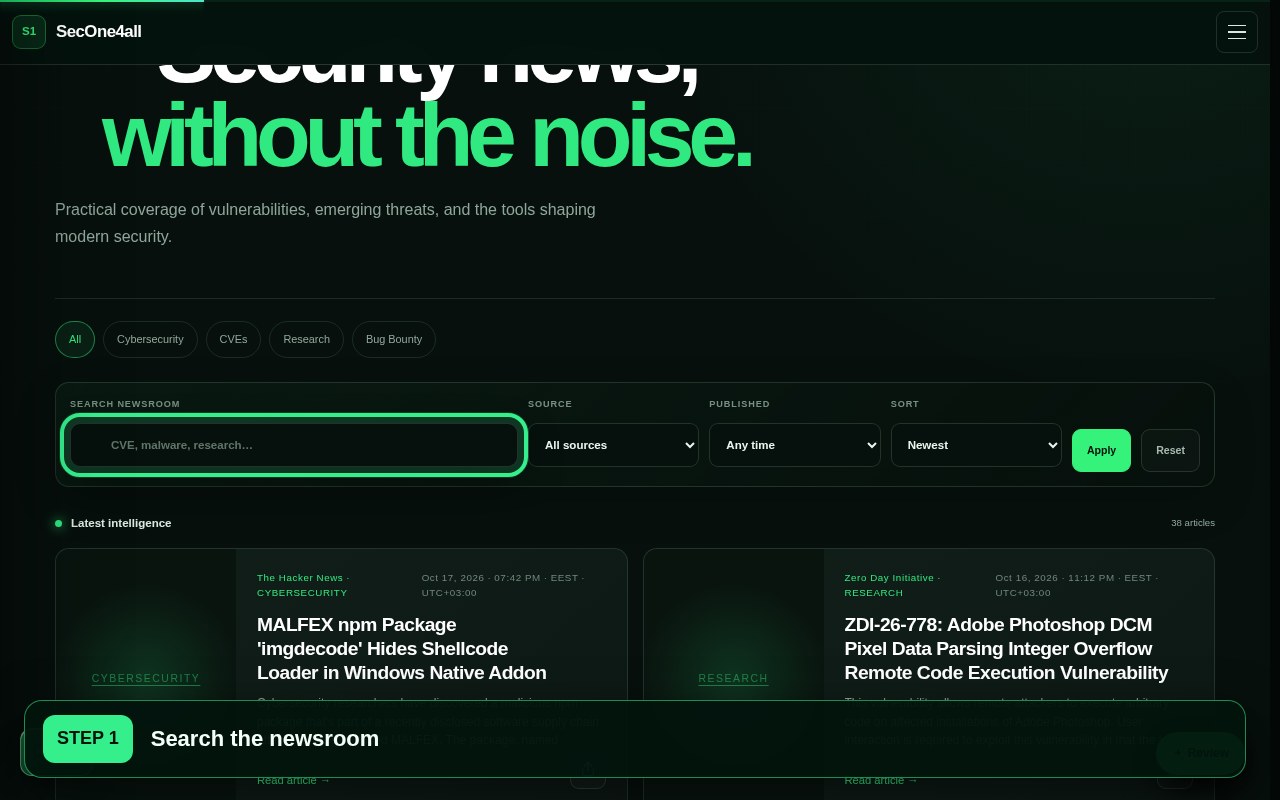
Step 1: Search the newsroom
Type a company, vulnerability, product, or technique into Search Newsroom.
What you will see: The feed narrows to articles whose title or summary matches the search.
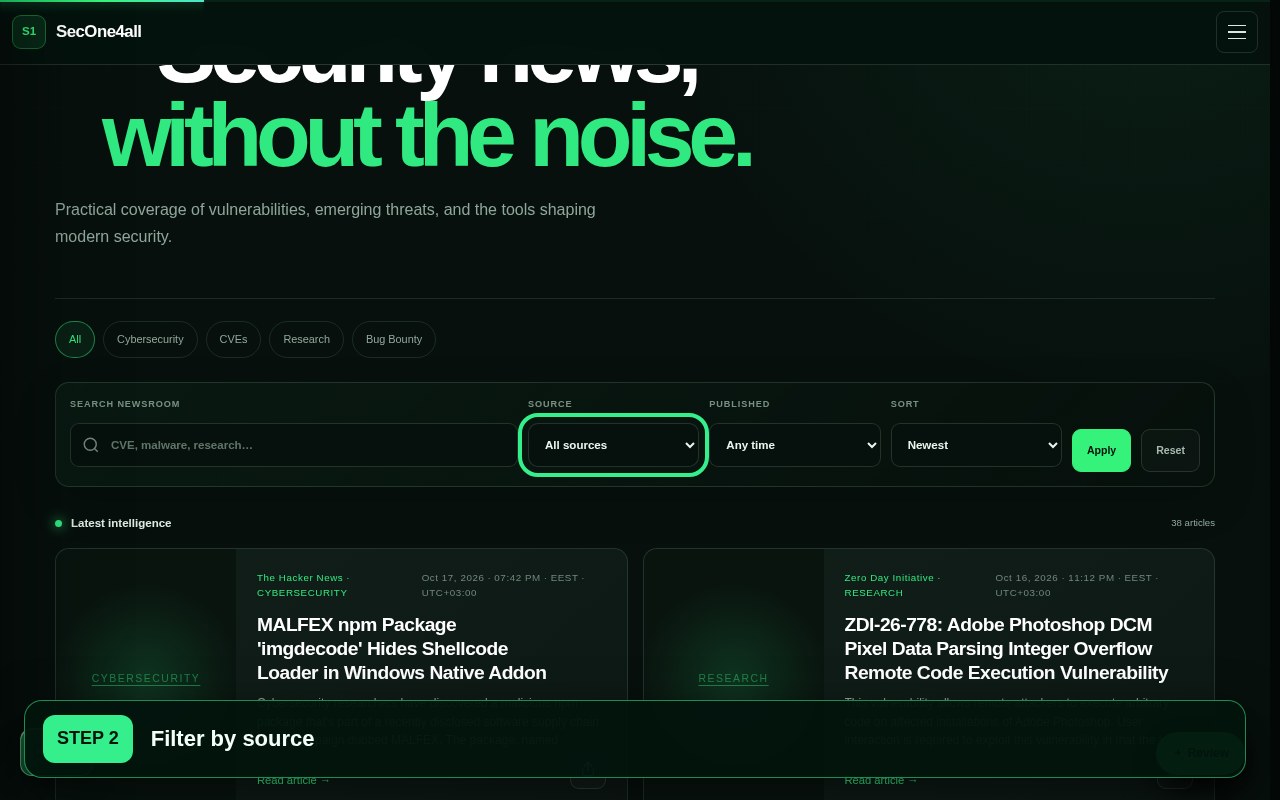
Step 2: Filter by source
Choose a source when you want reporting from a specific publisher.
What you will see: The selected source is applied together with the search term.
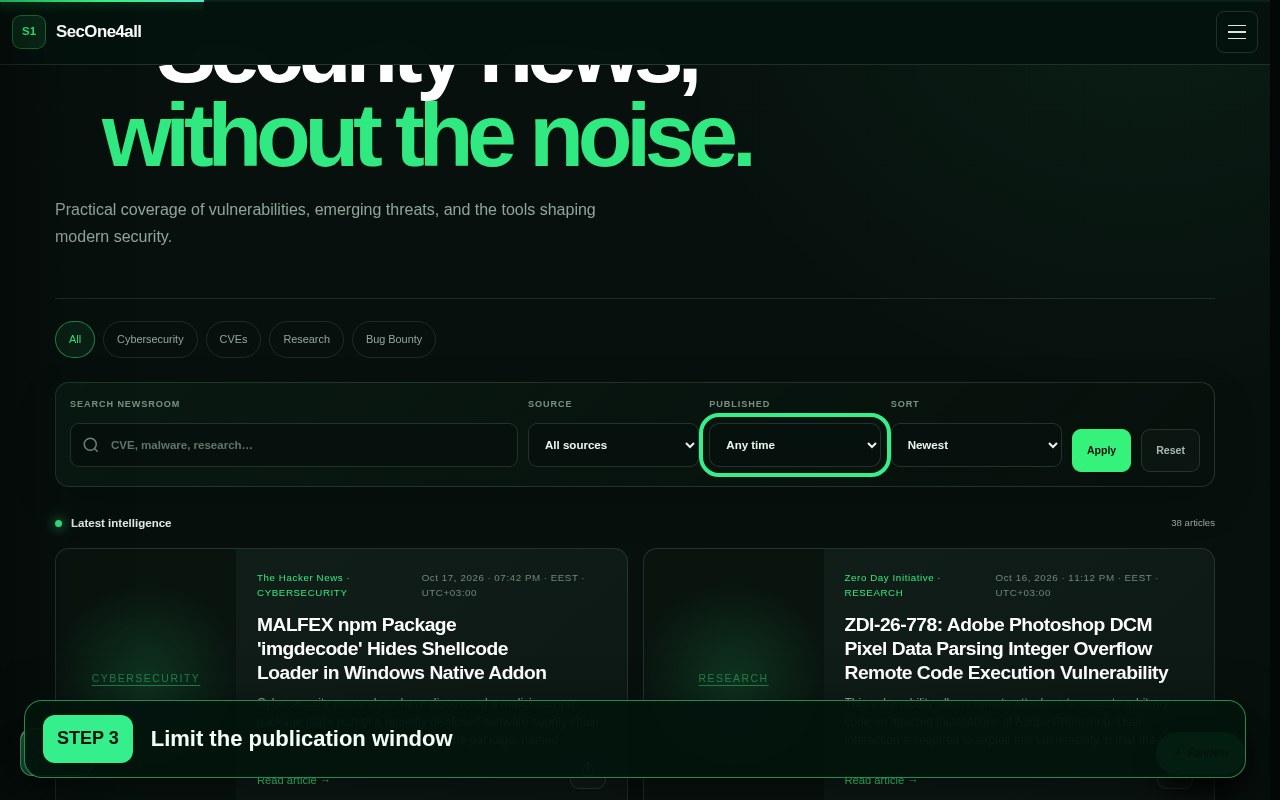
Step 3: Limit the publication window
Use Published to focus on a recent time window.
What you will see: Older items are removed from the visible result set.
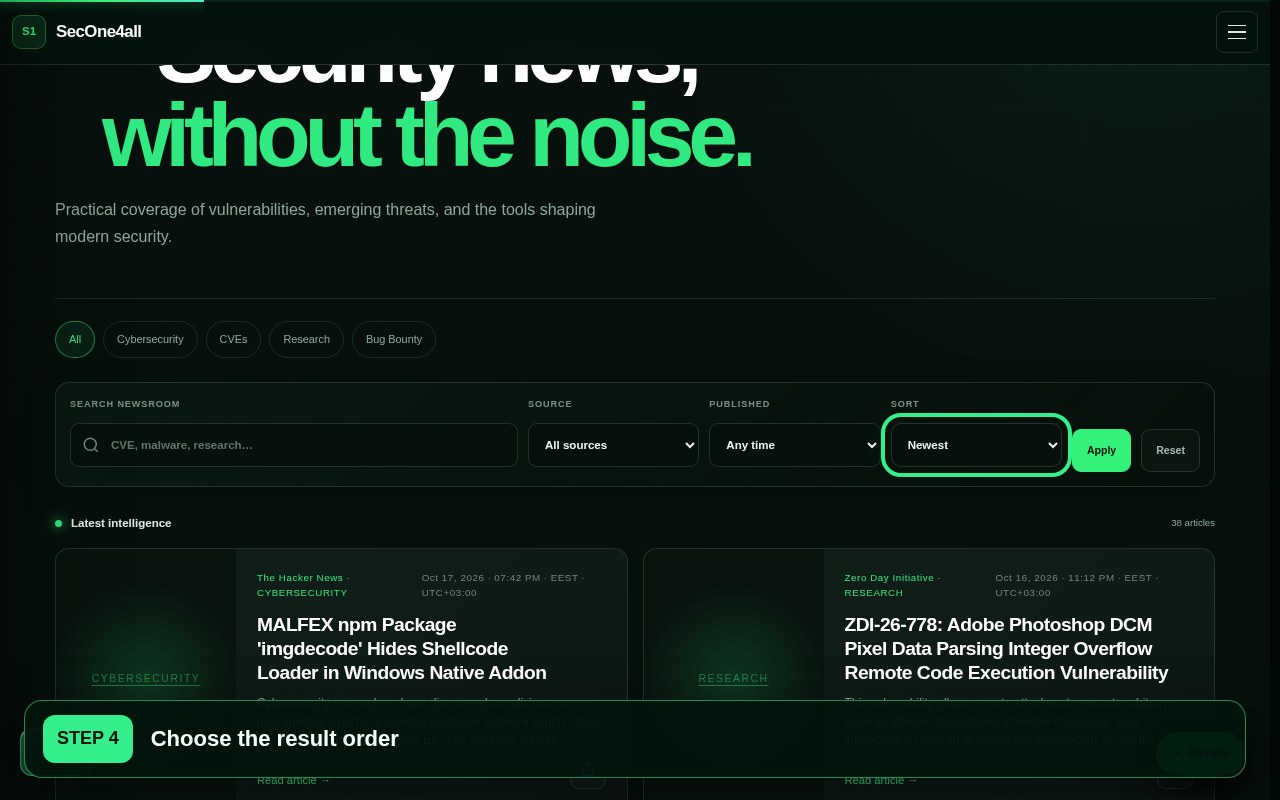
Step 4: Choose the result order
Set the sort order before applying the filters.
What you will see: The same matching stories can be viewed in the order that best fits your review.
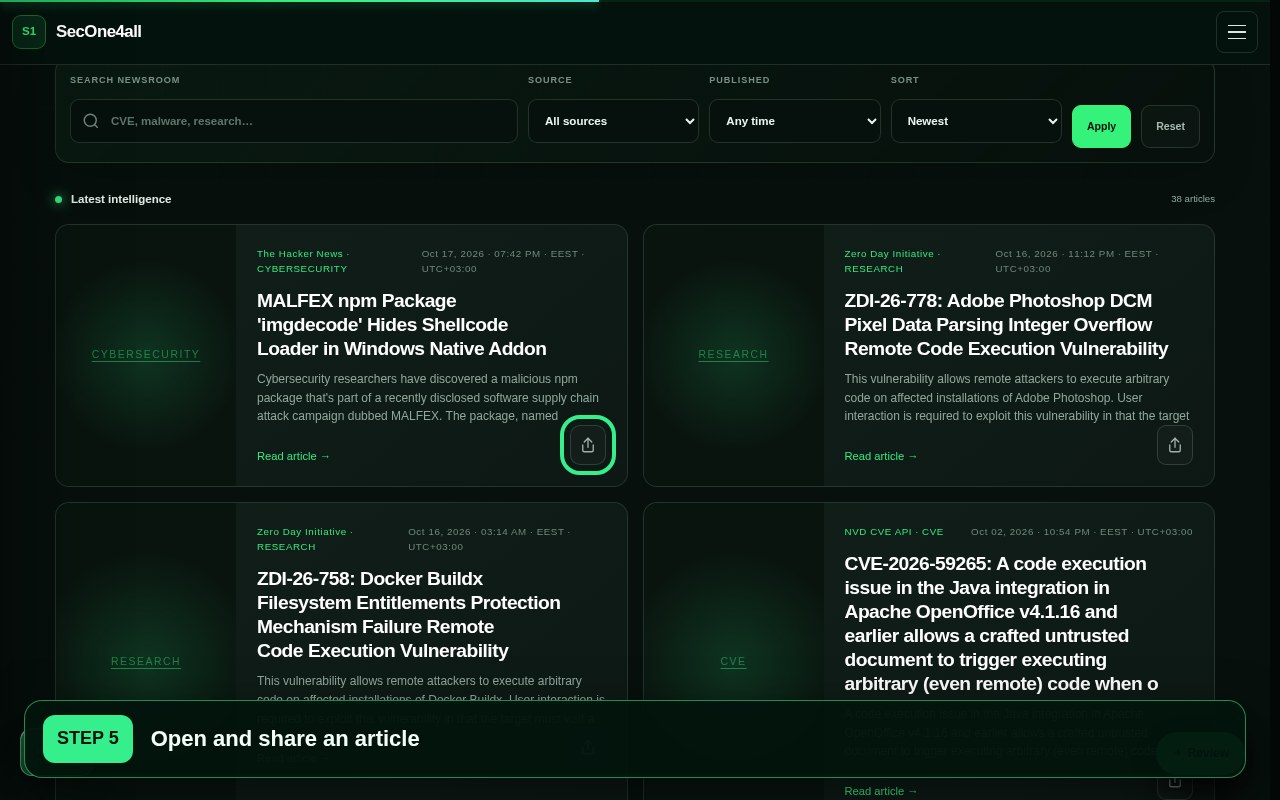
Step 5: Open and share an article
Open a news card to read its full brief, then use Share article when you want to pass the story link along.
What you will see: The article retains its source attribution and publication context.
Open the feature
Use the button below to open the current SecOne4all interface and follow the same five steps.

Leave a Reply