Community Posts: Discover, Write, and Discuss Research

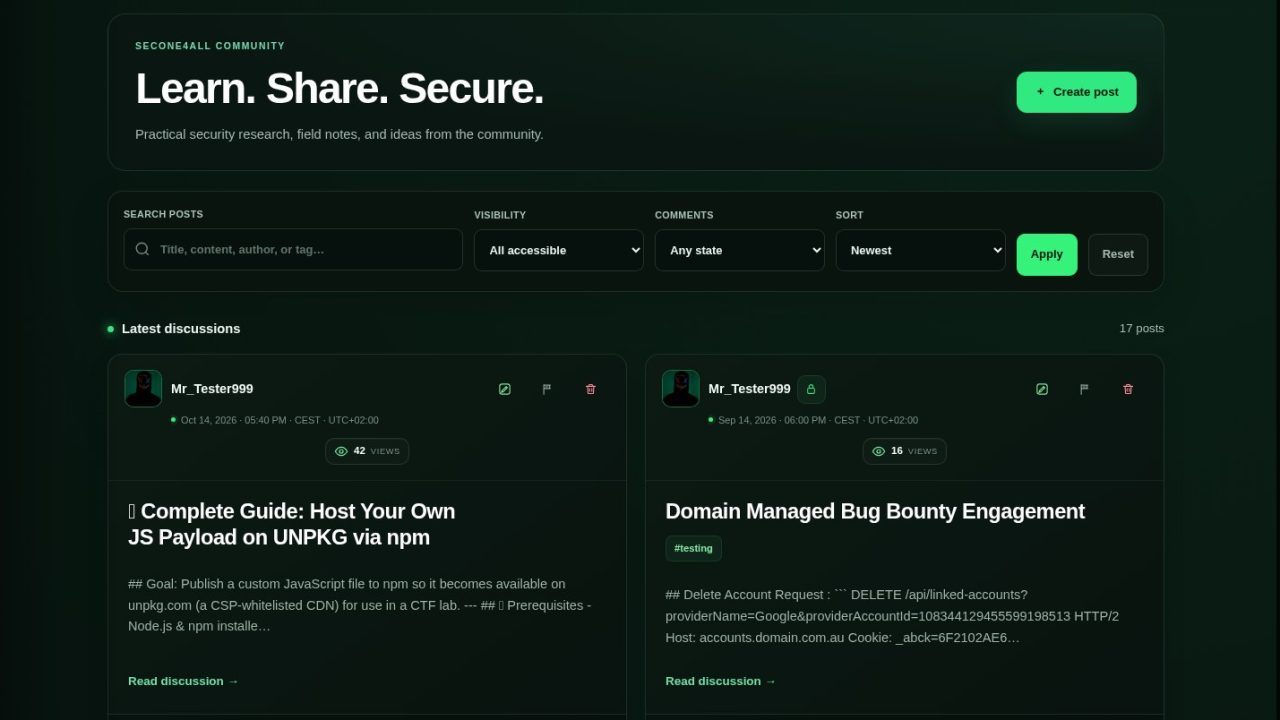
Community Posts is the publishing area for member-written security research. Search, tags, visibility, comments, and sorting can be combined to find the right discussion quickly.
What this feature does
Community Posts is the publishing area for member-written security research. Search, tags, visibility, comments, and sorting can be combined to find the right discussion quickly. The walkthrough below follows the current interface in the order shown on screen, and each step includes its own matching image.
Workflow at a glance
- 1.Search titles, content, authors, and tags
- 2.Filter with a tag
- 3.Choose visibility and comment state
- 4.Apply the selected filters
- 5.Create a structured post
How to use the feature
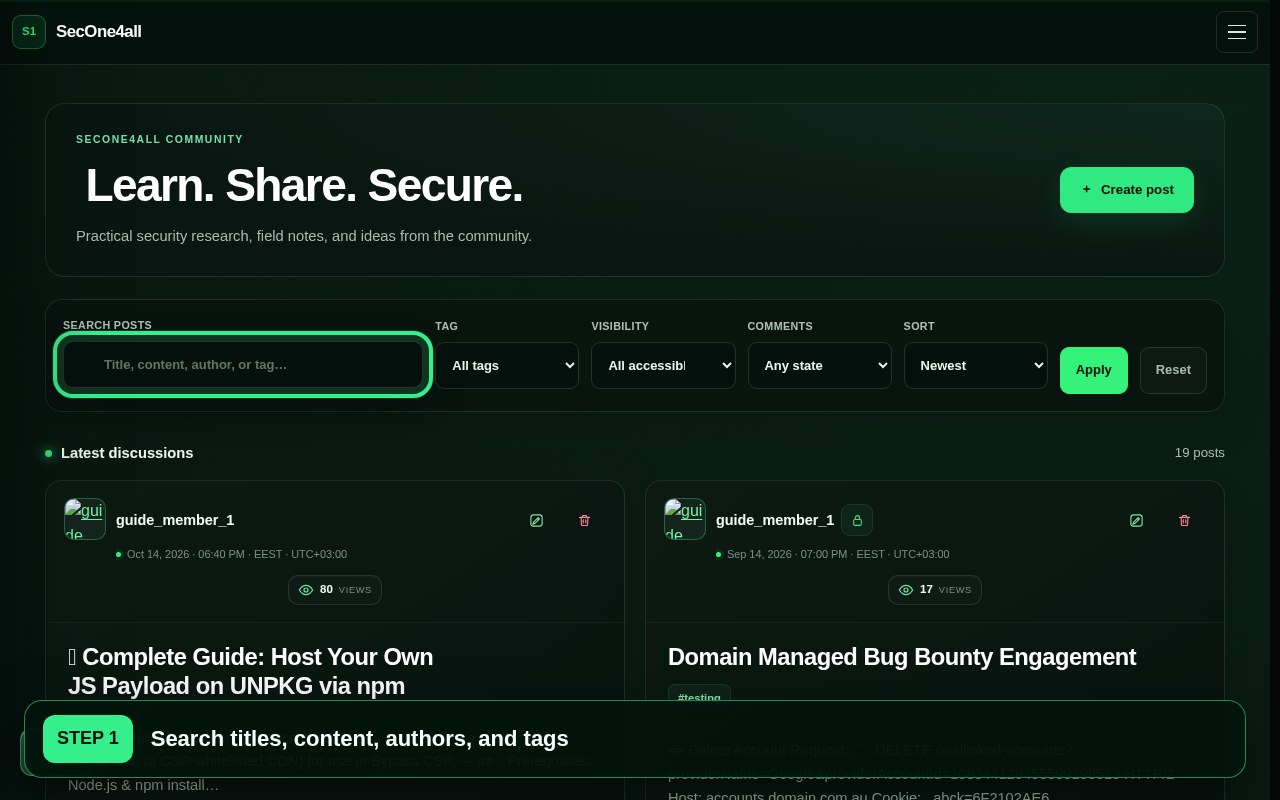
Step 1: Search titles, content, authors, and tags
Enter a phrase in Search Posts to search across the post title, body, author, and assigned tags.
What you will see: Matching discussions remain in the results while unrelated posts are hidden.
Step 2: Filter with a tag
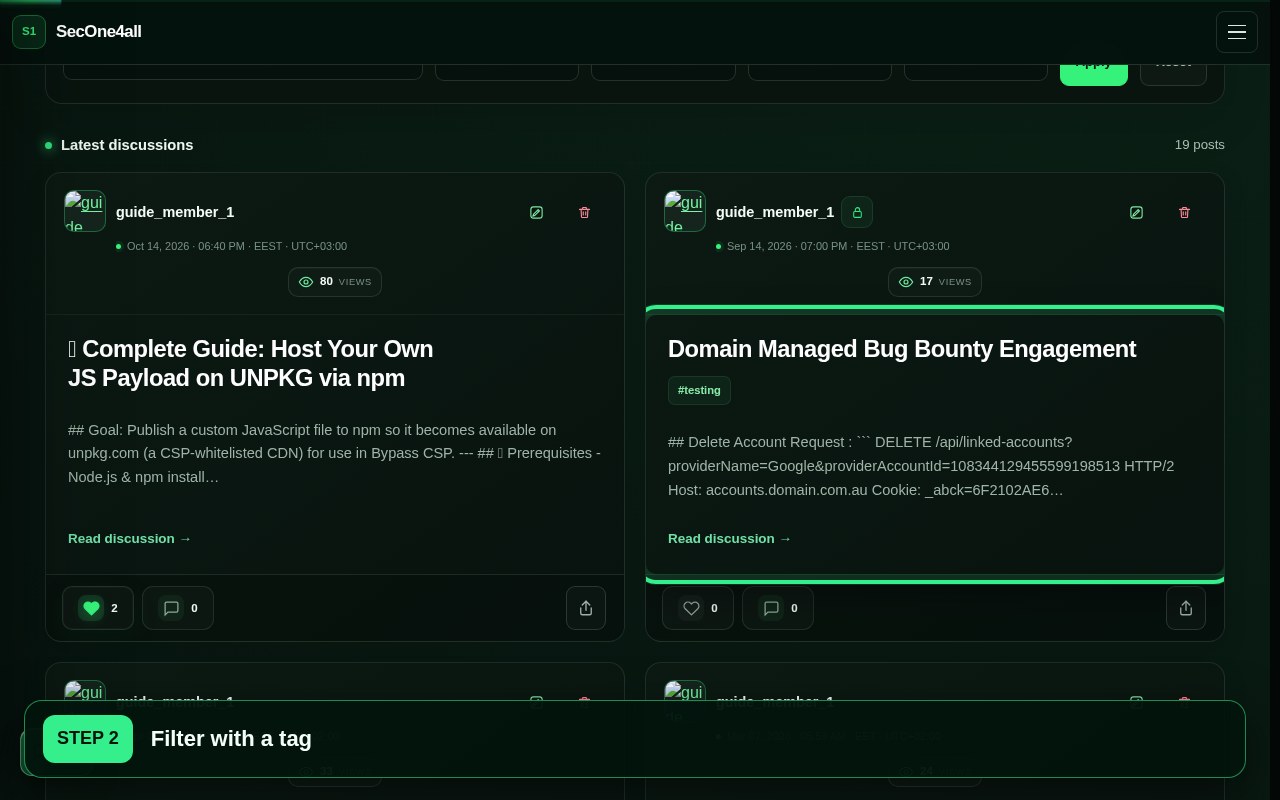
Choose a tag to focus on one subject area.
What you will see: The tag works alongside the other active filters.
Step 3: Choose visibility and comment state
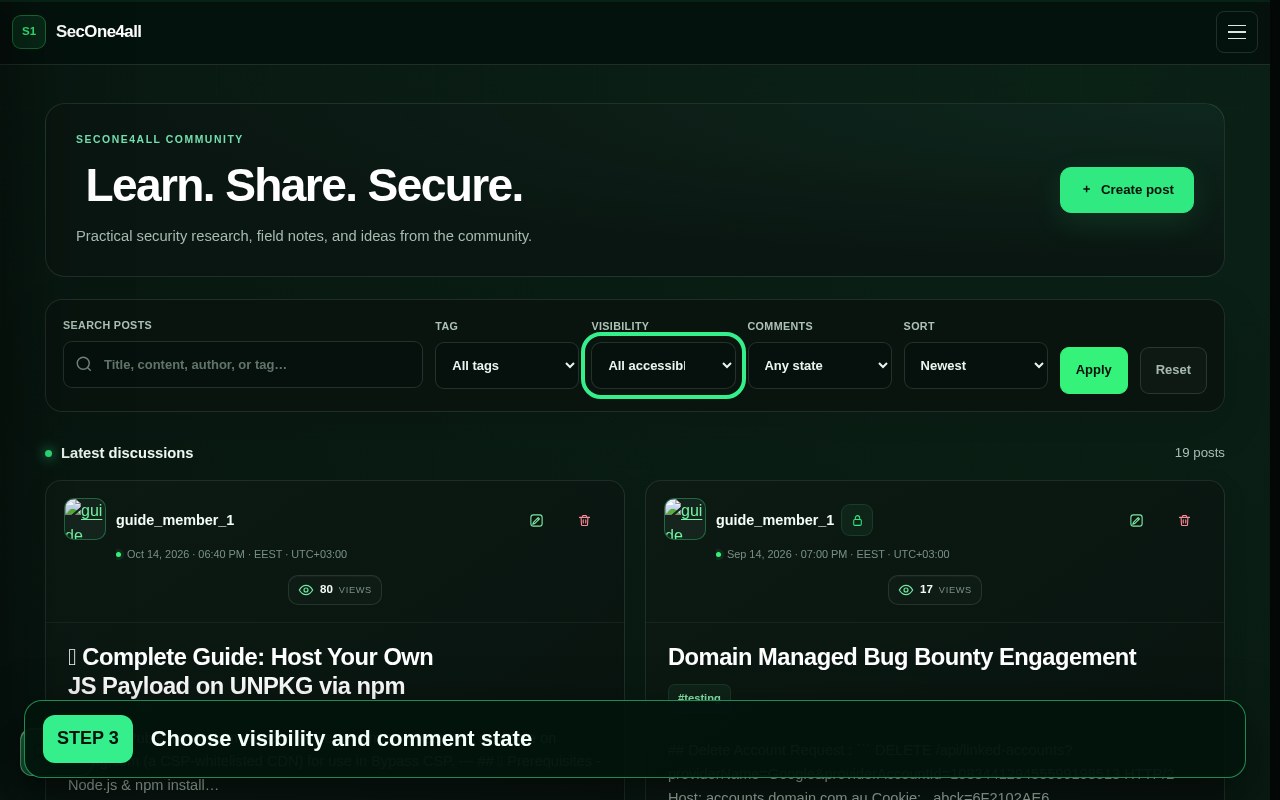
Set Visibility, then use Comments to include posts with the discussion state you want.
What you will see: The page shows only posts that satisfy both selections.
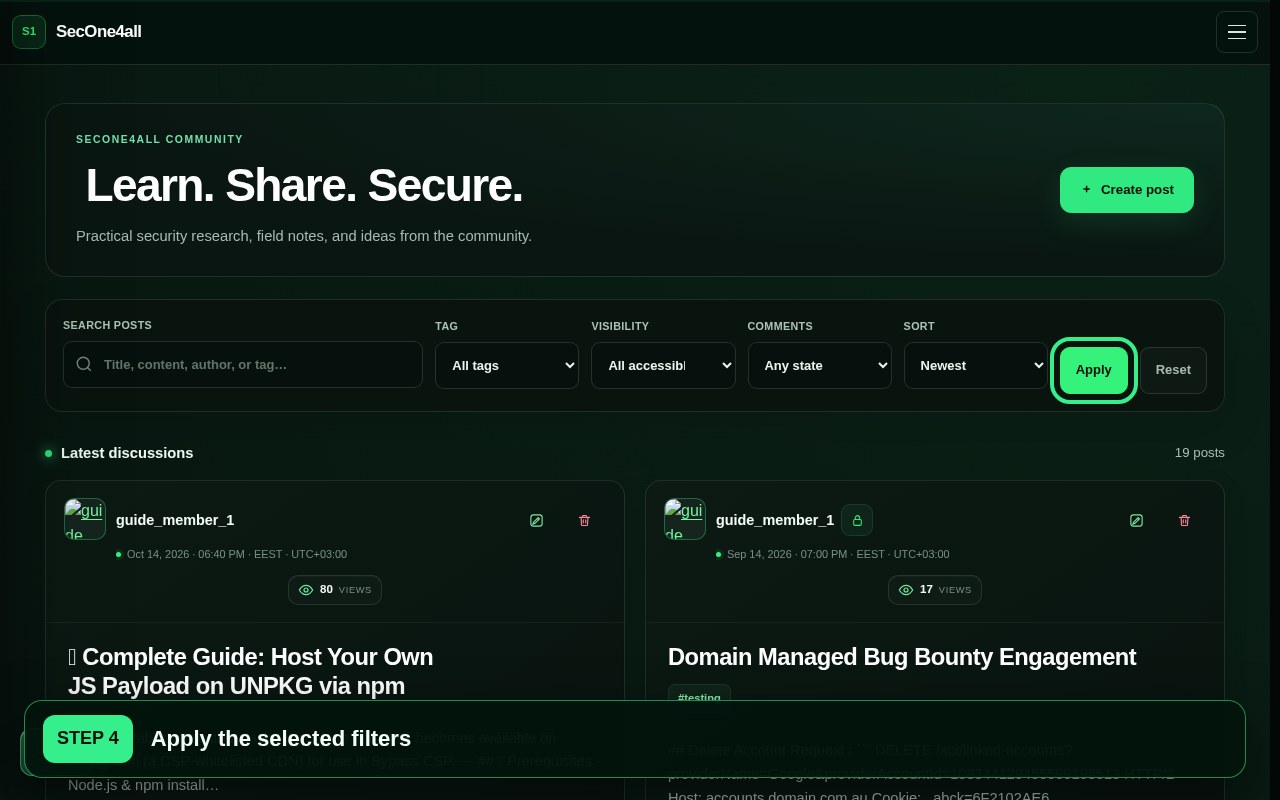
Step 4: Apply the selected filters
Choose a sort order and press Apply.
What you will see: The result count and post list refresh using the complete filter set.
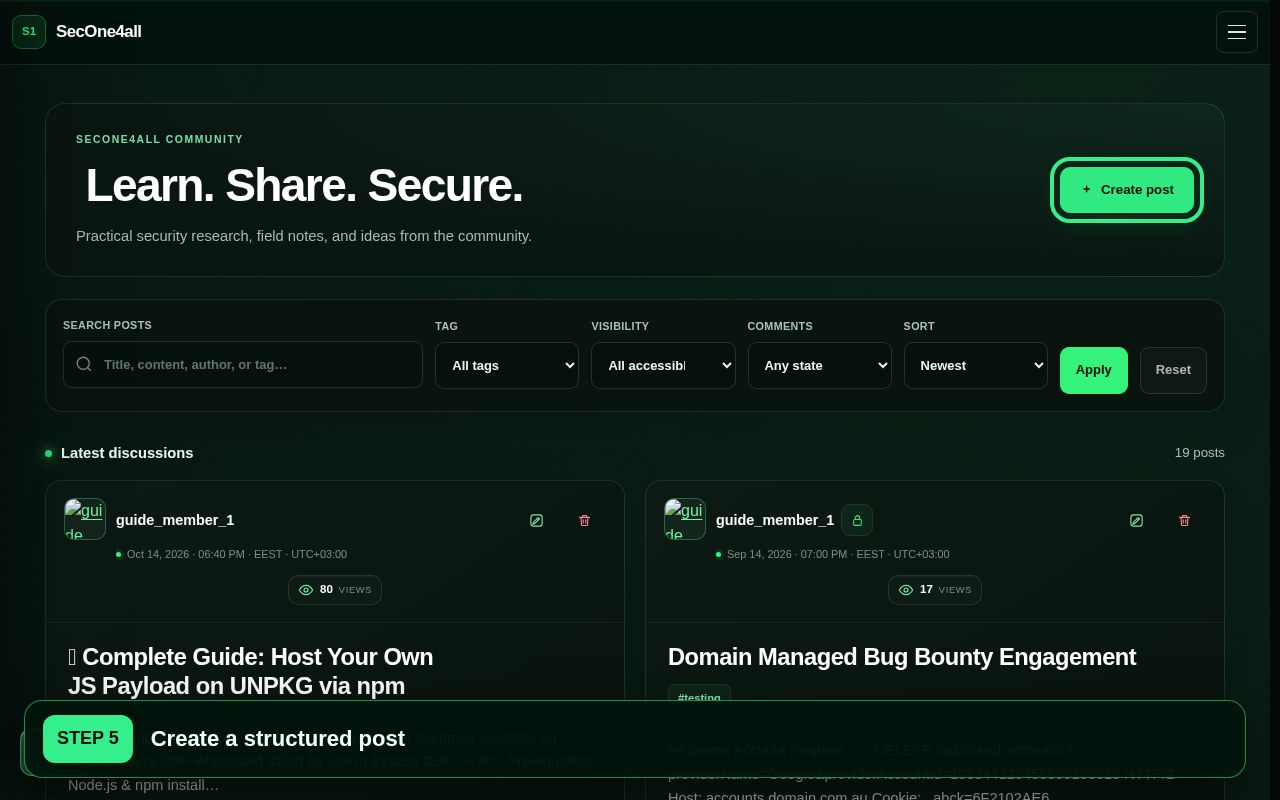
Step 5: Create a structured post
Select Create post, add the title, Markdown body, tags, and any images, then use preview before publishing.
What you will see: The finished post appears with its author profile and discussion area.
Open the feature
Use the button below to open the current SecOne4all interface and follow the same five steps.

Leave a Reply