Tasks: Create, Filter, and Complete Research Work

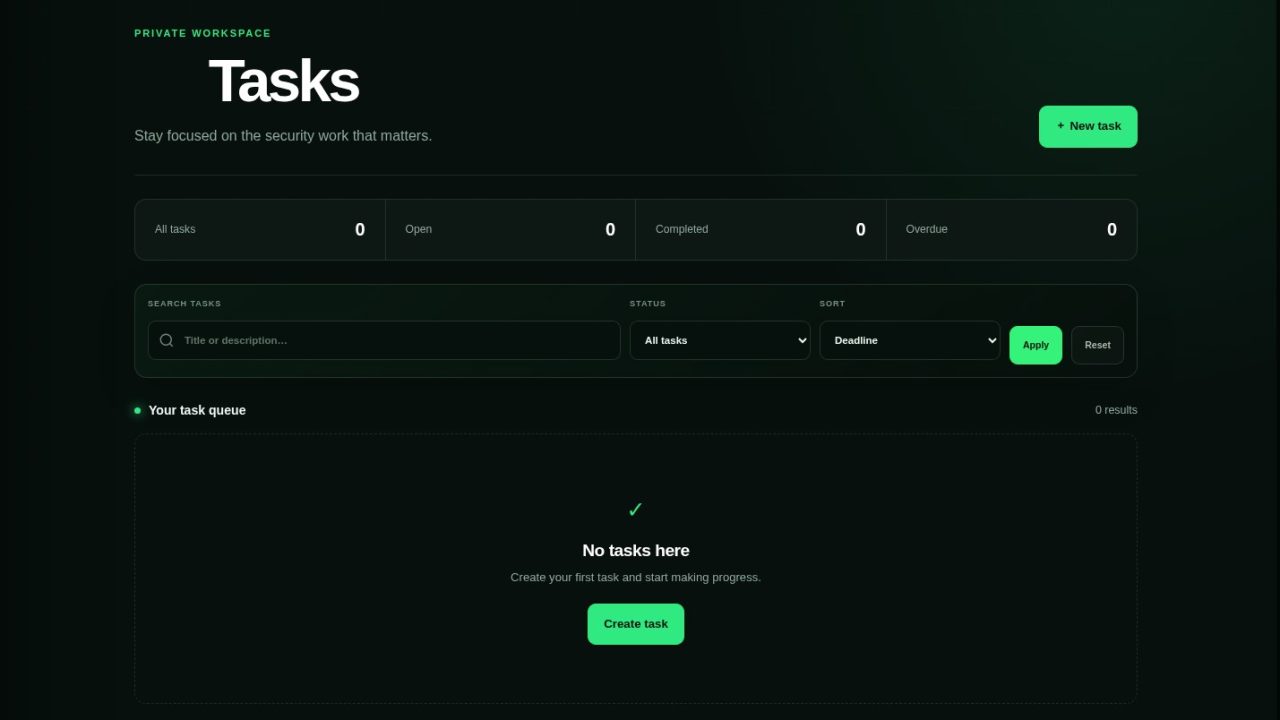
Tasks is a personal action list for research work. Each item combines a title, description, deadline, and completion state, while the list supports search, status filtering, and sorting.
What this feature does
Tasks is a personal action list for research work. Each item combines a title, description, deadline, and completion state, while the list supports search, status filtering, and sorting. The walkthrough below follows the current interface in the order shown on screen, and each step includes its own matching image.
Workflow at a glance
- 1.Create a task
- 2.Add details and a deadline
- 3.Search the task list
- 4.Filter by status
- 5.Mark the task complete
How to use the feature
Step 1: Create a task
Choose New task and write one clear action as the title.
What you will see: A new work item is created in the task list.
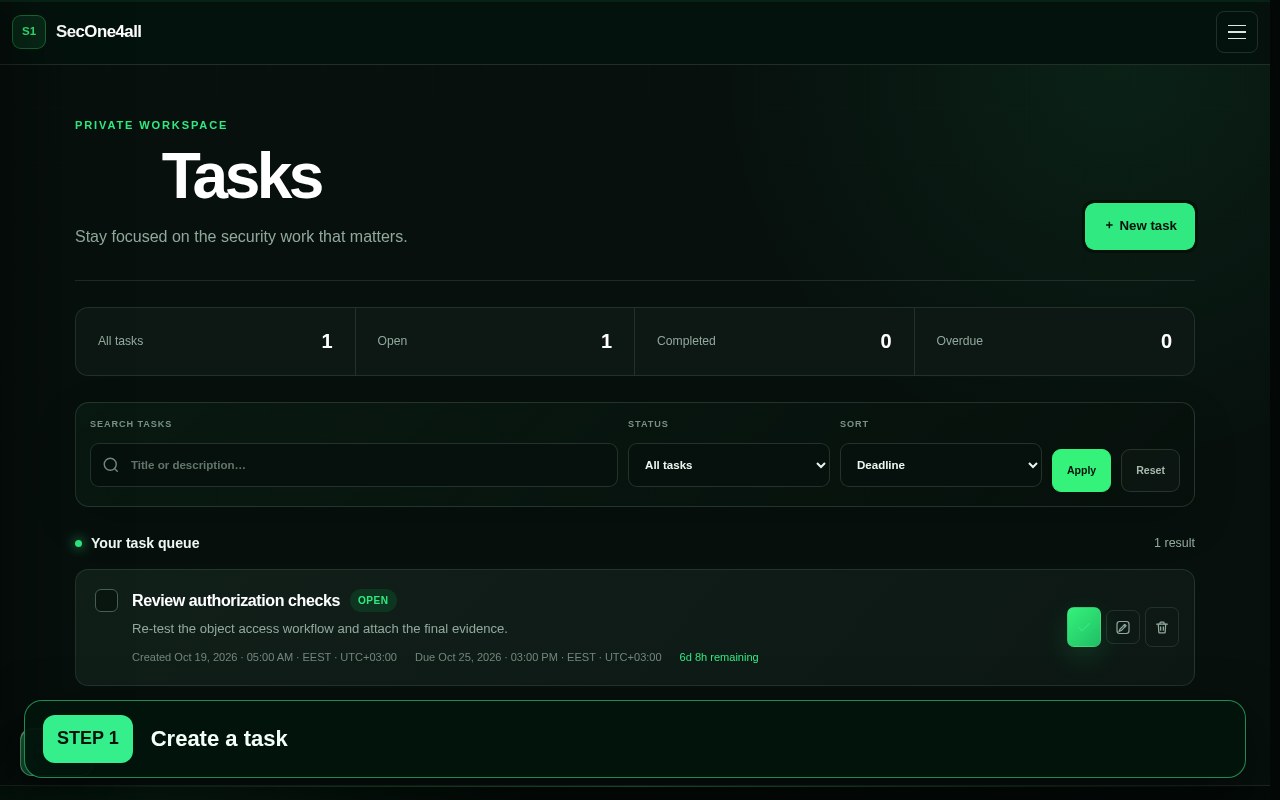
Step 2: Add details and a deadline
Complete the description and deadline fields before saving.
What you will see: The task records both the expected work and its timing.
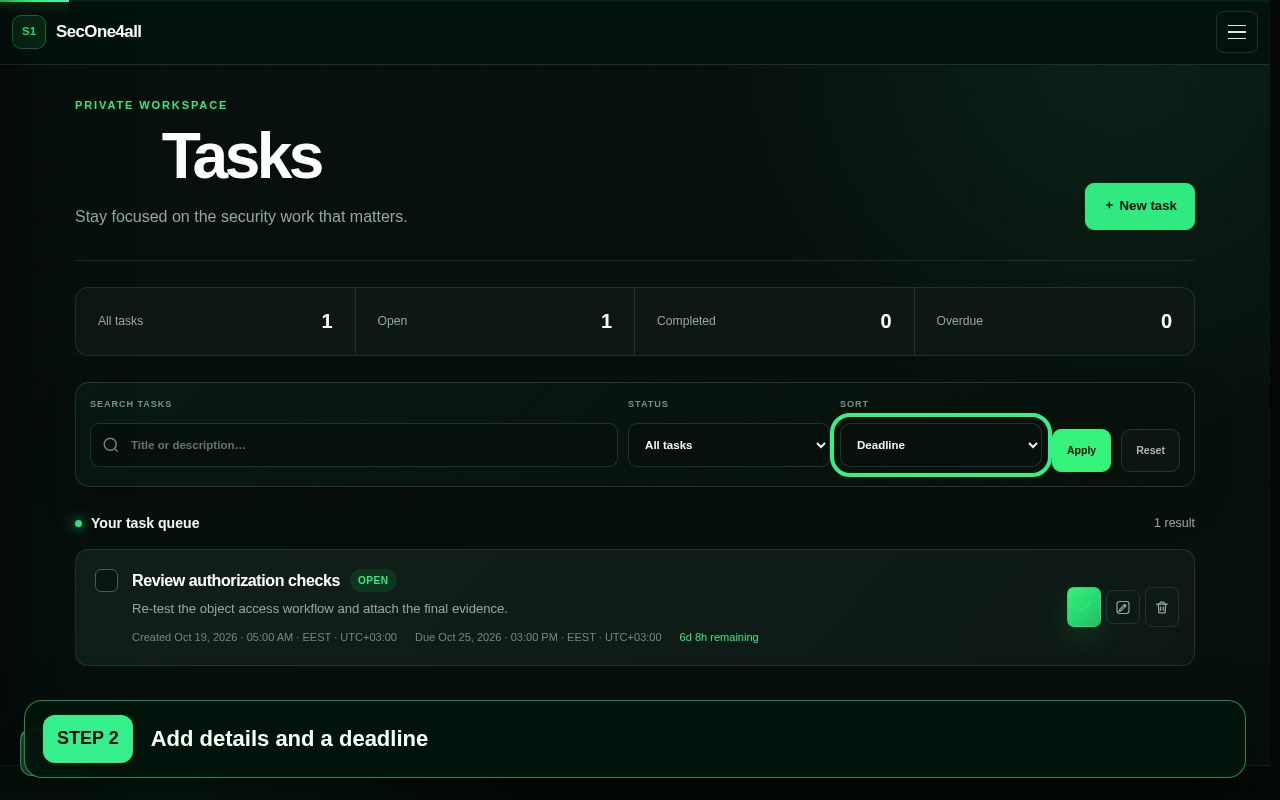
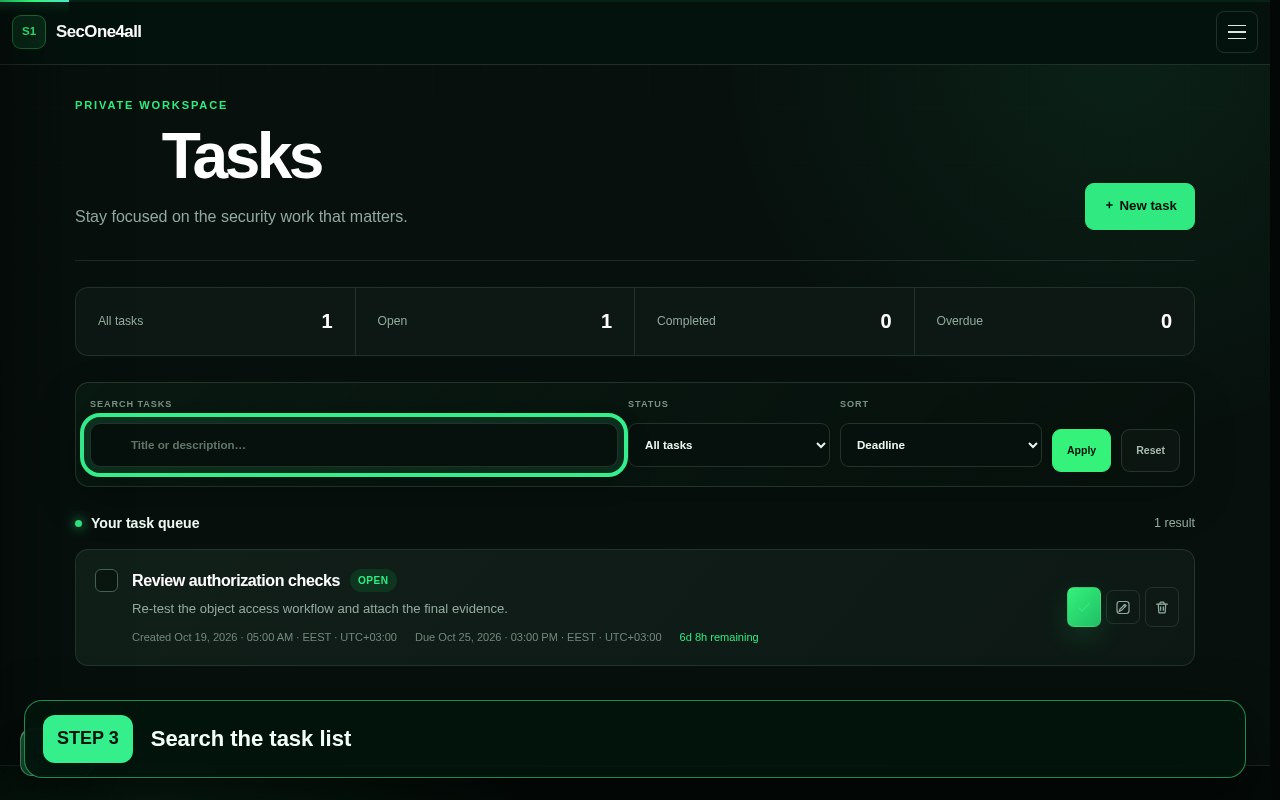
Step 3: Search the task list
Enter a phrase from the task title or description.
What you will see: The list narrows to the matching work items.
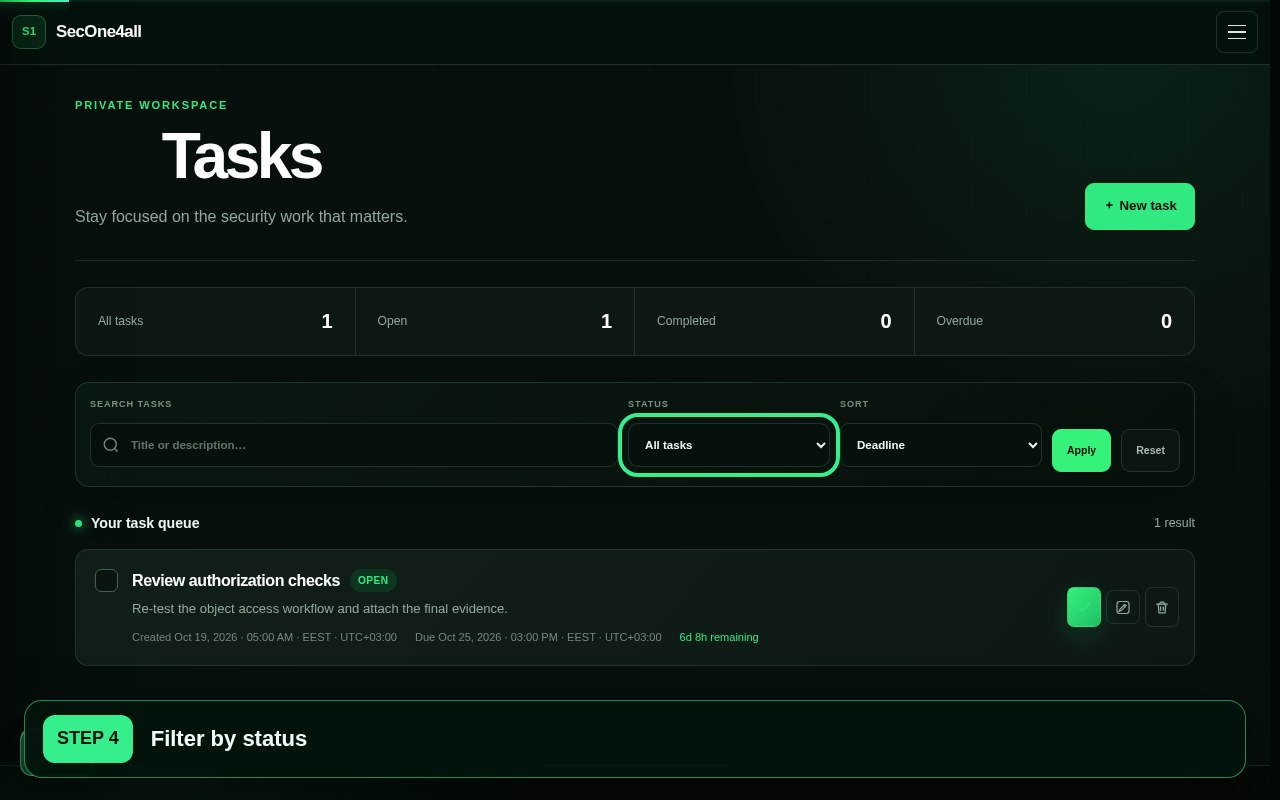
Step 4: Filter by status
Choose the completion state you want to review.
What you will see: Open and completed work can be viewed separately.
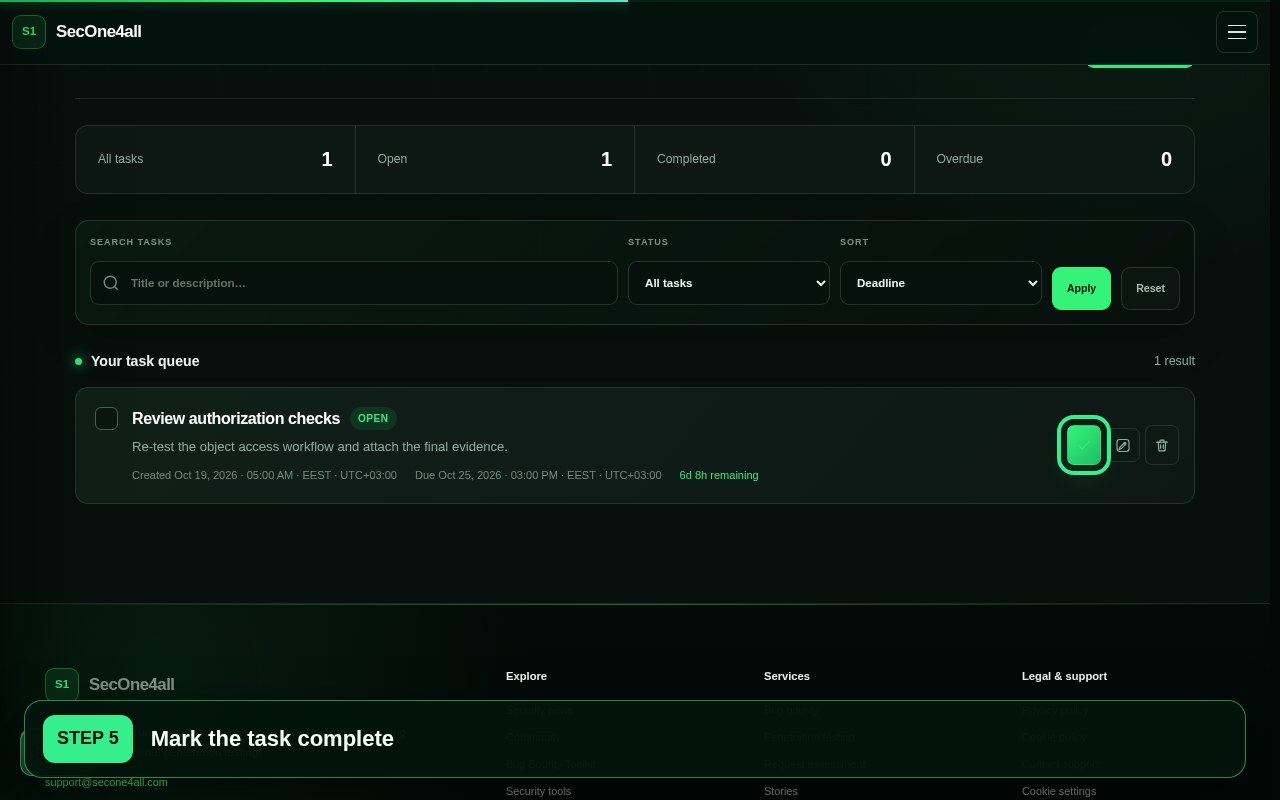
Step 5: Mark the task complete
Use the completion control on the task card when the work is finished.
What you will see: The task moves to its completed state while retaining its details.
Open the feature
Use the button below to open the current SecOne4all interface and follow the same five steps.
Leave a Reply