Messages: Find Conversations and Manage Private Chats

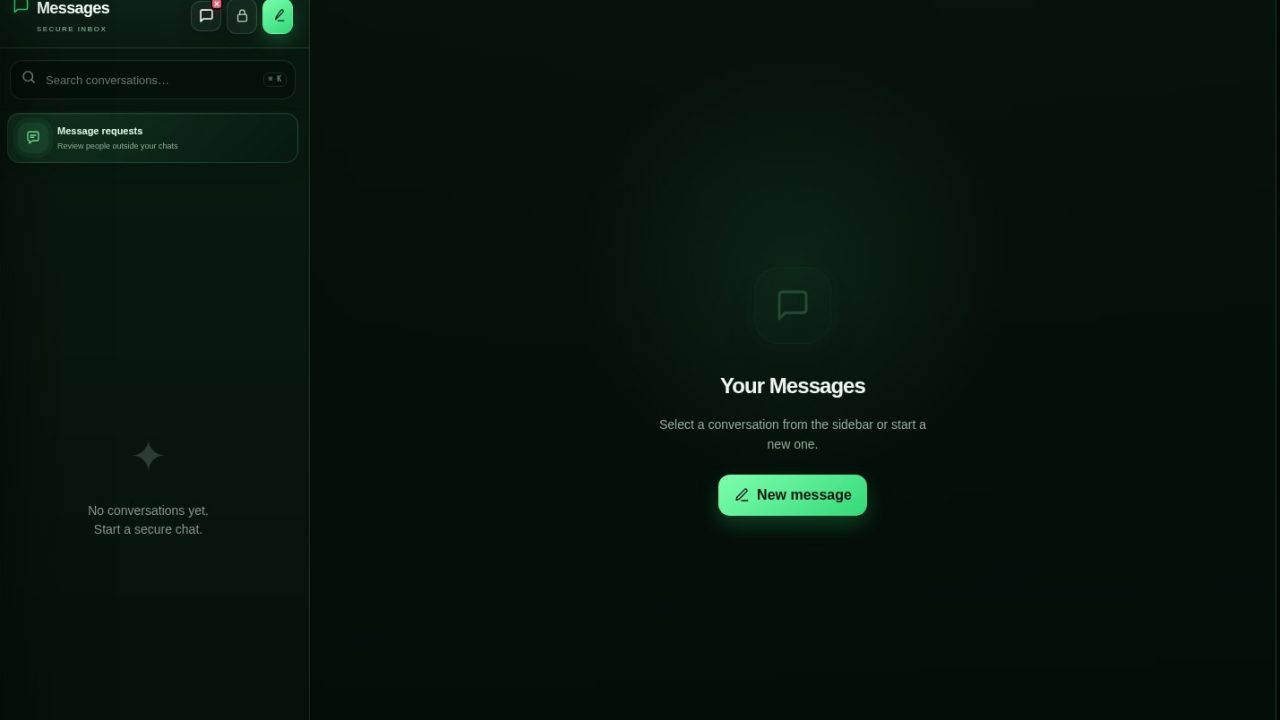
Messages organizes direct conversations, requests, and chat privacy controls. The interface separates conversation discovery from the active thread so navigation remains clear on desktop and mobile.
What this feature does
Messages organizes direct conversations, requests, and chat privacy controls. The interface separates conversation discovery from the active thread so navigation remains clear on desktop and mobile. The walkthrough below follows the current interface in the order shown on screen, and each step includes its own matching image.
Workflow at a glance
- 1.Search conversations
- 2.Open a conversation
- 3.Start a new message
- 4.Review message requests
- 5.Manage chat access
How to use the feature
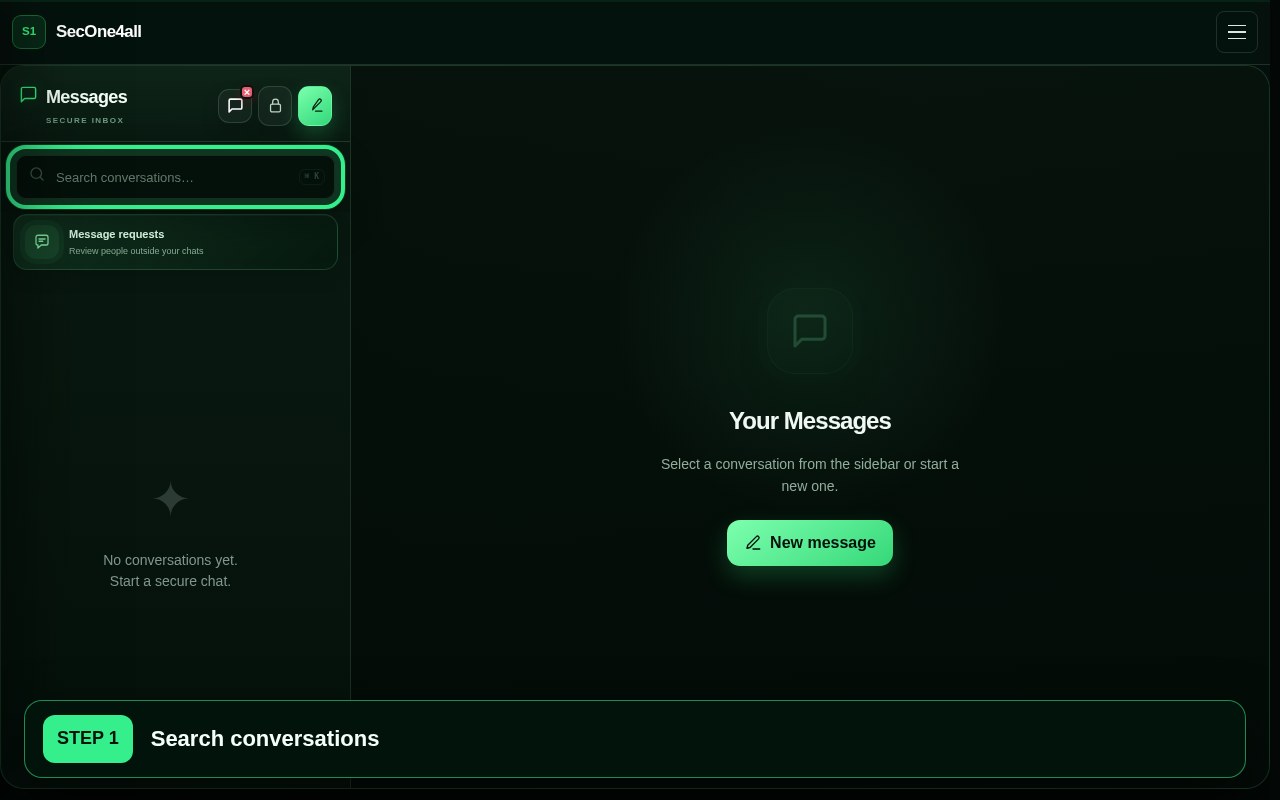
Step 1: Search conversations
Enter a username or conversation phrase in the search field.
What you will see: The conversation list narrows to matching entries.
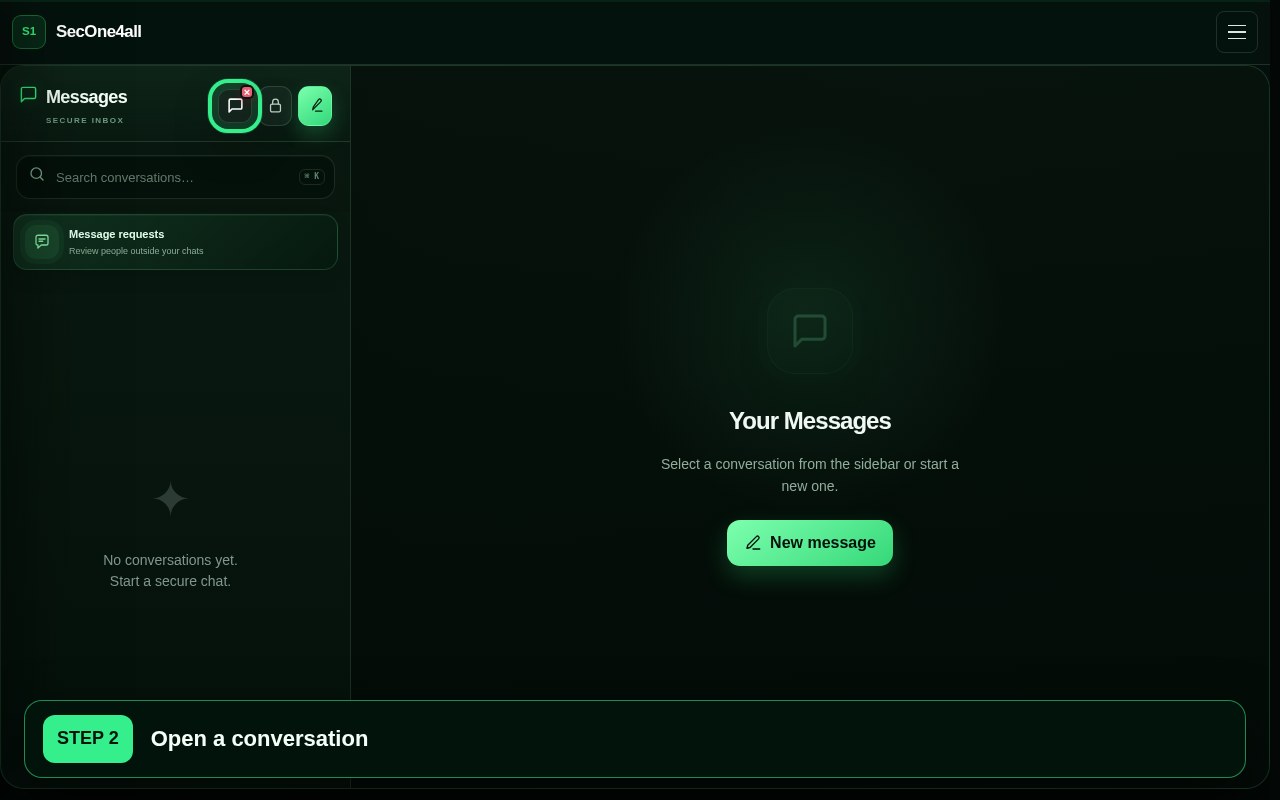
Step 2: Open a conversation
Select a conversation from the list.
What you will see: The active thread opens in the message panel.
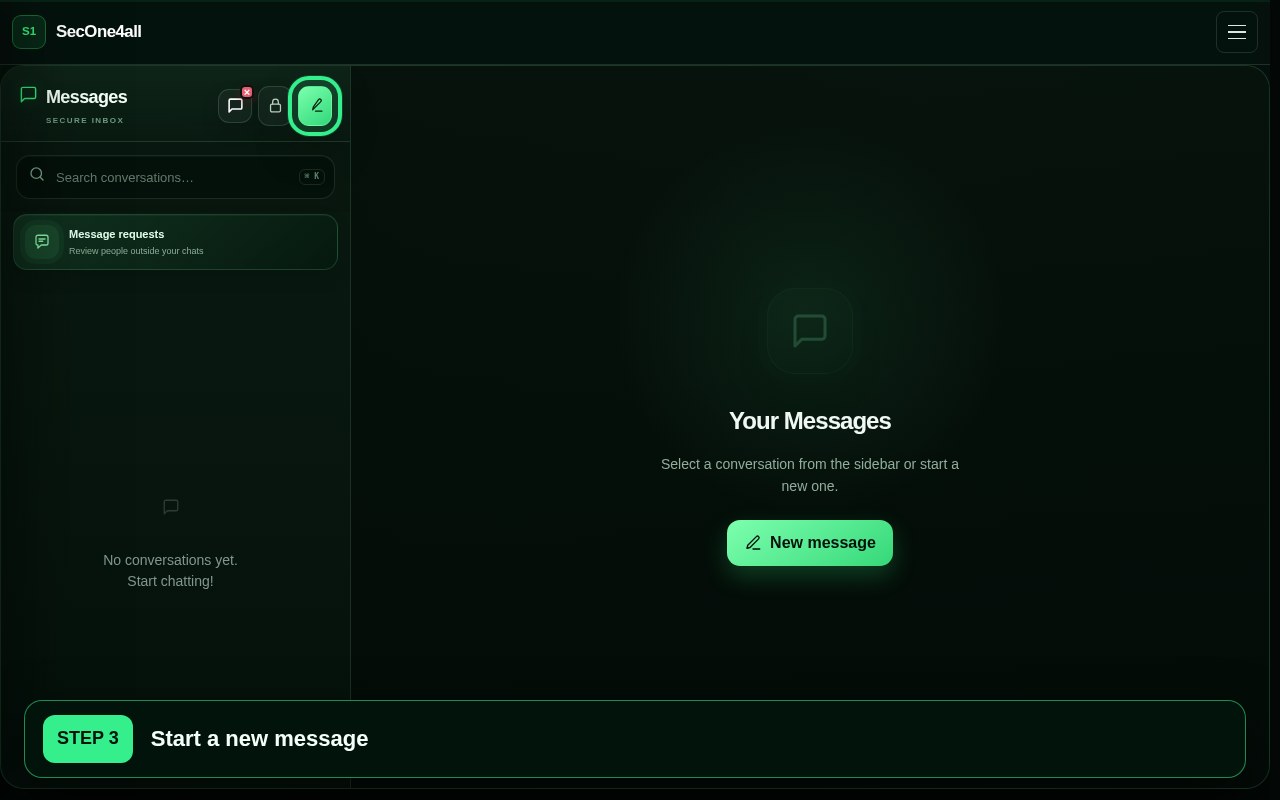
Step 3: Start a new message
Choose New message and select the intended member.
What you will see: A new conversation composer opens for that recipient.
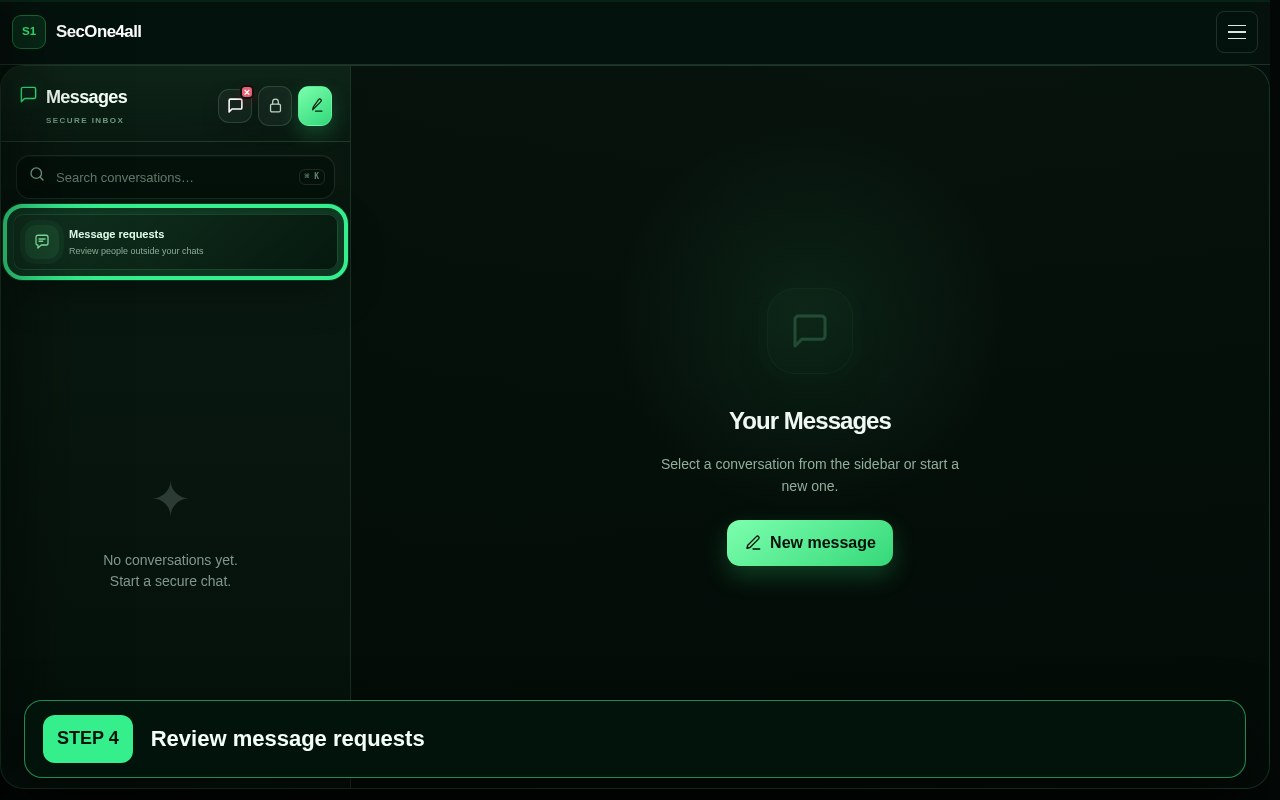
Step 4: Review message requests
Open Message requests to review conversations that require acceptance.
What you will see: Pending requests remain separate from active chats.
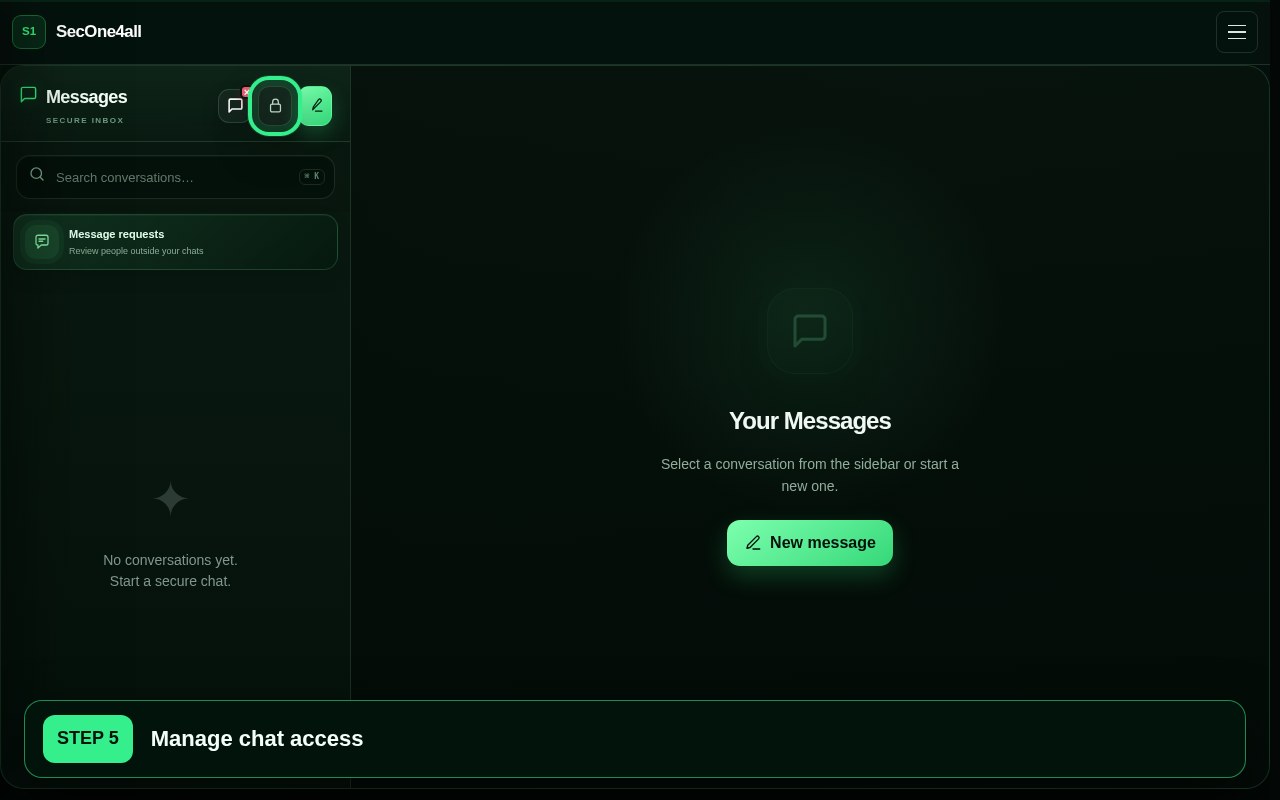
Step 5: Manage chat access
Use Lock all chats when you want the conversation area to require its additional unlock step.
What you will see: The message workspace changes to its locked state.
Open the feature
Use the button below to open the current SecOne4all interface and follow the same five steps.
Leave a Reply