Notifications: Search, Filter, and Open Platform Updates

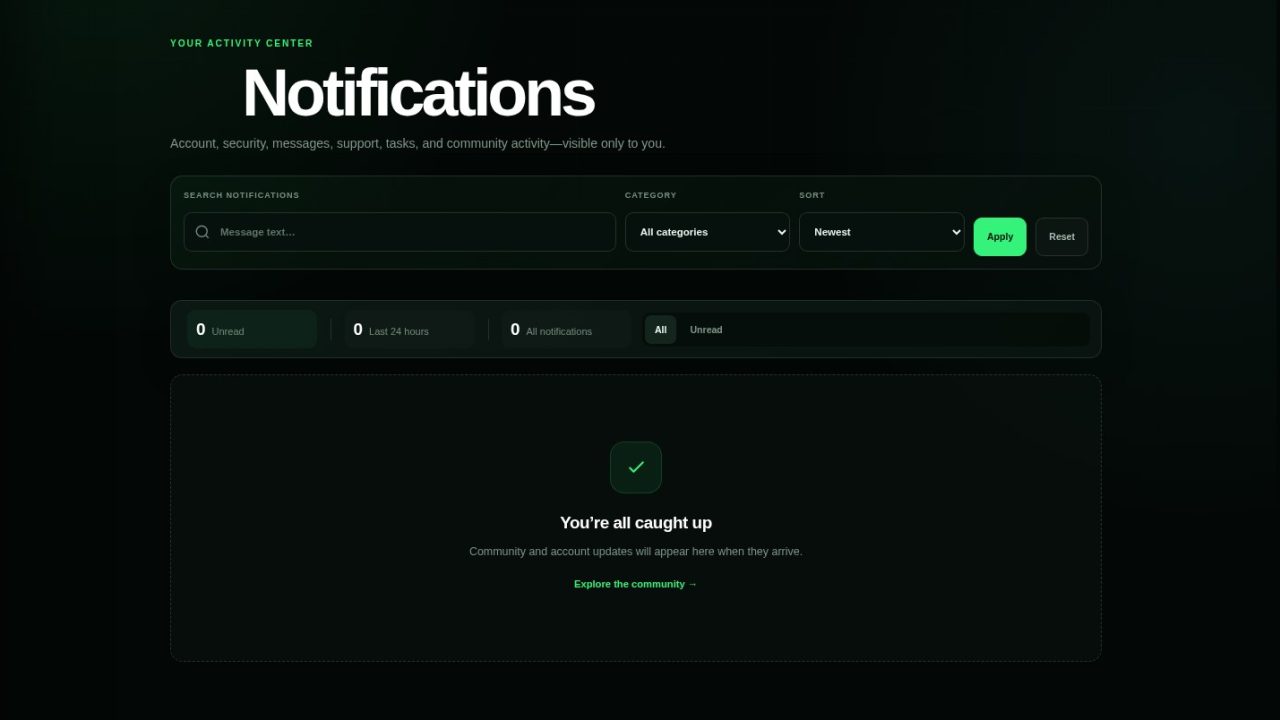
Notifications collects account and platform updates in a searchable list. Category and sorting controls make it possible to focus on one kind of activity before opening its related page.
What this feature does
Notifications collects account and platform updates in a searchable list. Category and sorting controls make it possible to focus on one kind of activity before opening its related page. The walkthrough below follows the current interface in the order shown on screen, and each step includes its own matching image.
Workflow at a glance
- 1.Search notification text
- 2.Choose a category
- 3.Choose the order
- 4.Open a notification action
- 5.Reset the notification view
How to use the feature
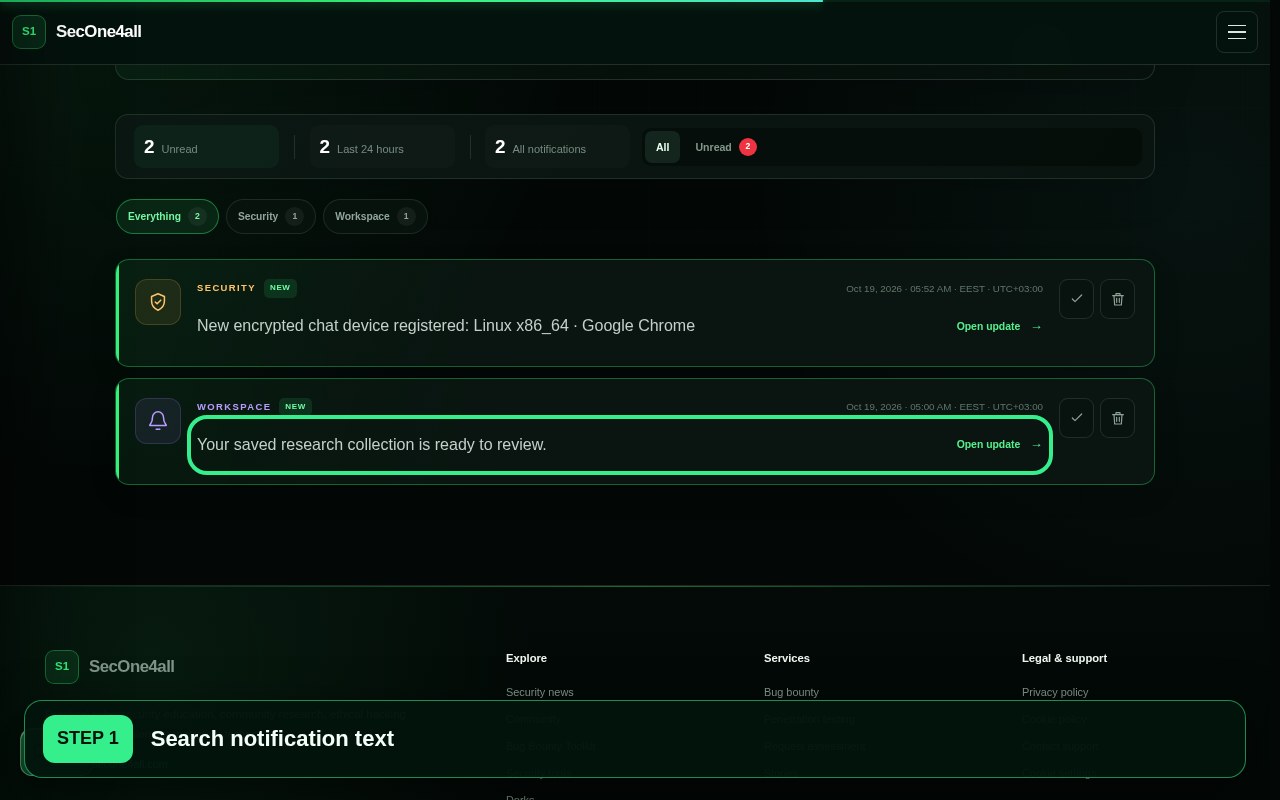
Step 1: Search notification text
Enter a word from the update you want to find.
What you will see: The list narrows to notifications containing that text.
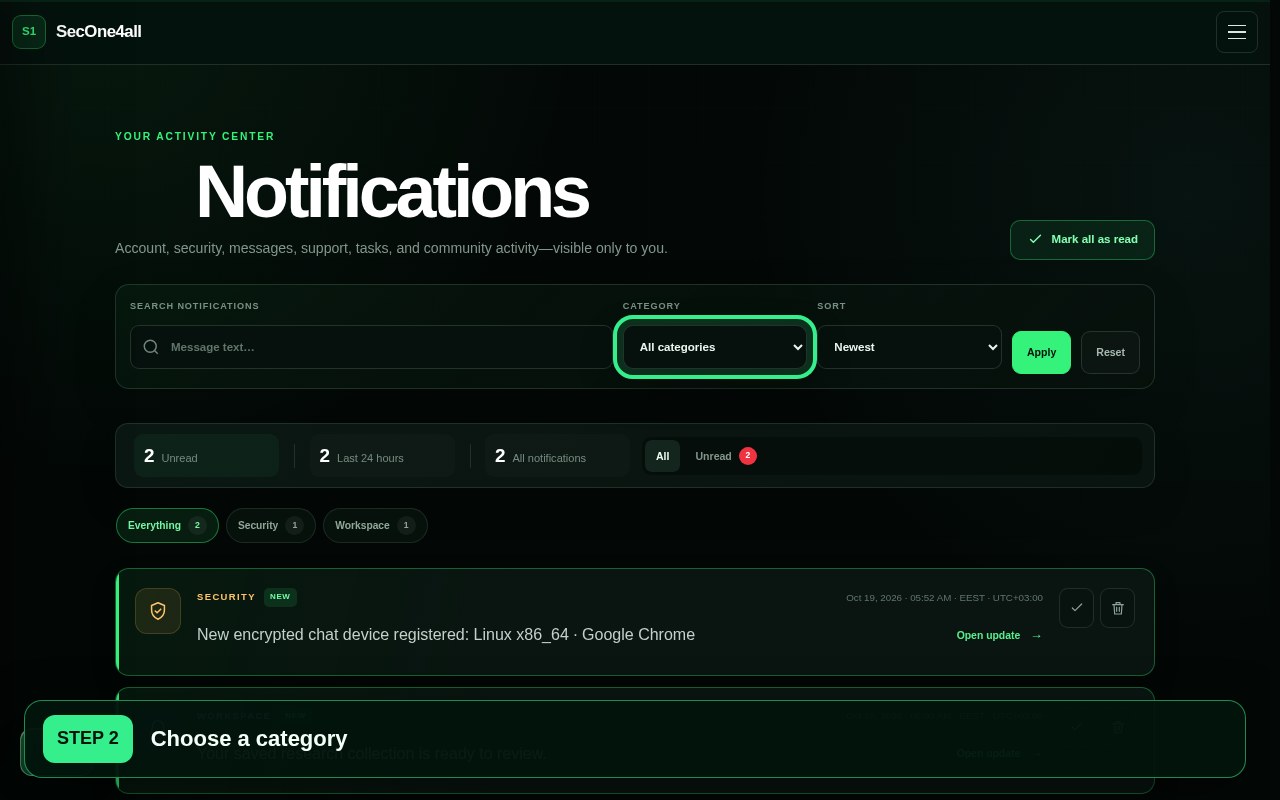
Step 2: Choose a category
Select the notification category relevant to your review.
What you will see: Updates from other categories are excluded.
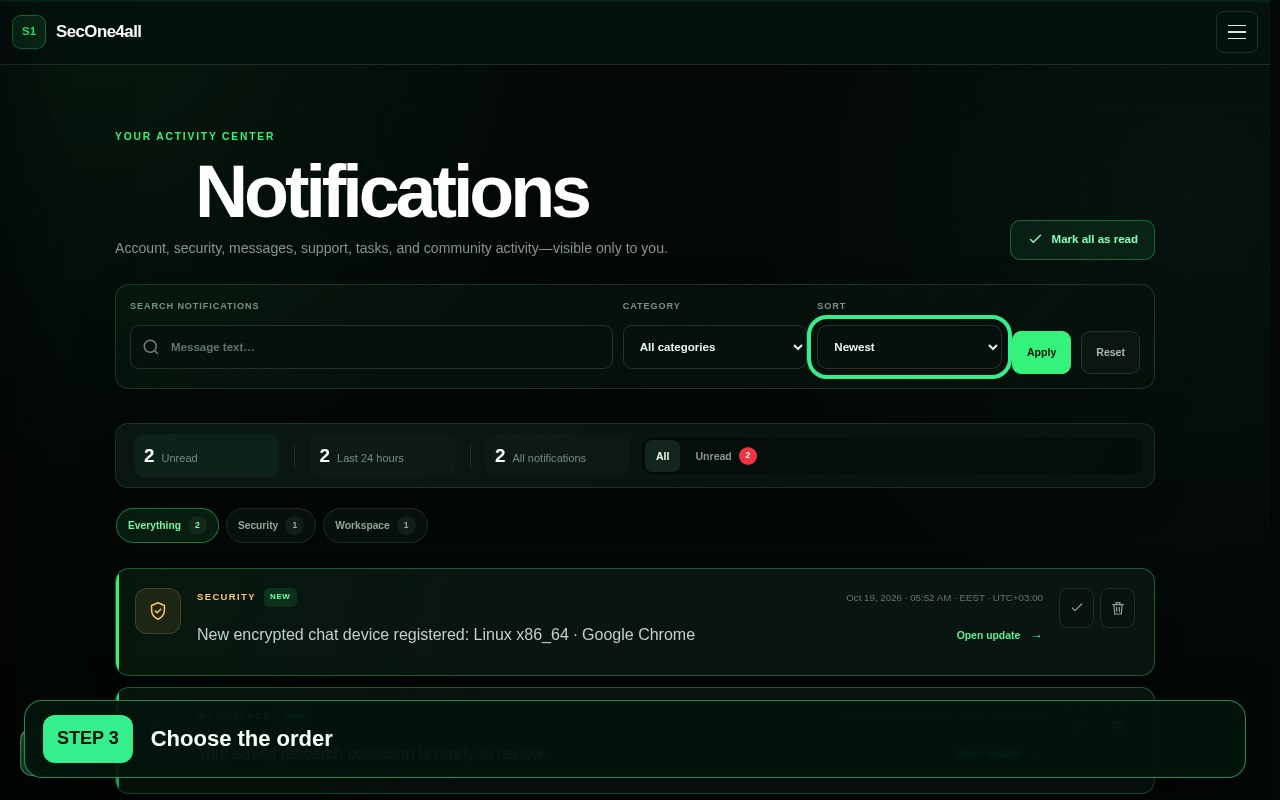
Step 3: Choose the order
Set the order for the matching updates.
What you will see: Recent or older items appear first according to the selected option.
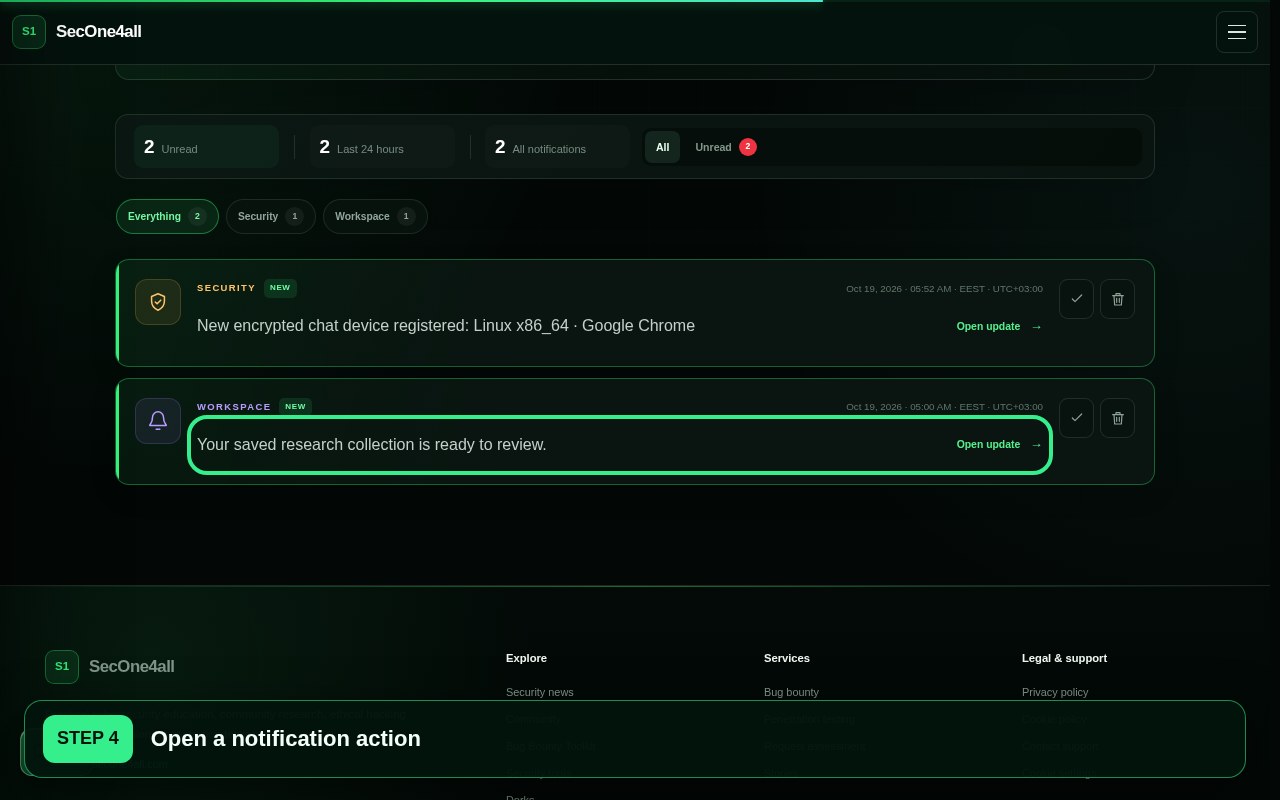
Step 4: Open a notification action
Select the action on the example notification.
What you will see: The related platform page opens from the notification.
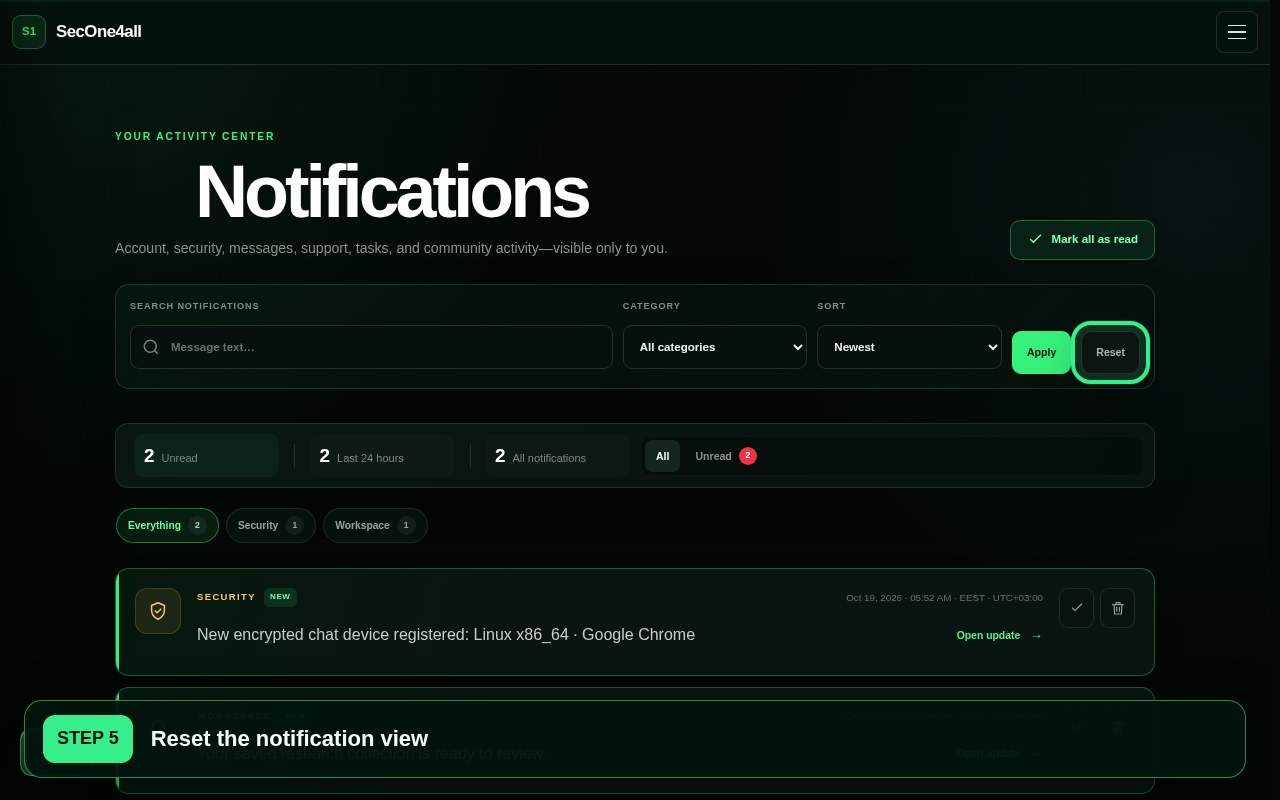
Step 5: Reset the notification view
Use Reset to clear the search, category, and ordering choices.
What you will see: The full notification view returns with no filters applied.
Open the feature
Use the button below to open the current SecOne4all interface and follow the same five steps.
Leave a Reply