SecOne4all: A Complete Getting Started Guide


SecOne4all brings public security research, community publishing, private workspaces, training, and testing utilities into one interface. This guide maps the main navigation to the place where each kind of work begins.
What this feature does
SecOne4all brings public security research, community publishing, private workspaces, training, and testing utilities into one interface. This guide maps the main navigation to the place where each kind of work begins. The walkthrough below follows the current interface in the order shown on screen, and each step includes its own matching image.
Workflow at a glance
- 1.Start from the home dashboard
- 2.Browse public research and community areas
- 3.Open your private workspace
- 4.Use the main navigation shortcuts
- 5.Review the account menu
How to use the feature
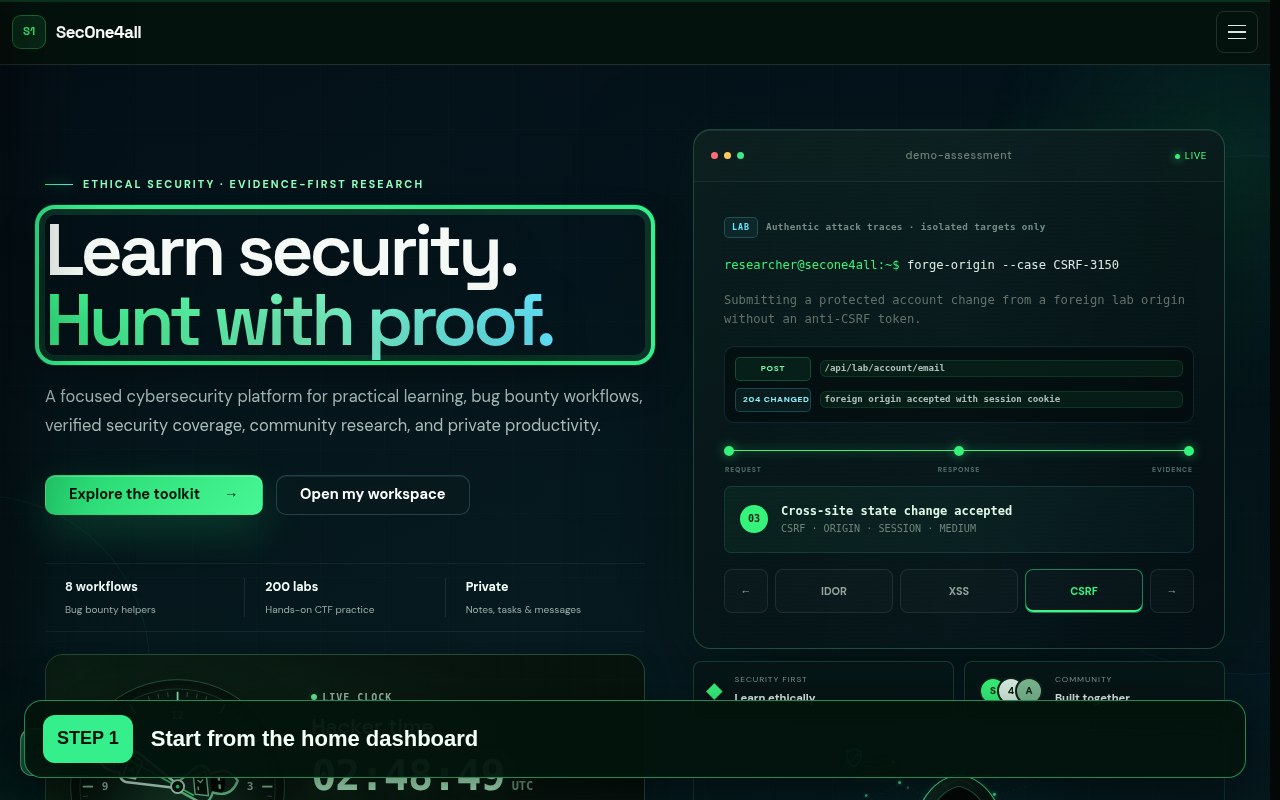
Step 1: Start from the home dashboard
Use the home dashboard as the launch point. The hero area summarizes the public research and workspace paths available to your account.
What you will see: You can choose a destination without opening several menus.
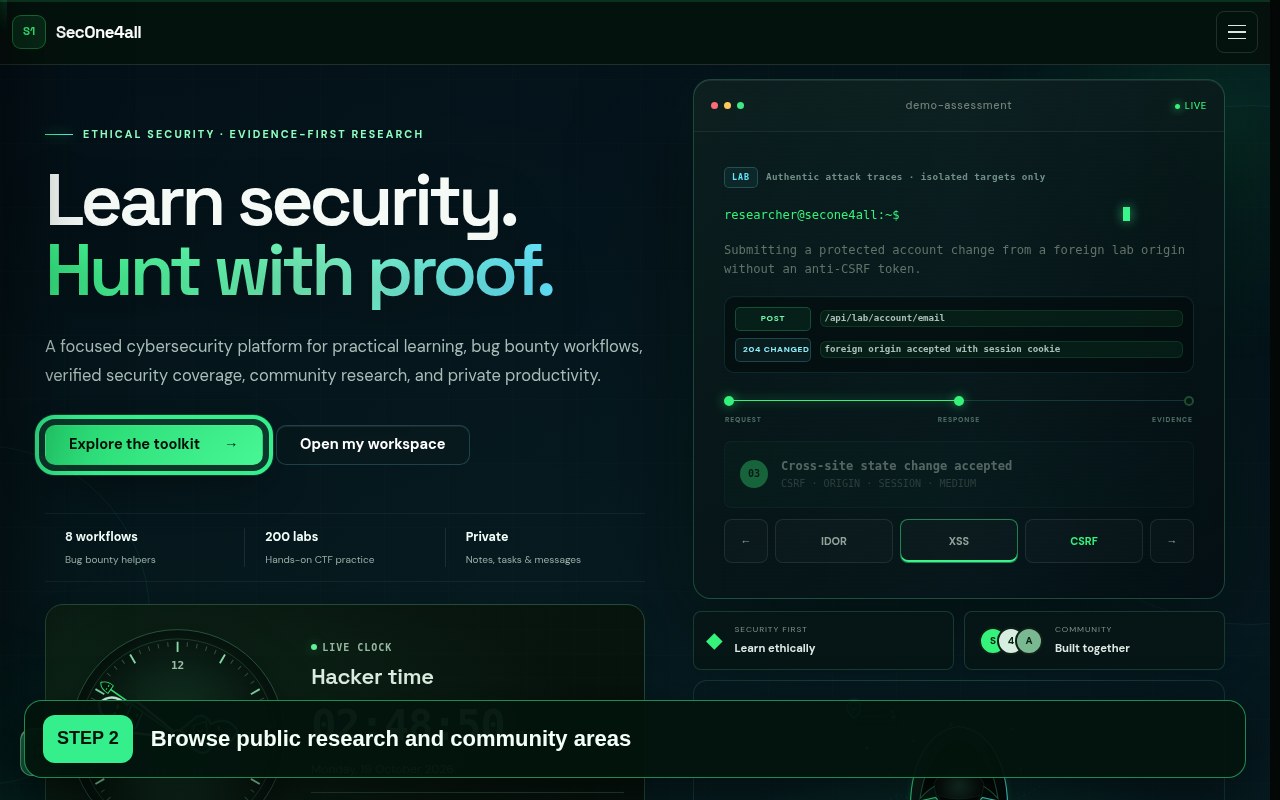
Step 2: Browse public research and community areas
Open Explore to reveal the public sections, including News, Community, Stories, Hacktivity, and the security resources.
What you will see: The menu keeps discovery features grouped separately from private work.
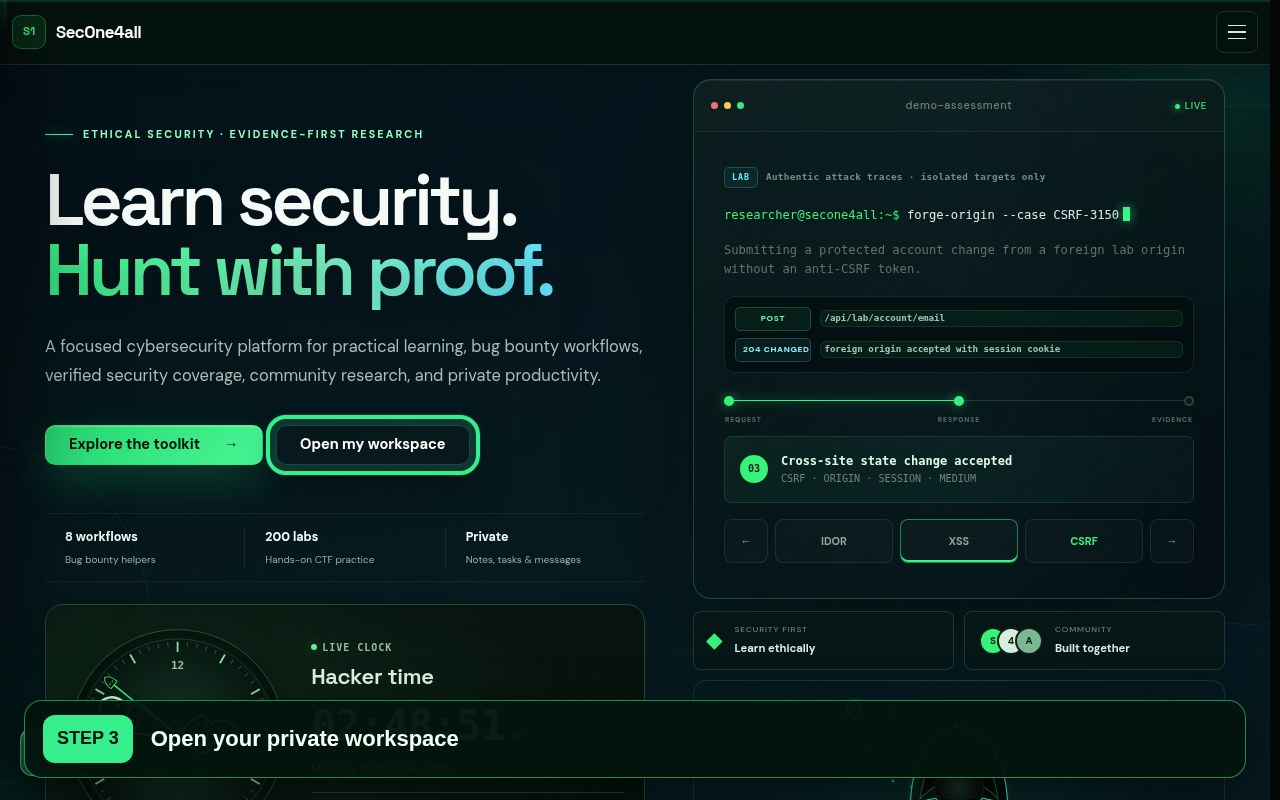
Step 3: Open your private workspace
Open Workspace when you want Notes, Tasks, Messages, Notifications, or account utilities.
What you will see: The workspace menu takes you directly to the signed-in tools tied to your account.
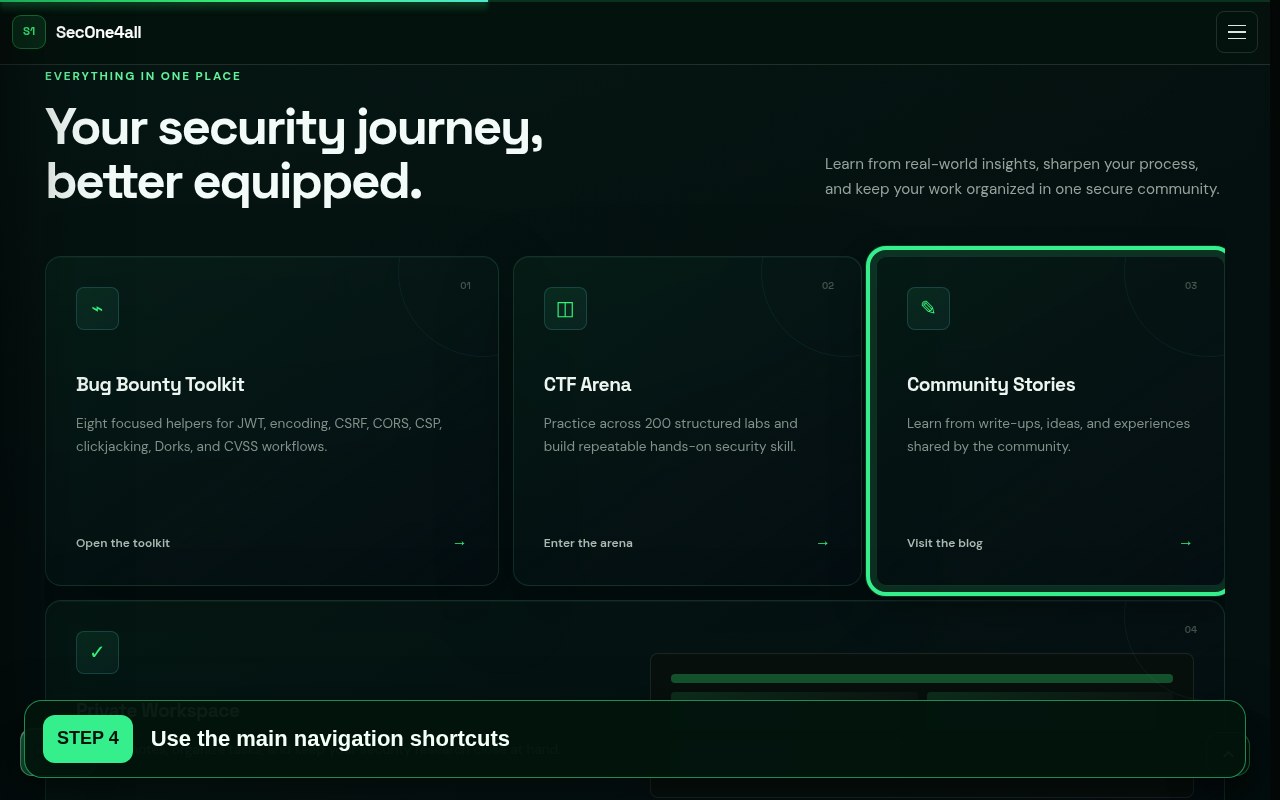
Step 4: Use the main navigation shortcuts
Choose a primary navigation item such as Community to move directly to that feature.
What you will see: The selected section is highlighted so you always know where you are.
Step 5: Review the account menu
Open the account menu from your avatar to reach profile settings and sign-in controls.
What you will see: Your identity, privacy, and account preferences stay together in one place.
Open the feature
Use the button below to open the current SecOne4all interface and follow the same five steps.
Leave a Reply