CSP Analyzer: Fetch, Inspect, Simulate, and Compare Policies

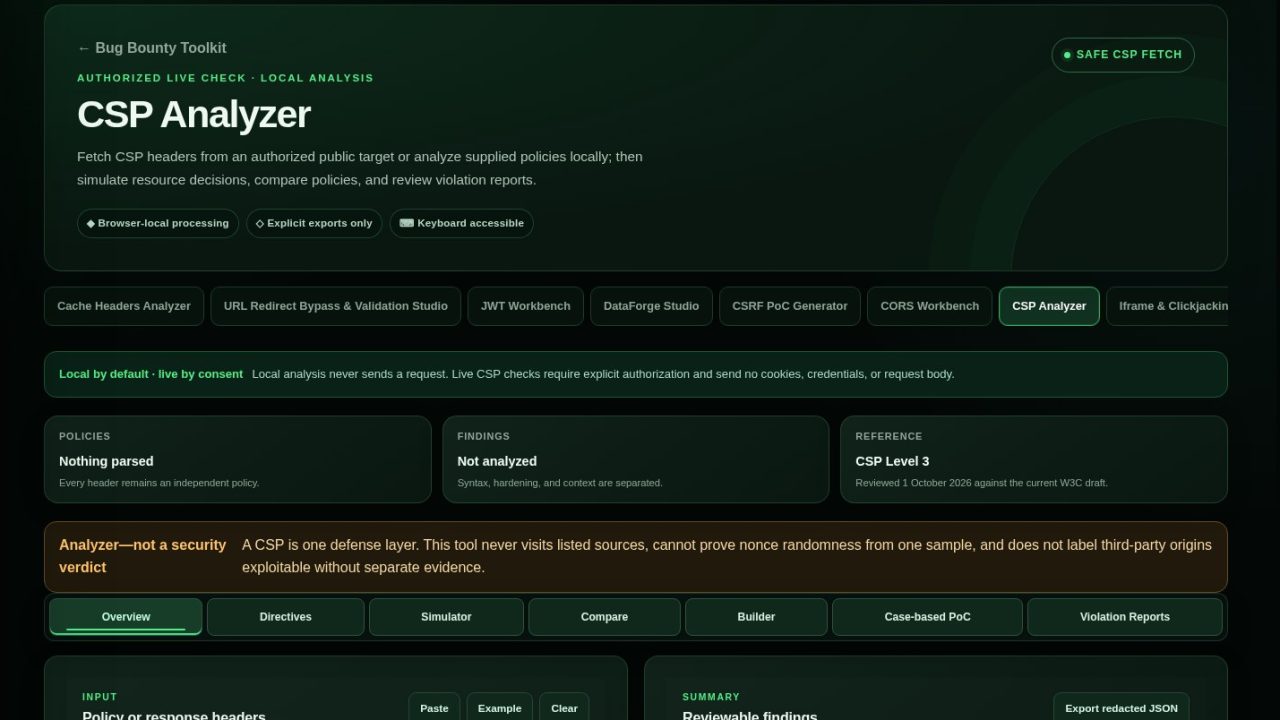
CSP Analyzer can accept header text directly or fetch policy headers from a document URL. It separates directive review, simulation, comparison, policy building, validation candidates, and violation reports into dedicated tabs.
What this feature does
CSP Analyzer can accept header text directly or fetch policy headers from a document URL. It separates directive review, simulation, comparison, policy building, validation candidates, and violation reports into dedicated tabs. The walkthrough below follows the current interface in the order shown on screen, and each step includes its own matching image.
Workflow at a glance
- 1.Enter a document or policy
- 2.Fetch the live policy
- 3.Review effective directives
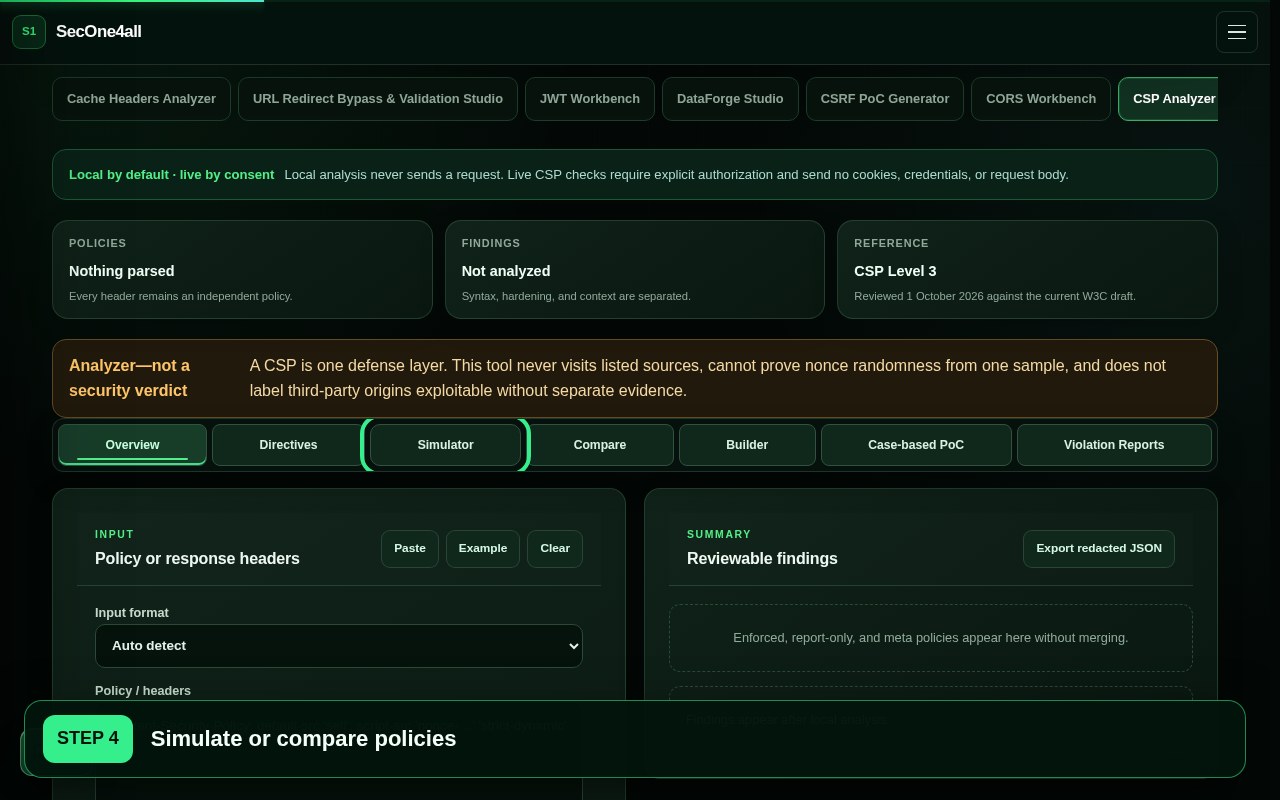
- 4.Simulate or compare policies
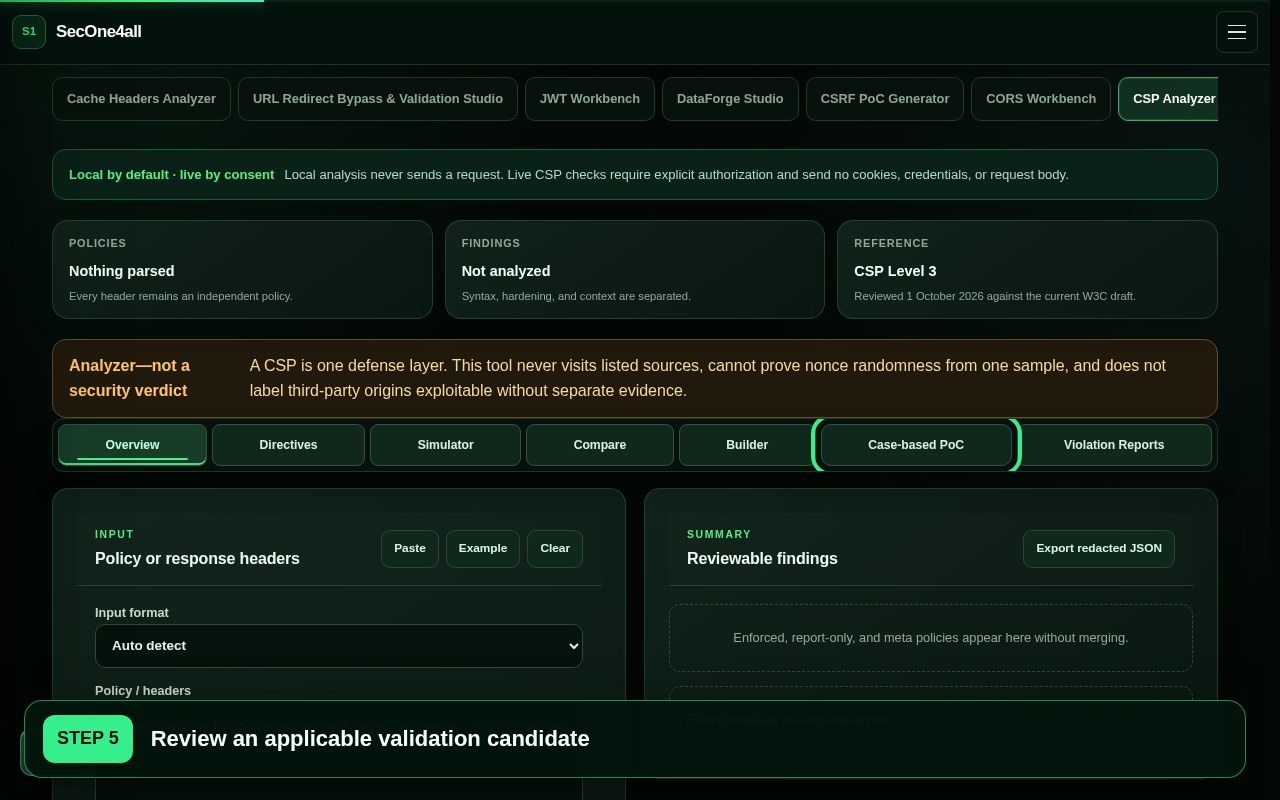
- 5.Review an applicable validation candidate
How to use the feature
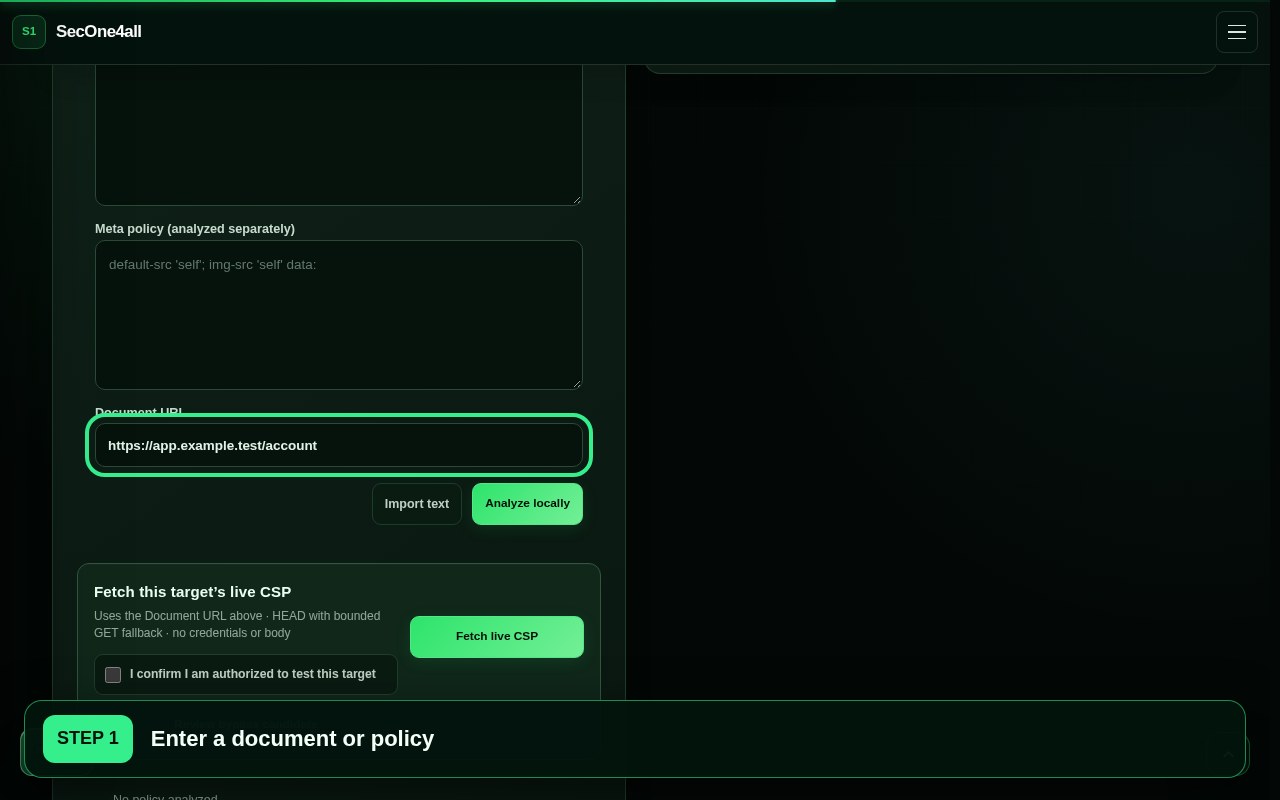
Step 1: Enter a document or policy
Enter the document URL for a live fetch, or paste the CSP headers into the policy input.
What you will see: The analyzer has the source needed for the selected workflow.
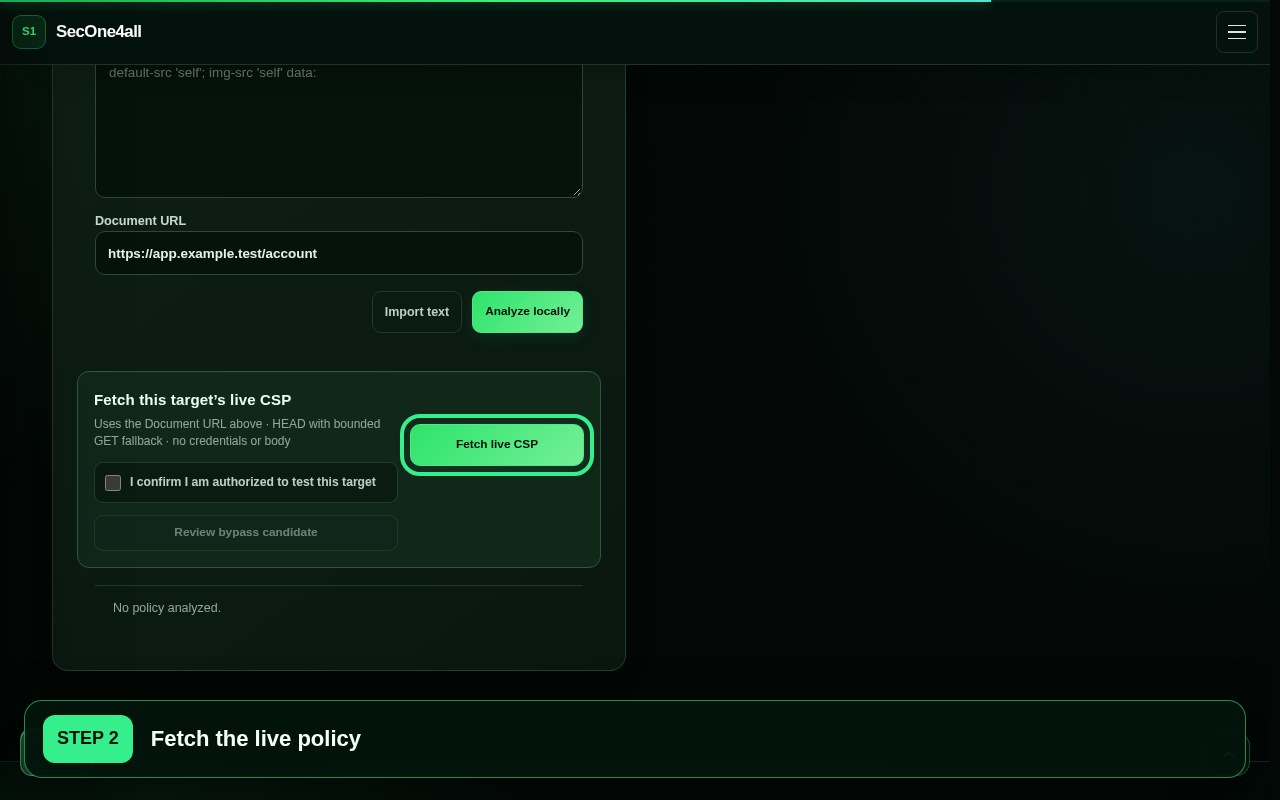
Step 2: Fetch the live policy
Confirm the live-test control and press Fetch live CSP.
What you will see: The response headers are collected; when HEAD omits CSP, the tool uses its bounded GET fallback to retrieve the actual policy header.
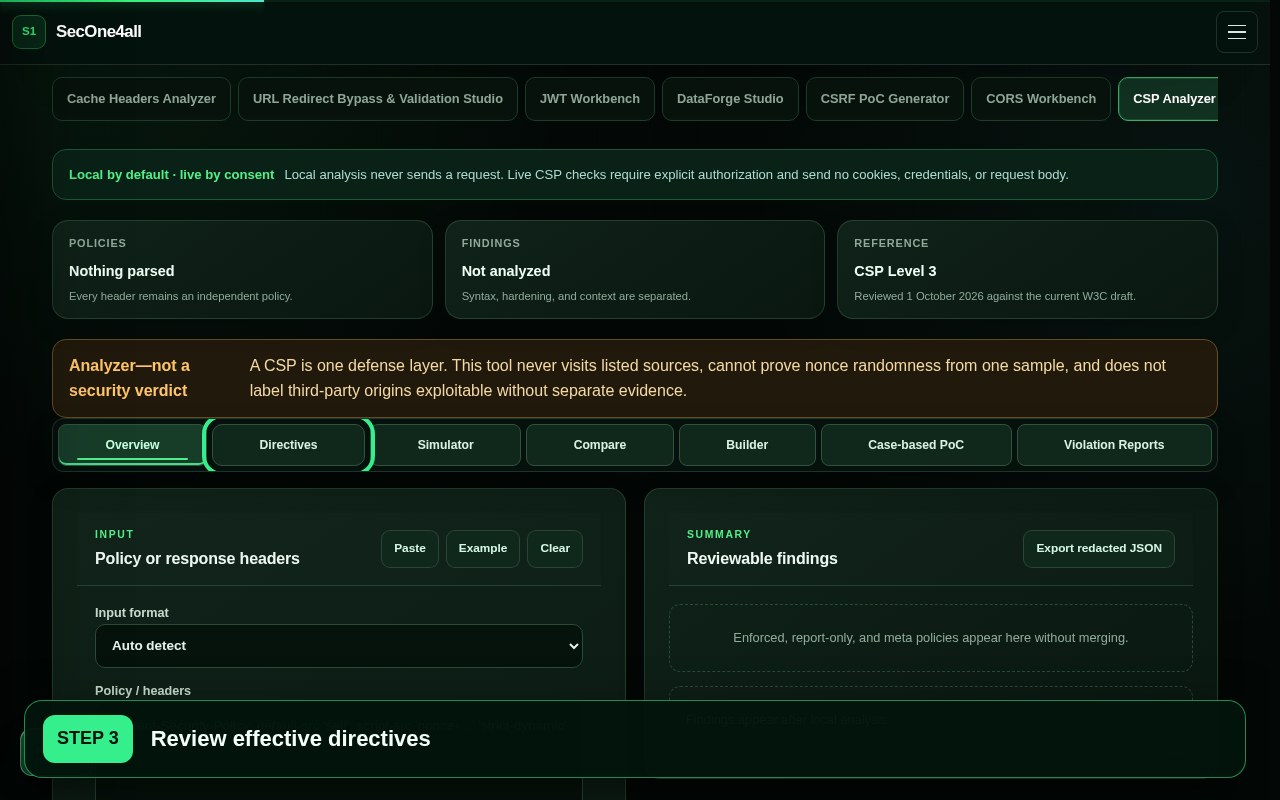
Step 3: Review effective directives
Open Directives to see each directive and the fallback that governs an omitted resource type.
What you will see: The policy is translated into the rules the browser will actually apply.
Step 4: Simulate or compare policies
Use Simulator to test a resource decision, or Compare to inspect differences between two policies.
What you will see: The result identifies the directive and source expression responsible for the decision.
Step 5: Review an applicable validation candidate
Open Case-based PoC after analysis and review only the candidates supported by every enforced policy.
What you will see: The page lists the prerequisite, evidence, and inert validation marker for each applicable case.
Open the feature
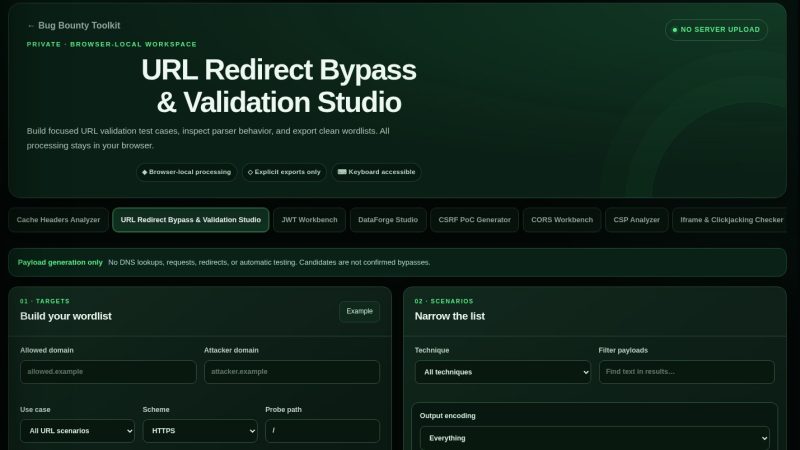
Use the button below to open the current SecOne4all interface and follow the same five steps.
Leave a Reply