JWT Workbench: Inspect, Compare, Verify, and Test Tokens

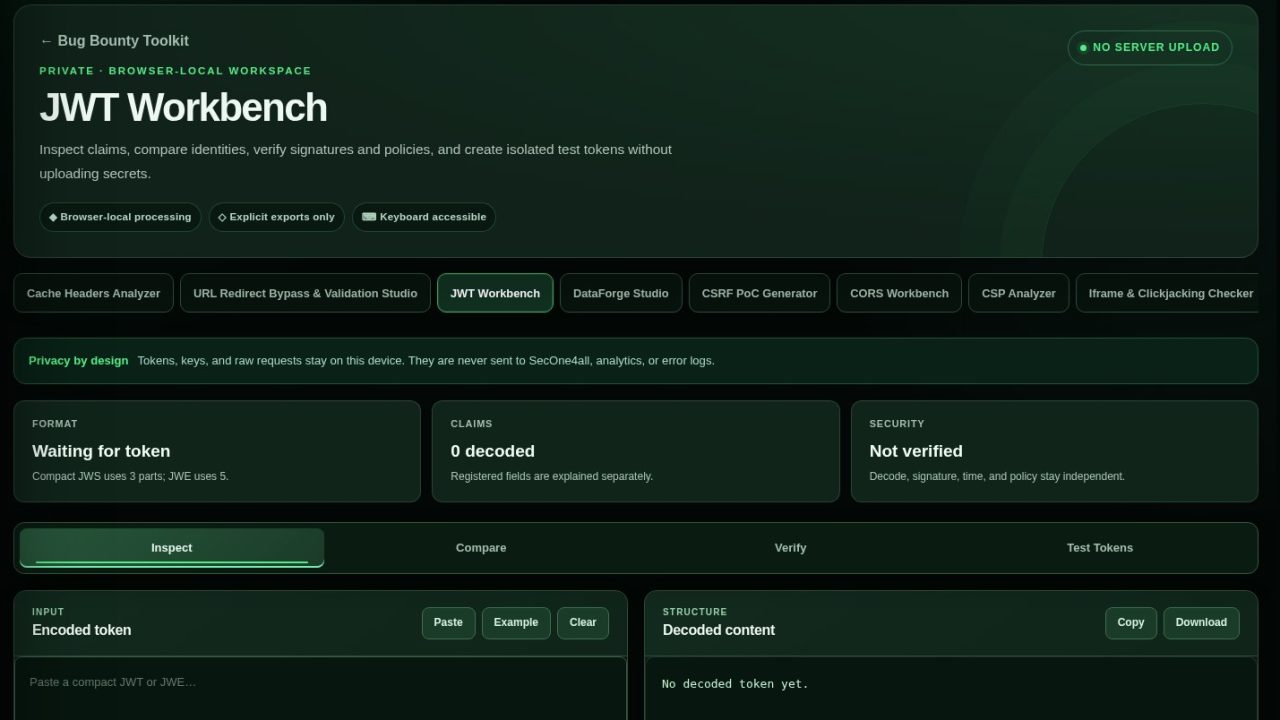
JWT Workbench separates token decoding from comparison and verification. Its tabs keep claims, lifetime checks, and test-token utilities in one screen.
What this feature does
JWT Workbench separates token decoding from comparison and verification. Its tabs keep claims, lifetime checks, and test-token utilities in one screen. The walkthrough below follows the current interface in the order shown on screen, and each step includes its own matching image.
Workflow at a glance
- 1.Paste or load a token
- 2.Inspect the decoded token
- 3.Review claims and lifetime
- 4.Compare or verify behavior
- 5.Copy or download the result
How to use the feature
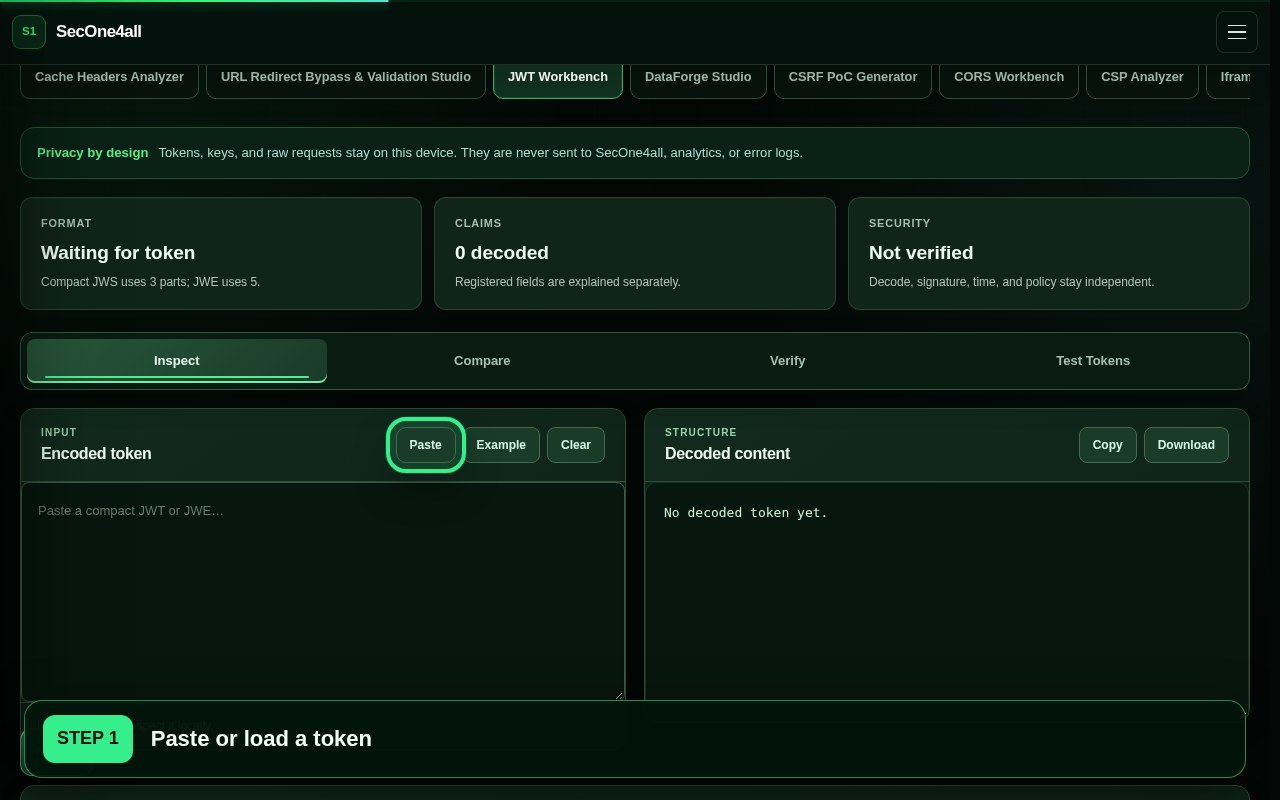
Step 1: Paste or load a token
Use Paste, Example, or the token input to load a JWT.
What you will see: The encoded token becomes the active workbench input.
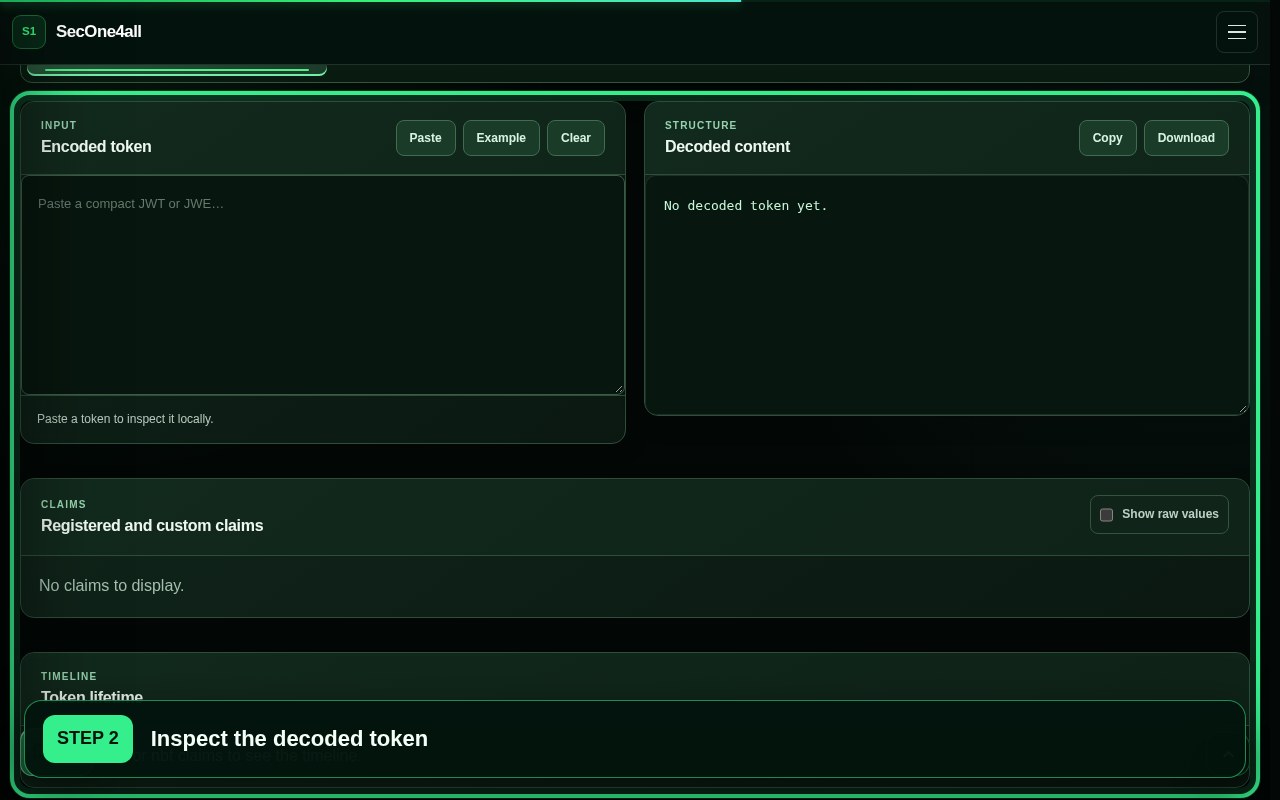
Step 2: Inspect the decoded token
Open Inspect to view the decoded header, payload, and claim summary.
What you will see: The token structure is presented without altering the original input.
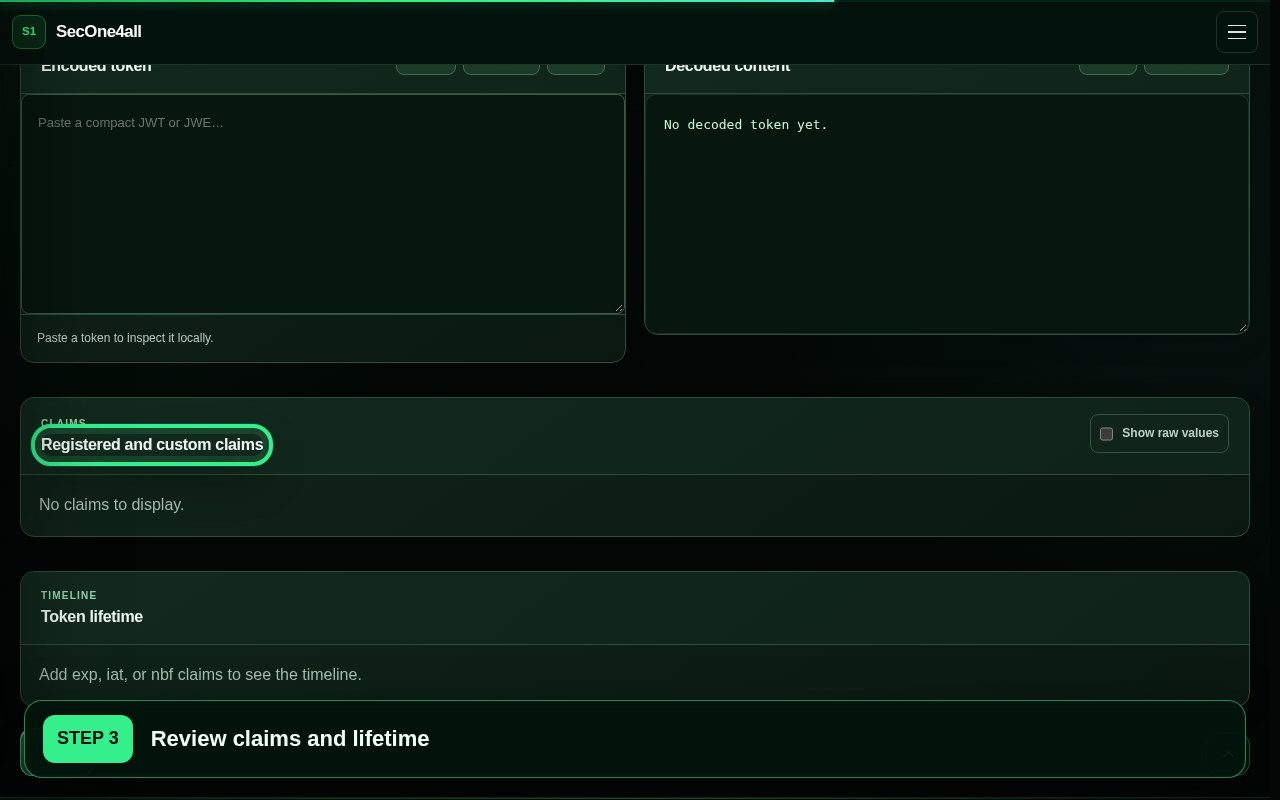
Step 3: Review claims and lifetime
Read Claims and Lifetime to understand identity fields and time-based validity.
What you will see: The workbench highlights the interpreted claim values and timestamps.
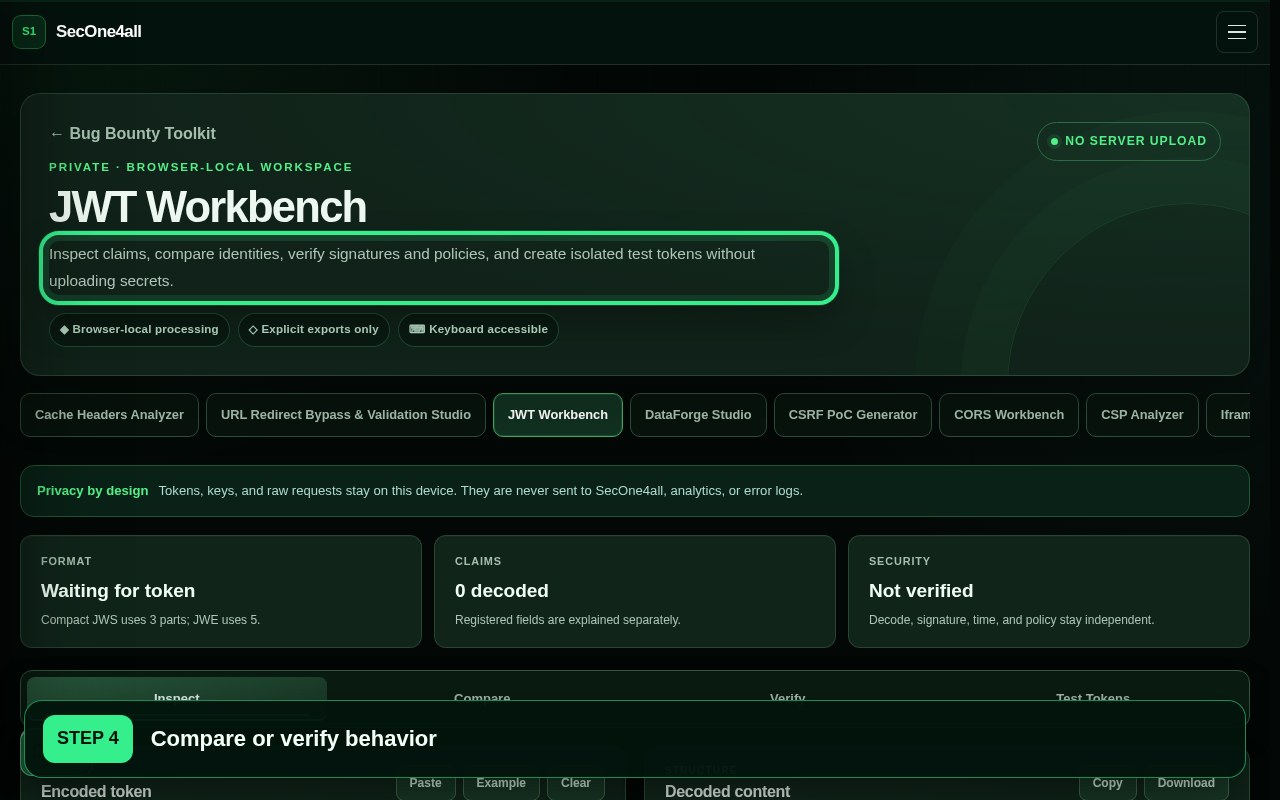
Step 4: Compare or verify behavior
Use Compare for side-by-side tokens, or Verify when verification material is available.
What you will see: The result shows the structural or verification difference in the selected mode.
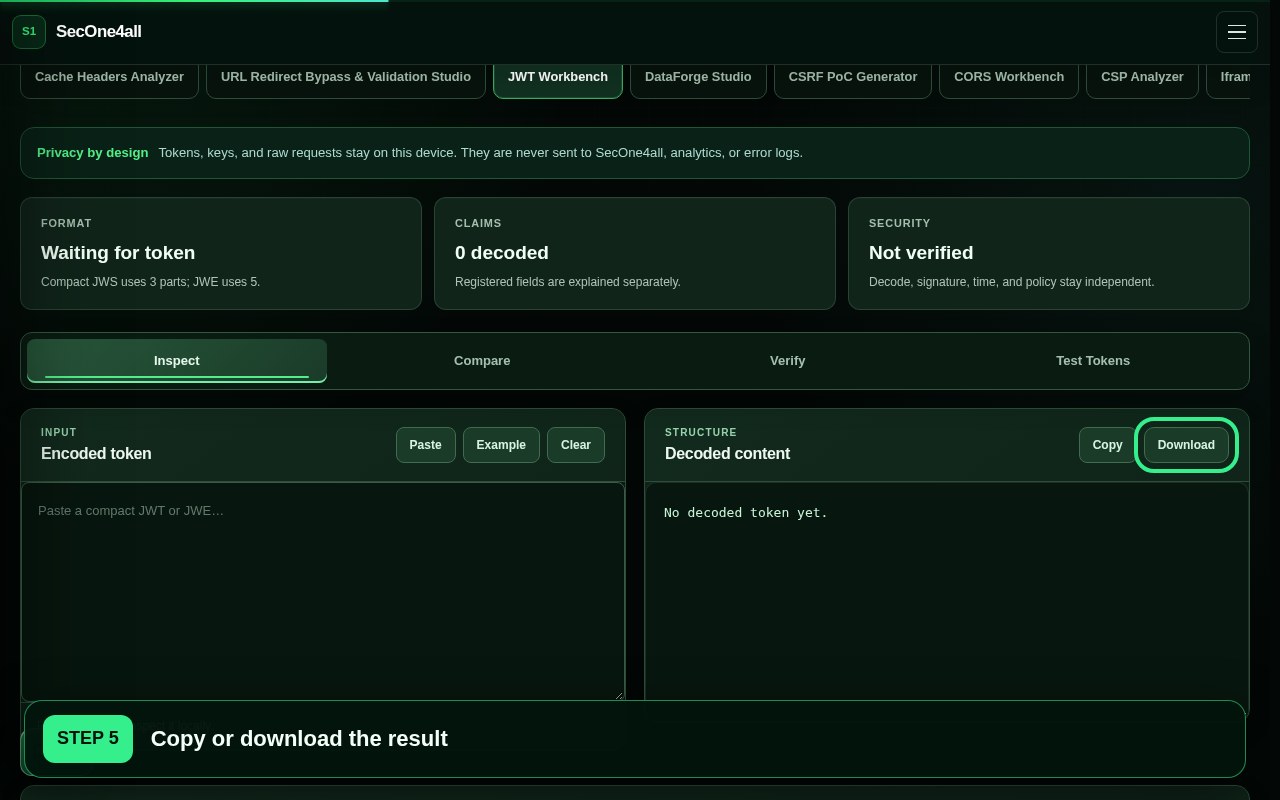
Step 5: Copy or download the result
Use Copy or Download to take the displayed artifact out of the workbench.
What you will see: The selected token or result is exported in the supported format.
Open the feature
Use the button below to open the current SecOne4all interface and follow the same five steps.

Leave a Reply