Dorks Helper: Build Queries for a Saved Scope

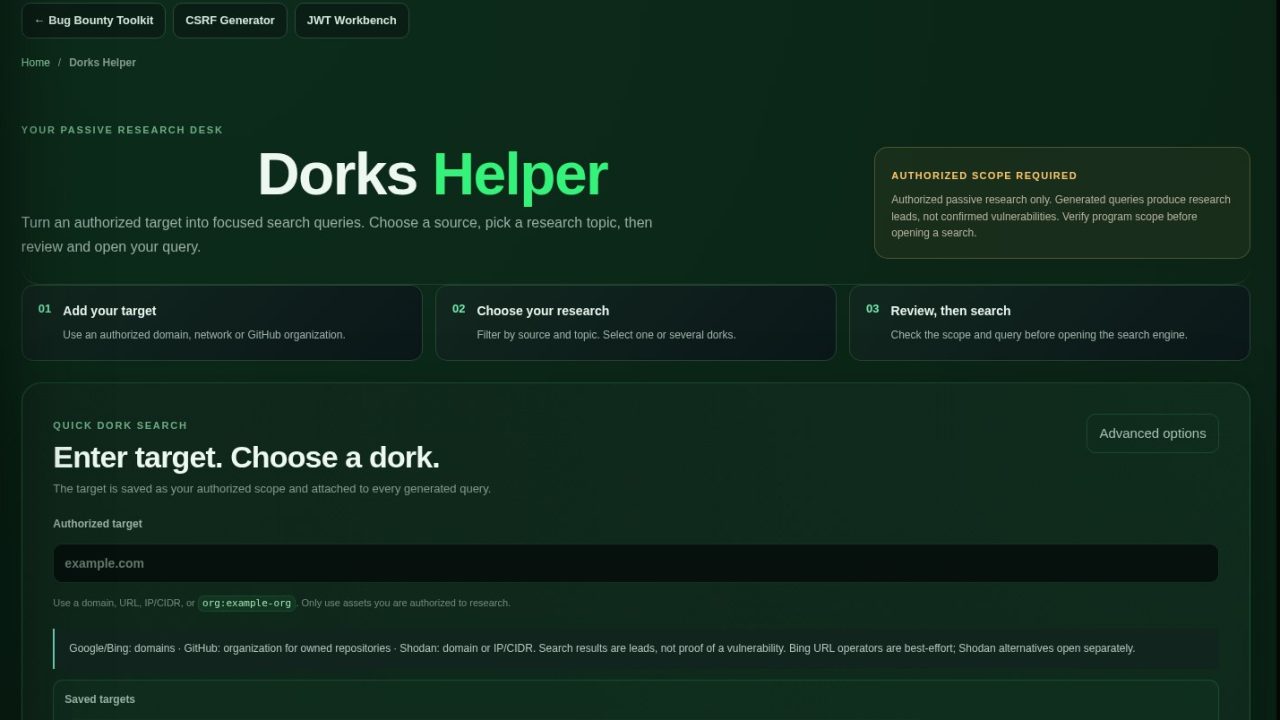
Dorks Helper combines a saved target with curated query templates for Google, Bing, GitHub, and Shodan. Search, category, and sorting controls make a large query library manageable.
What this feature does
Dorks Helper combines a saved target with curated query templates for Google, Bing, GitHub, and Shodan. Search, category, and sorting controls make a large query library manageable. The walkthrough below follows the current interface in the order shown on screen, and each step includes its own matching image.
Workflow at a glance
- 1.Set the target
- 2.Choose a provider
- 3.Search the template library
- 4.Filter and sort templates
- 5.Build and save a query
How to use the feature
Step 1: Set the target
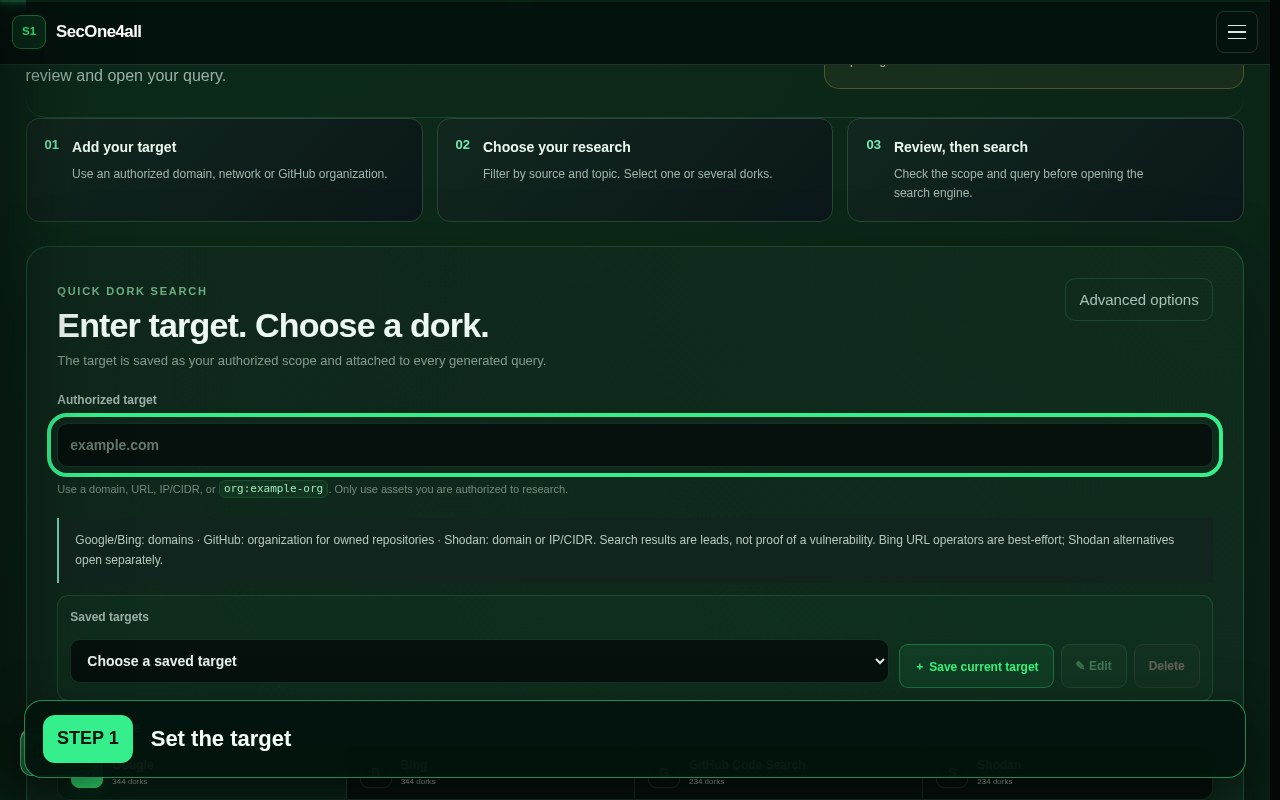
Enter or select the domain stored as the current target.
What you will see: Generated queries use that scope value in their placeholders.
Step 2: Choose a provider
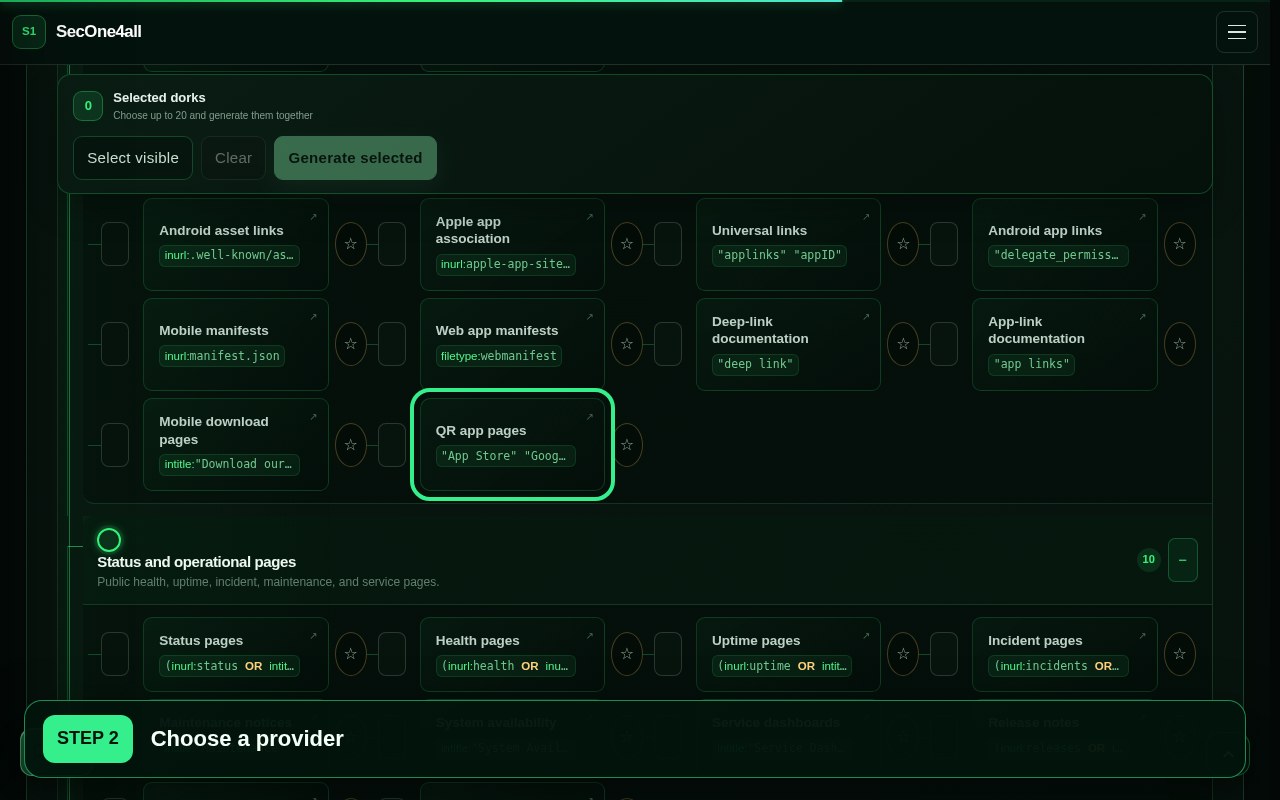
Open Google, Bing, GitHub, or Shodan according to the index you want to query.
What you will see: The template list changes to the selected provider.
Step 3: Search the template library
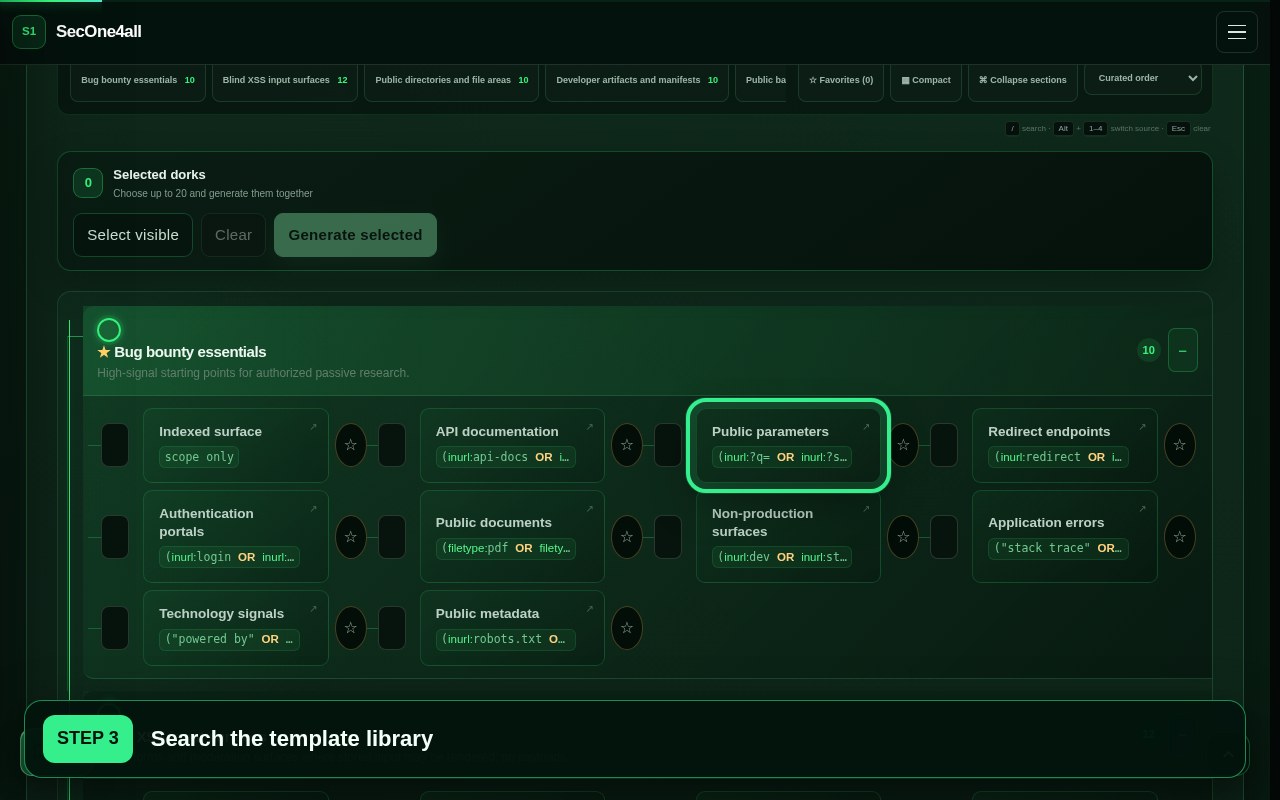
Search by file type, path, keyword, or query purpose.
What you will see: Only matching templates remain visible.
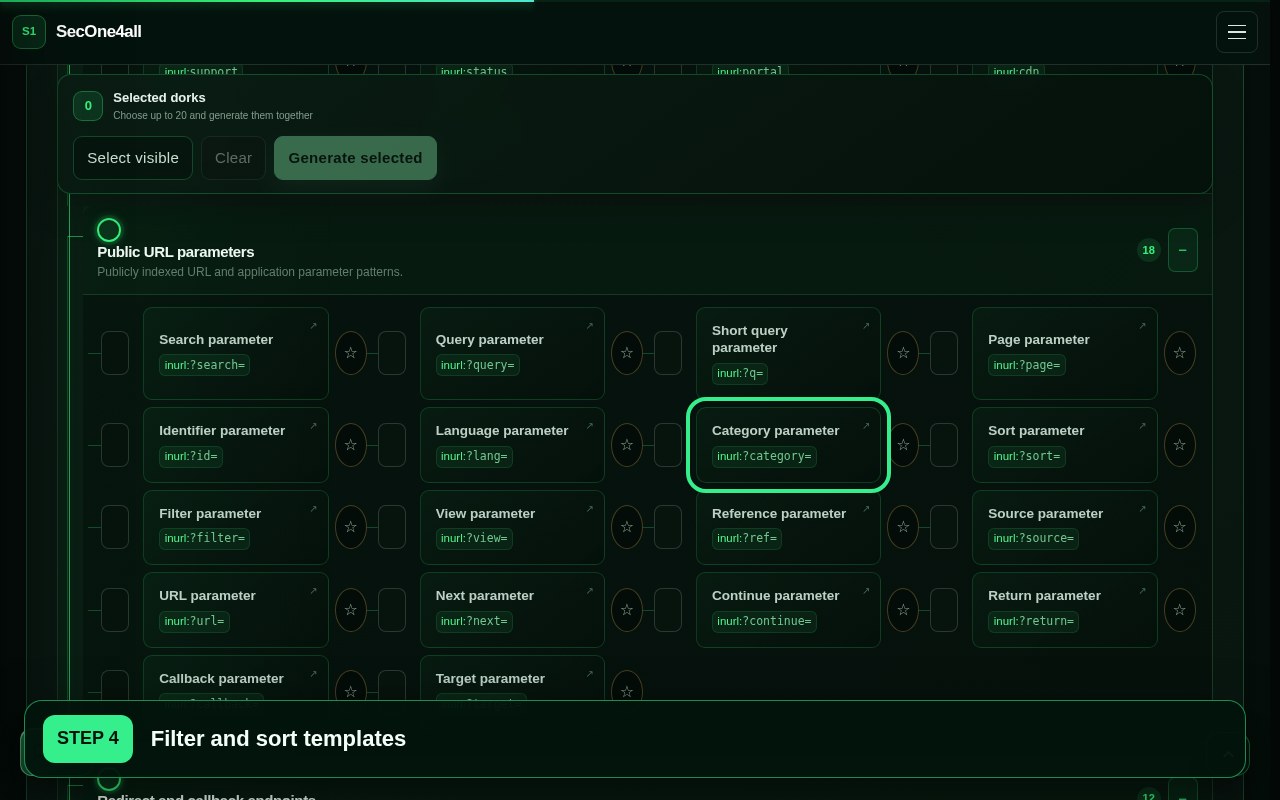
Step 4: Filter and sort templates
Choose the category and sort order that fit the investigation.
What you will see: The query list becomes easier to scan.
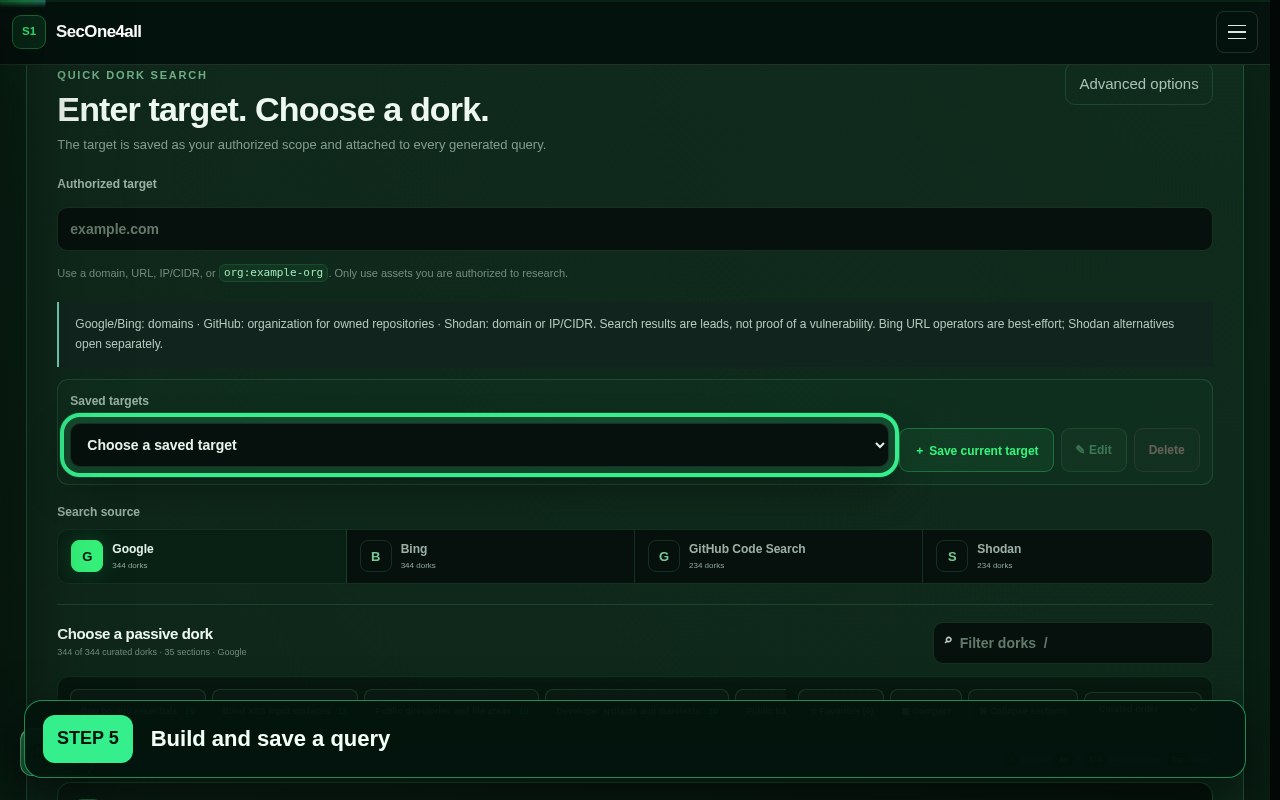
Step 5: Build and save a query
Open a template, confirm the substituted target, and save the useful query or scope profile.
What you will see: The completed query and target can be reopened from the helper.
Open the feature
Use the button below to open the current SecOne4all interface and follow the same five steps.
Leave a Reply