Hacktivity Library: Find and Organize Public Reports

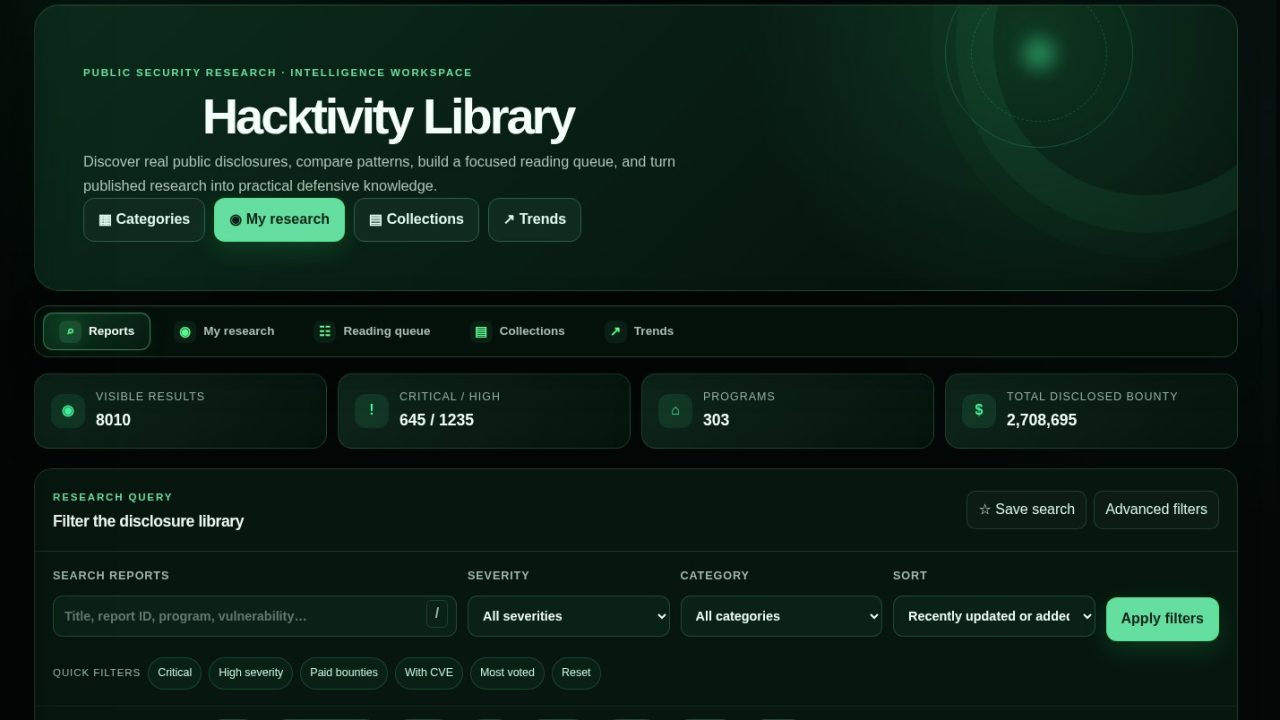
The Hacktivity Library turns public disclosures into a searchable research catalog. It supports detailed filtering, multiple layouts, saved searches, and personal report actions.
What this feature does
The Hacktivity Library turns public disclosures into a searchable research catalog. It supports detailed filtering, multiple layouts, saved searches, and personal report actions. The walkthrough below follows the current interface in the order shown on screen, and each step includes its own matching image.
Workflow at a glance
- 1.Search for a report
- 2.Filter by severity
- 3.Open advanced filters
- 4.Select a layout and order
- 5.Save the research view
How to use the feature
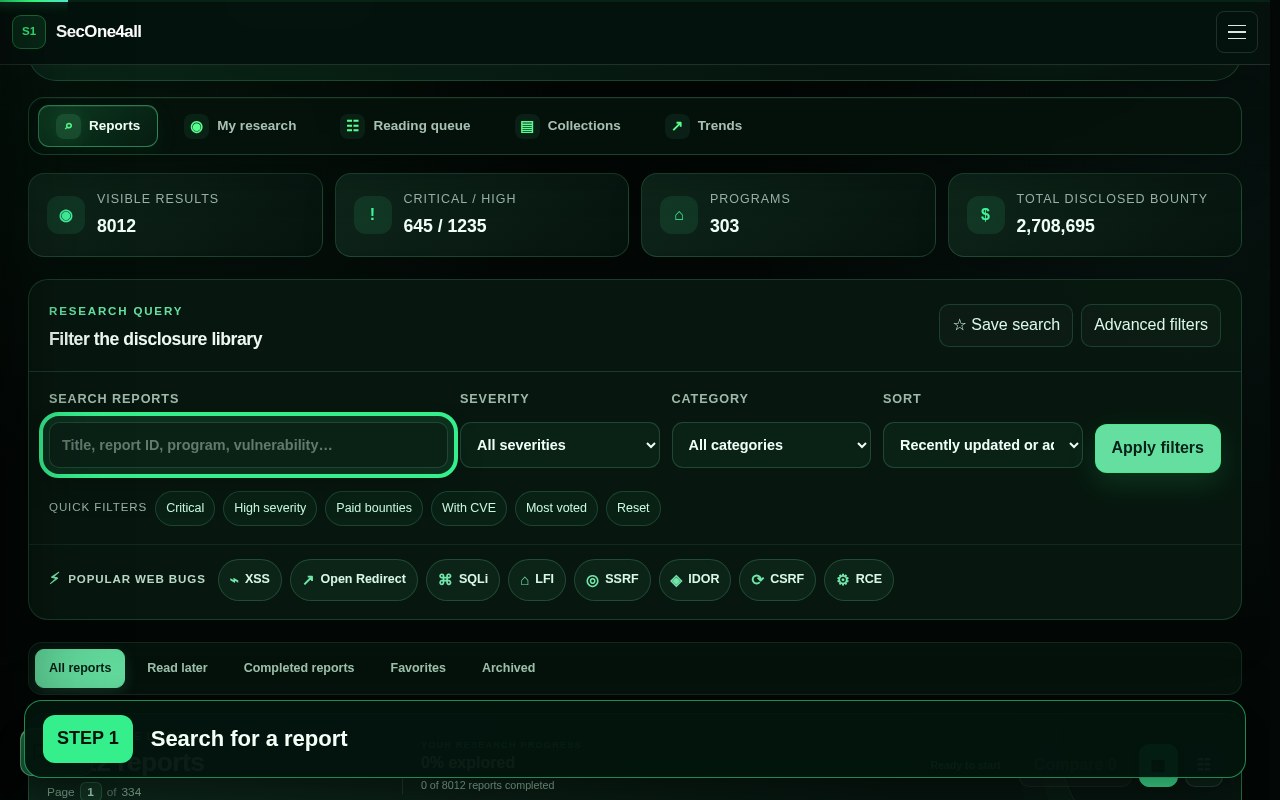
Step 1: Search for a report
Search by report title, program, weakness, or a technical phrase.
What you will see: The library immediately focuses on reports containing the requested context.
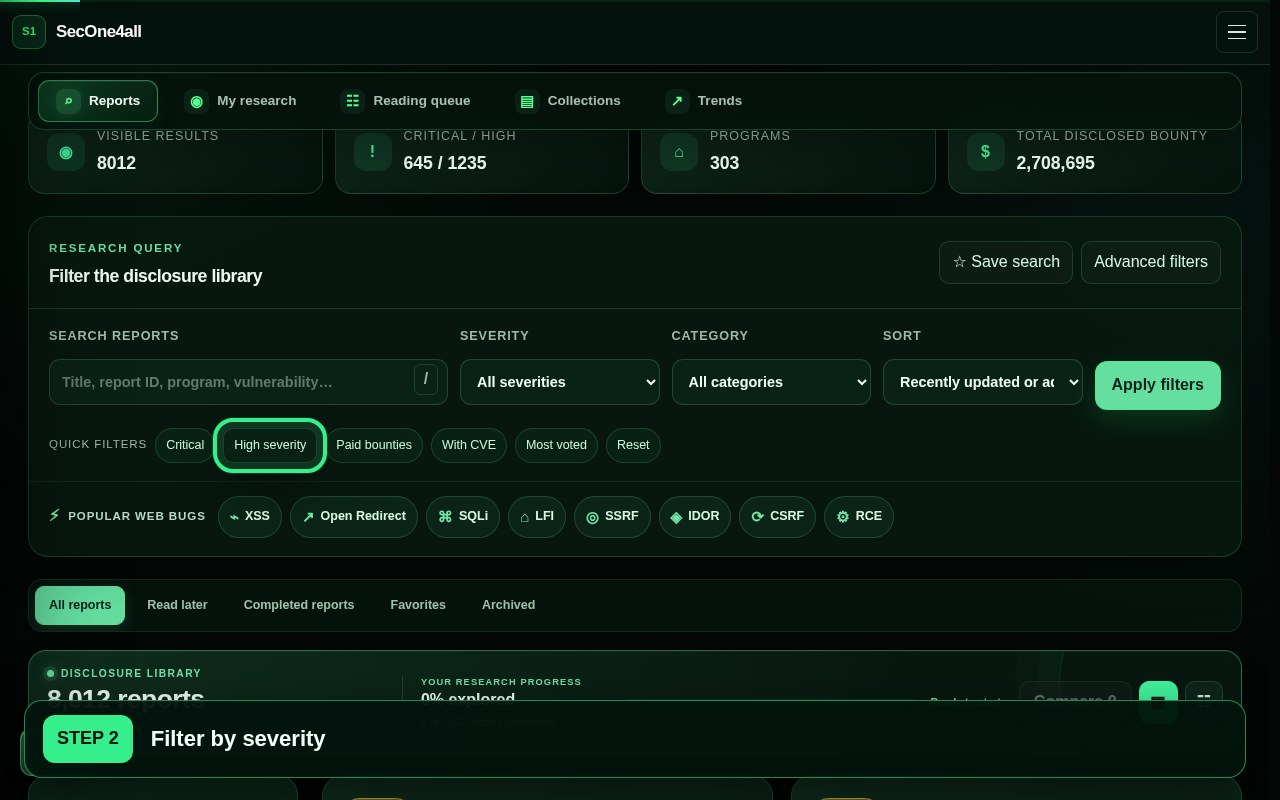
Step 2: Filter by severity
Select a severity level to remove reports outside the impact range you are studying.
What you will see: Severity is combined with the search and any advanced filters.
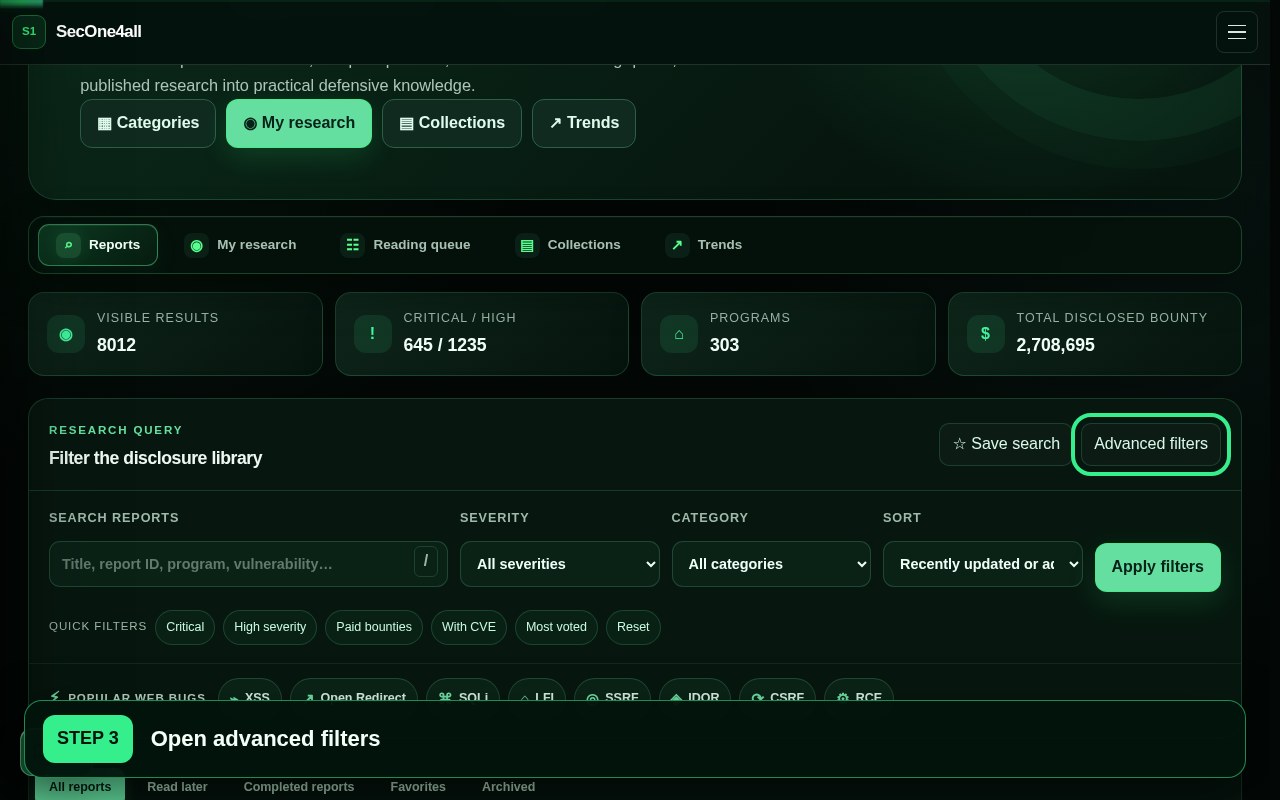
Step 3: Open advanced filters
Expand Advanced filters to refine the library with the additional report attributes available on the page.
What you will see: The extra criteria let you make a much narrower research set.
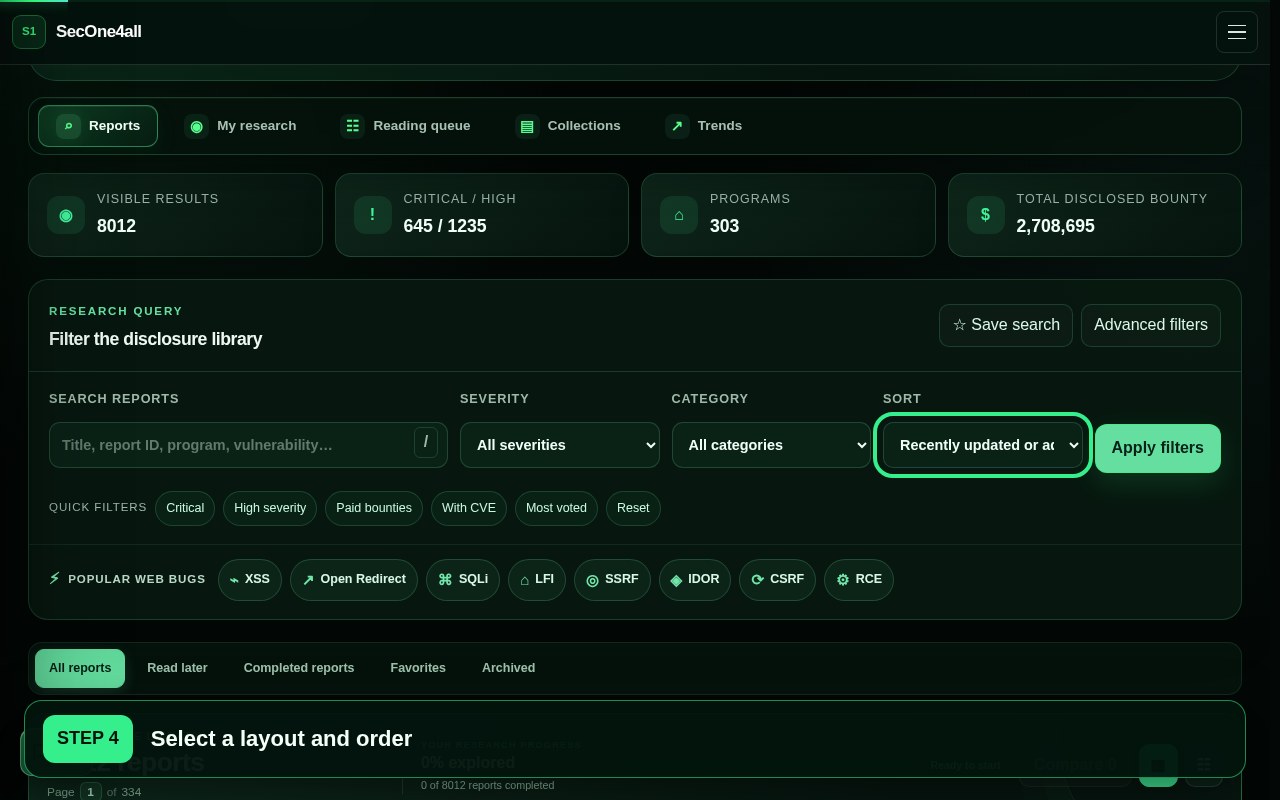
Step 4: Select a layout and order
Choose the sort order and switch the view mode when a compact or visual layout is easier to scan.
What you will see: The same results are rearranged without losing the active filters.
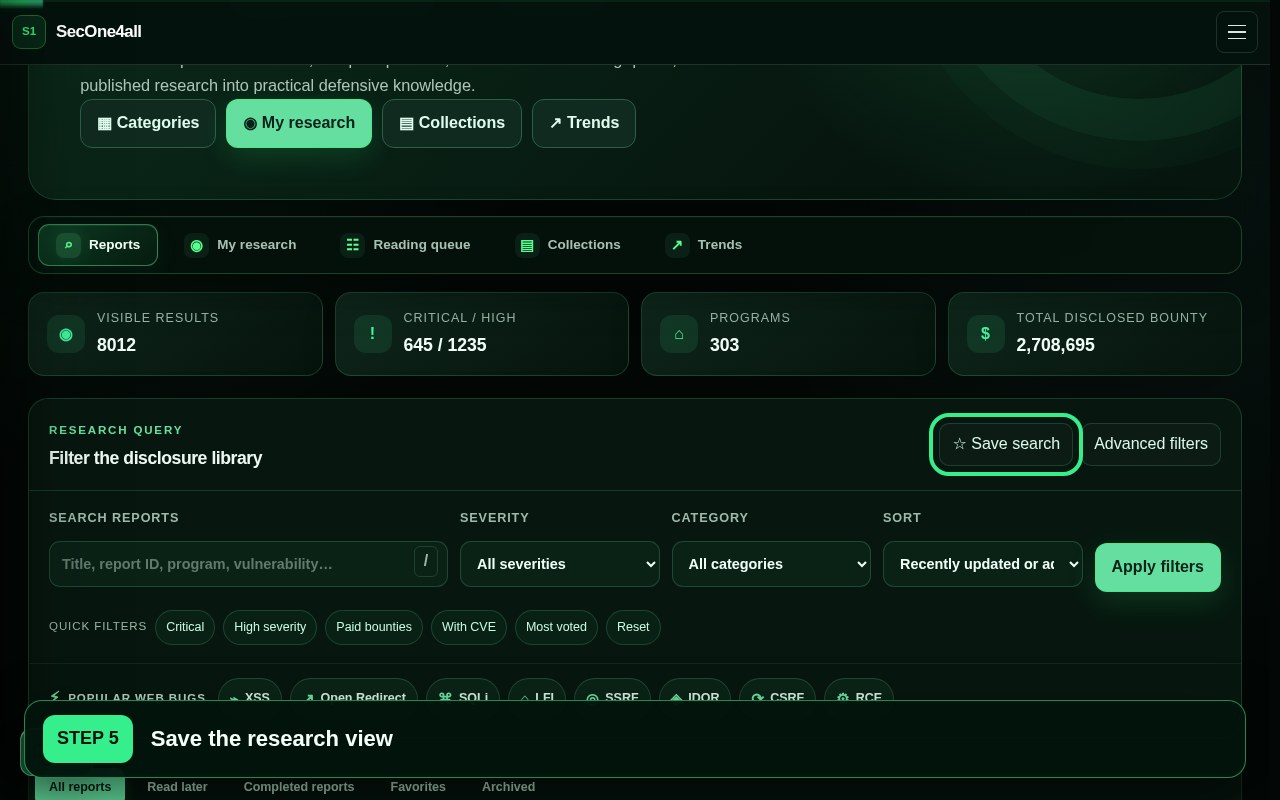
Step 5: Save the research view
Press Save search after the query is configured. On individual reports, use the save, favorite, pin, or archive actions to organize them further.
What you will see: The query and chosen reports become available from your Hacktivity workspace.
Open the feature
Use the button below to open the current SecOne4all interface and follow the same five steps.
Leave a Reply