Request a Security Assessment: Complete Every Section

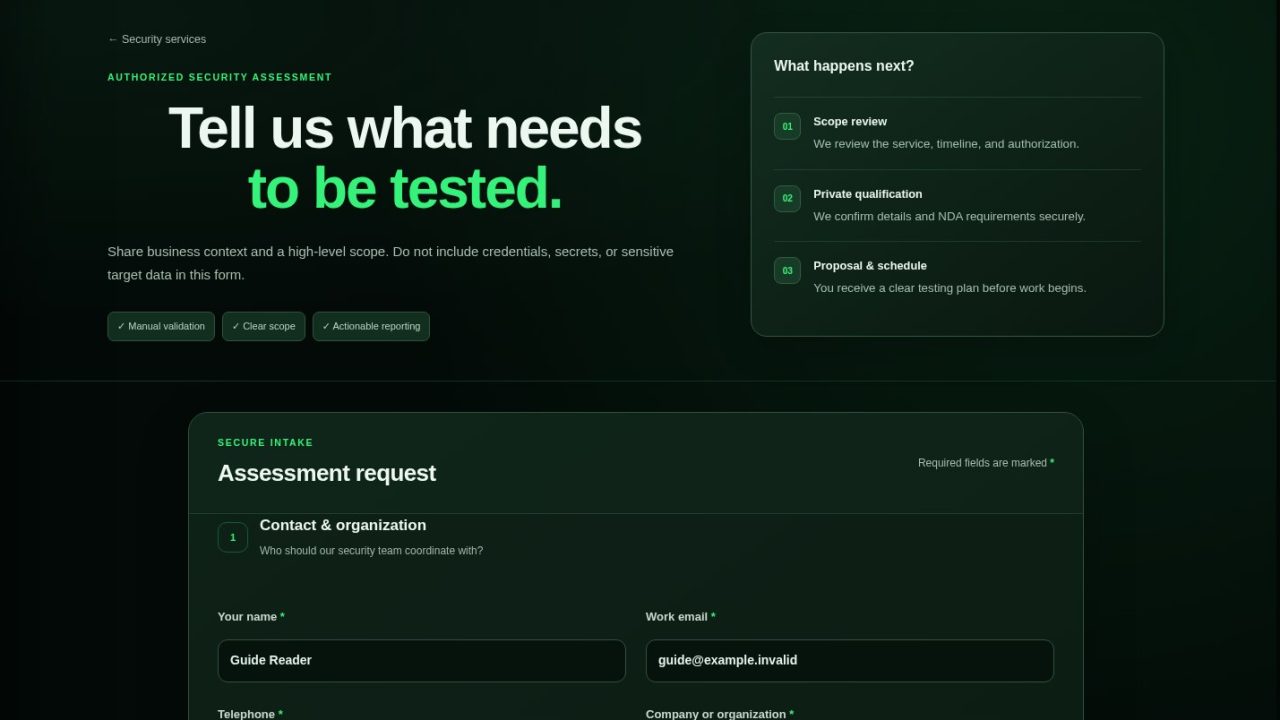
The assessment request form is divided into contact, scope, approach, and authorization sections. Completing it from top to bottom keeps the engagement information organized for review.
What this feature does
The assessment request form is divided into contact, scope, approach, and authorization sections. Completing it from top to bottom keeps the engagement information organized for review. The walkthrough below follows the current interface in the order shown on screen, and each step includes its own matching image.
Workflow at a glance
- 1.Add contact and organization details
- 2.Choose the assessment services
- 3.Describe the in-scope assets
- 4.Set the approach and schedule
- 5.Complete authorization and submit
How to use the feature
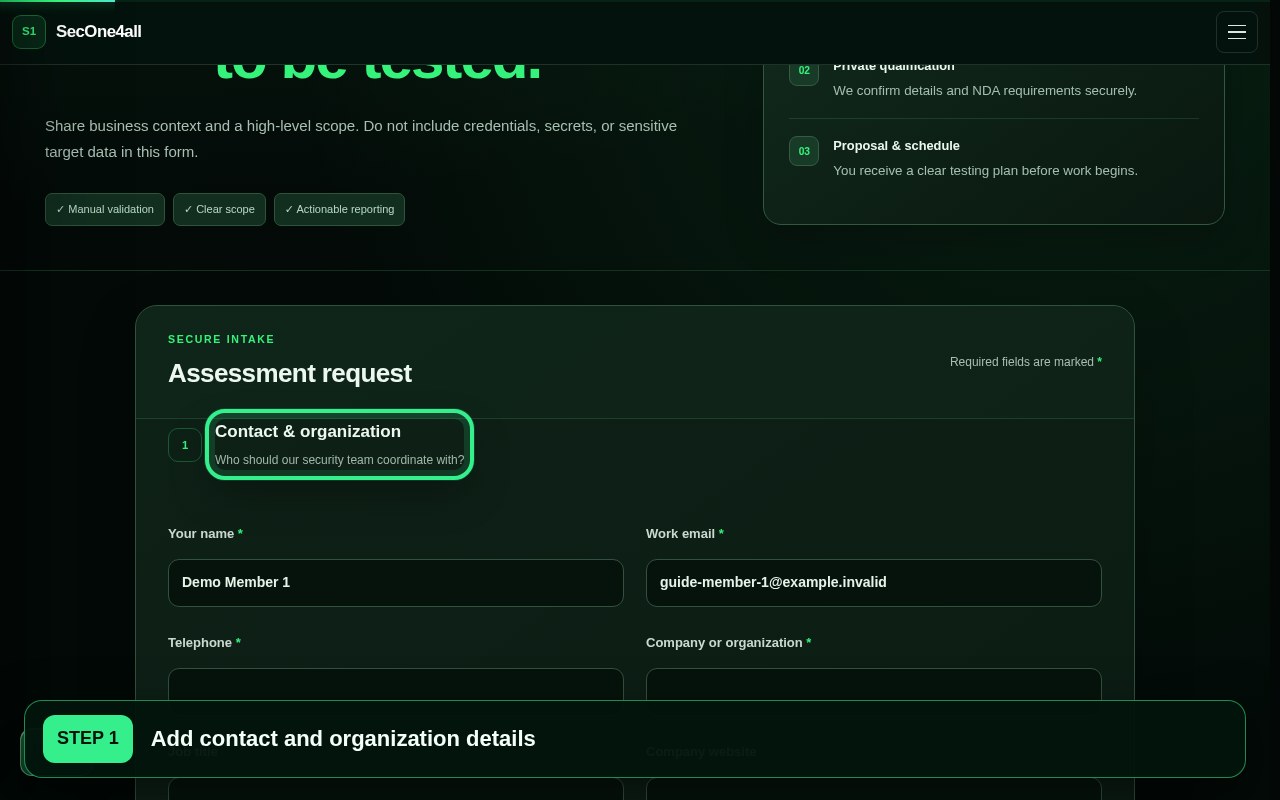
Step 1: Add contact and organization details
Enter the primary contact and organization information in the first section.
What you will see: The assessment team has a clear point of contact for the request.
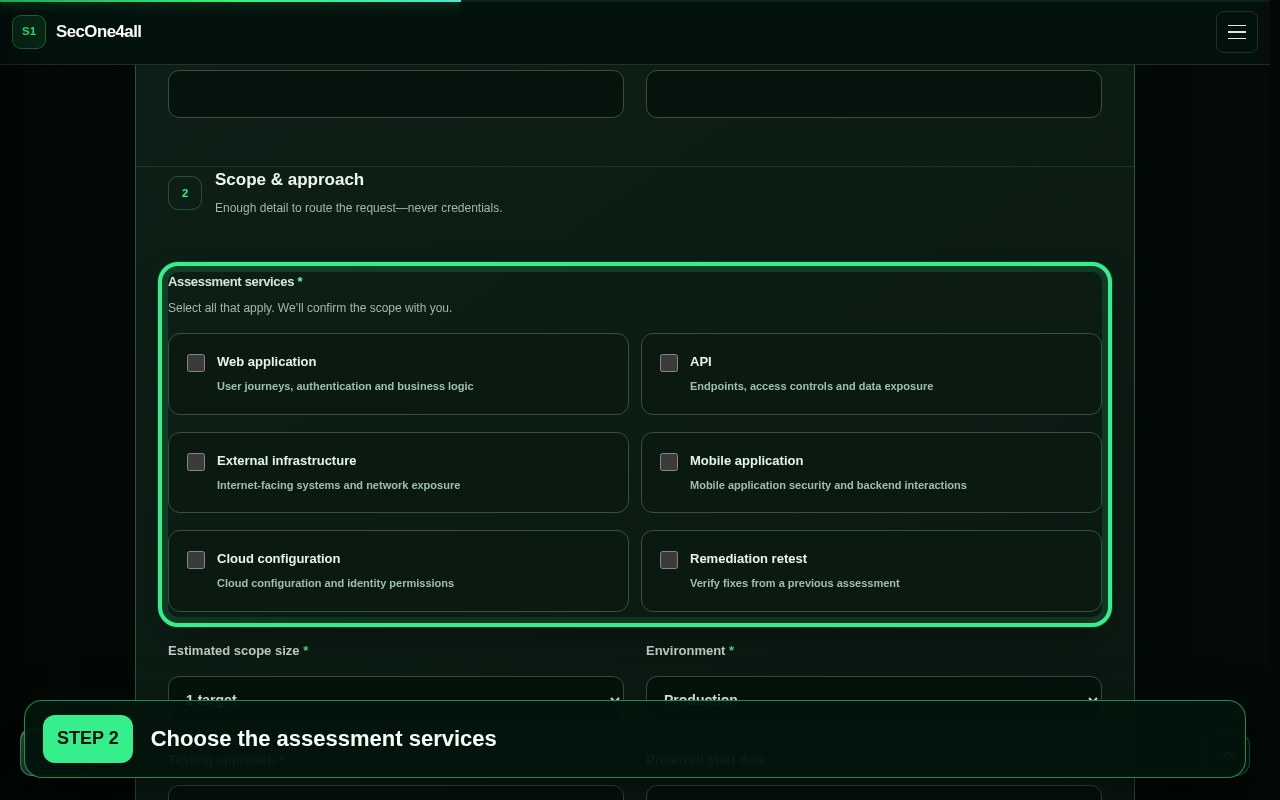
Step 2: Choose the assessment services
Select one or more services that match the environment and objective.
What you will see: The remaining scope is interpreted in the context of those assessment services.
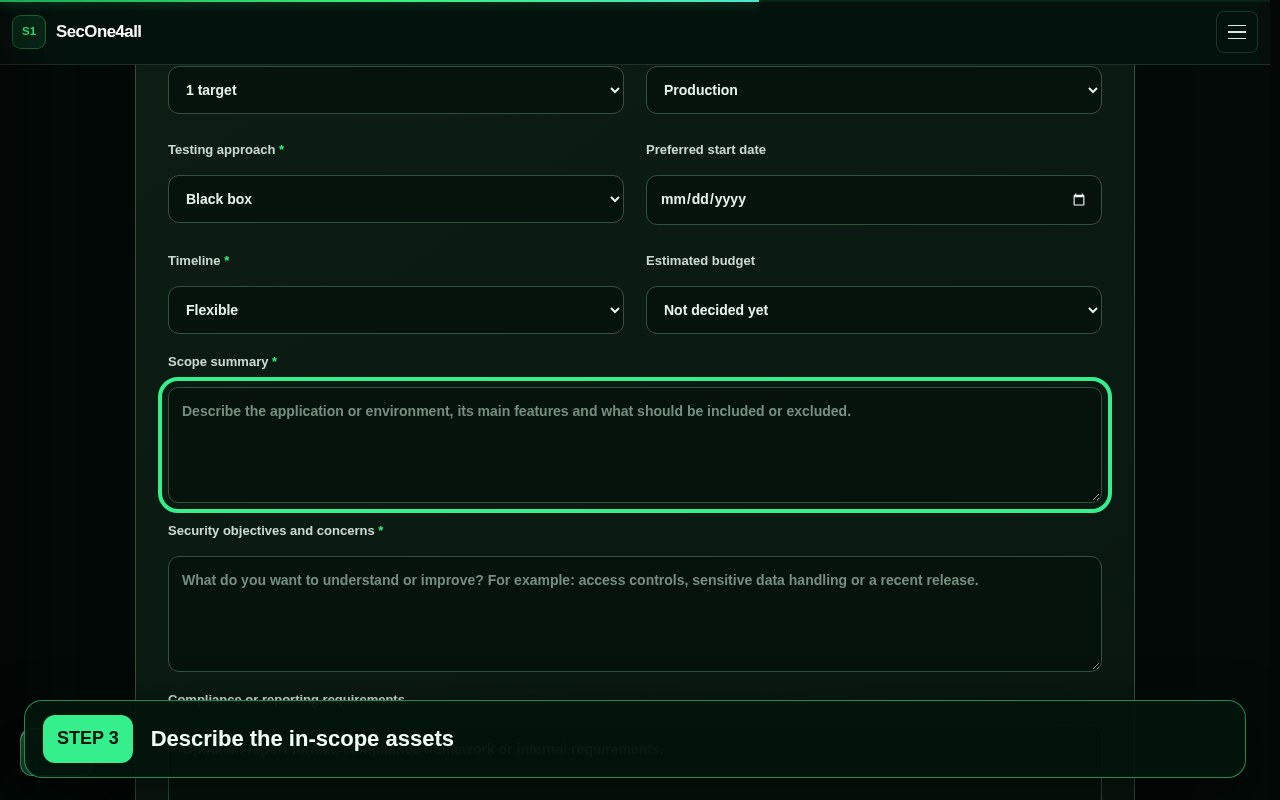
Step 3: Describe the in-scope assets
List the domains, applications, APIs, or other assets in Scope summary.
What you will see: The requested testing boundary is recorded in one place.
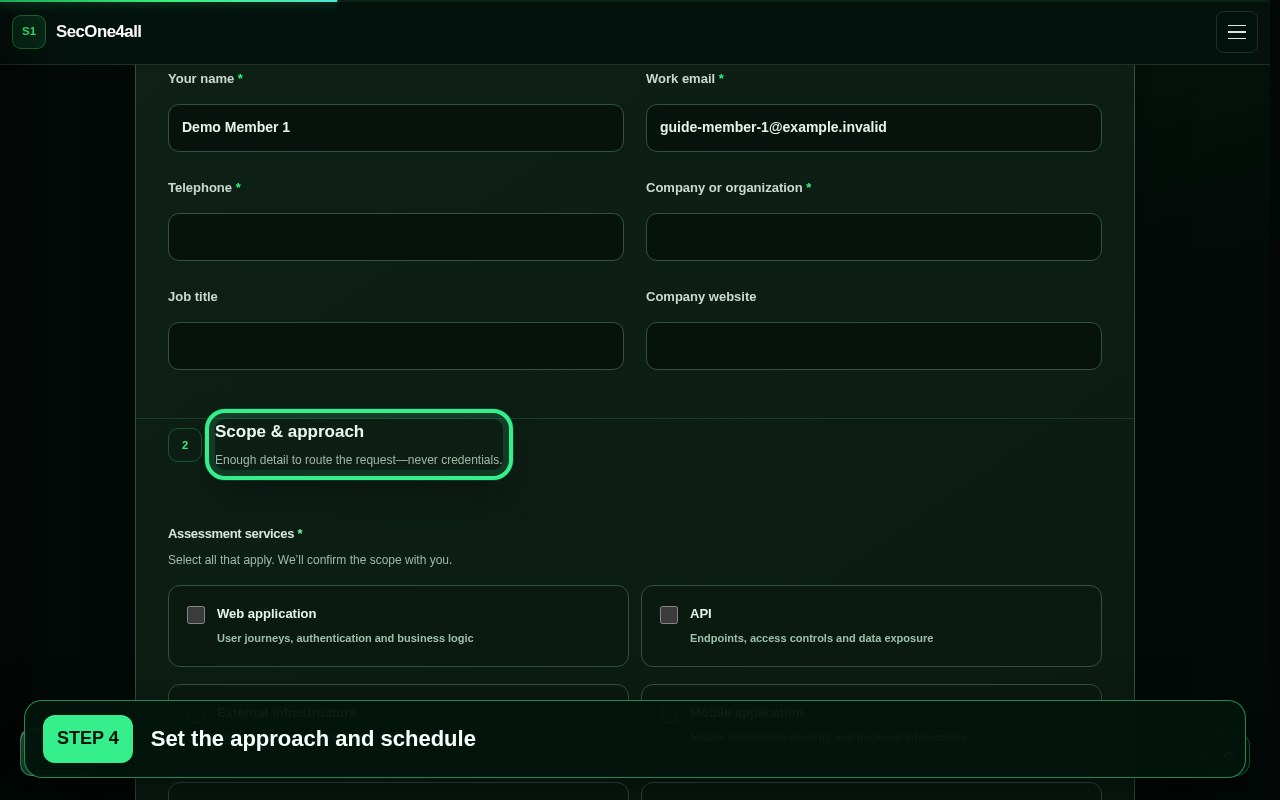
Step 4: Set the approach and schedule
Complete the timing, environment, and approach fields shown in this section.
What you will see: The request now explains when and how the assessment should be performed.
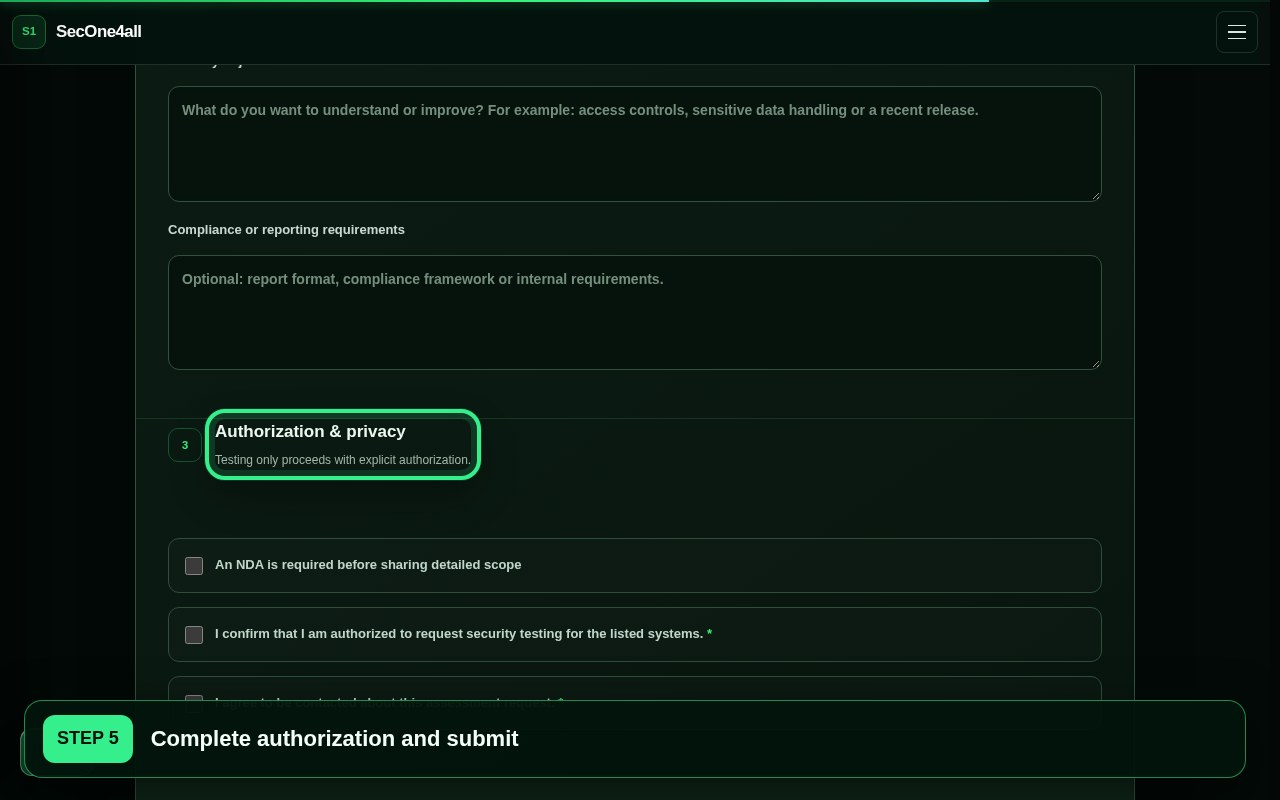
Step 5: Complete authorization and submit
Review the final confirmations and submit the form.
What you will see: A complete request is created for assessment review.
Open the feature
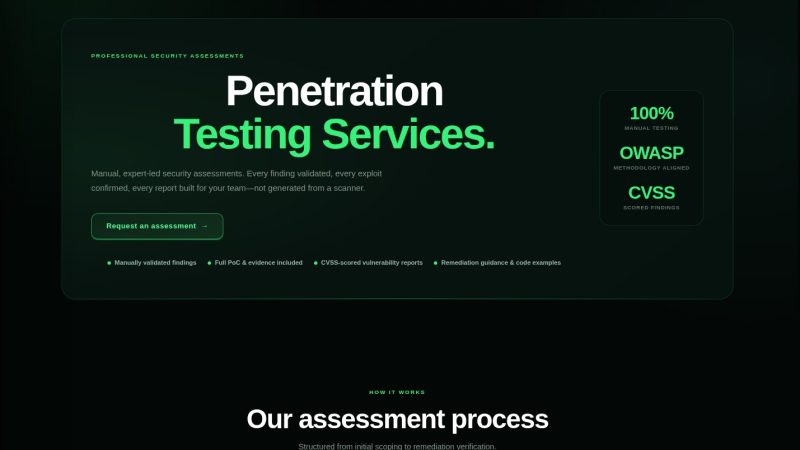
Use the button below to open the current SecOne4all interface and follow the same five steps.

Leave a Reply