CTF Challenges: Browse and Track the Arena

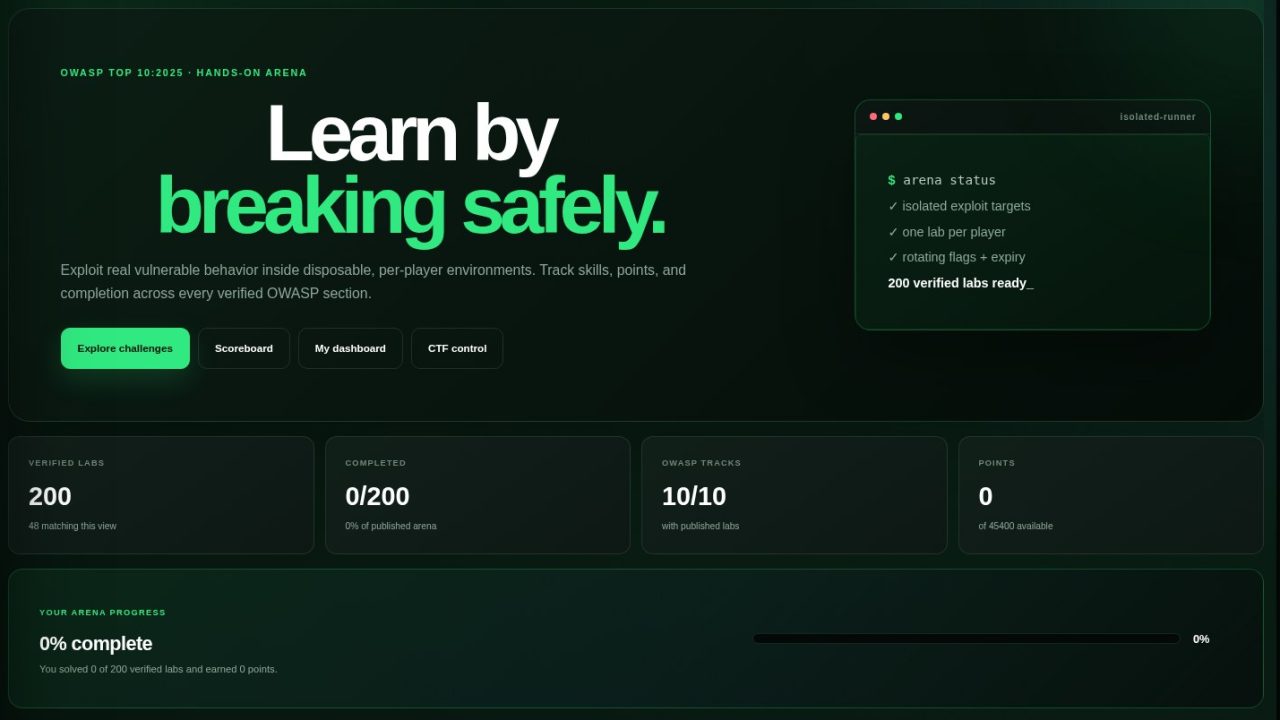
The CTF Arena catalogs published challenges and lets you filter them by difficulty, tag, points, and progress. The list and grid modes support either quick scanning or a more visual overview.
What this feature does
The CTF Arena catalogs published challenges and lets you filter them by difficulty, tag, points, and progress. The list and grid modes support either quick scanning or a more visual overview. The walkthrough below follows the current interface in the order shown on screen, and each step includes its own matching image.
Workflow at a glance
- 1.Search the challenge catalog
- 2.Set difficulty and tag
- 3.Set points and progress
- 4.Choose sort and view mode
- 5.Open a challenge card
How to use the feature
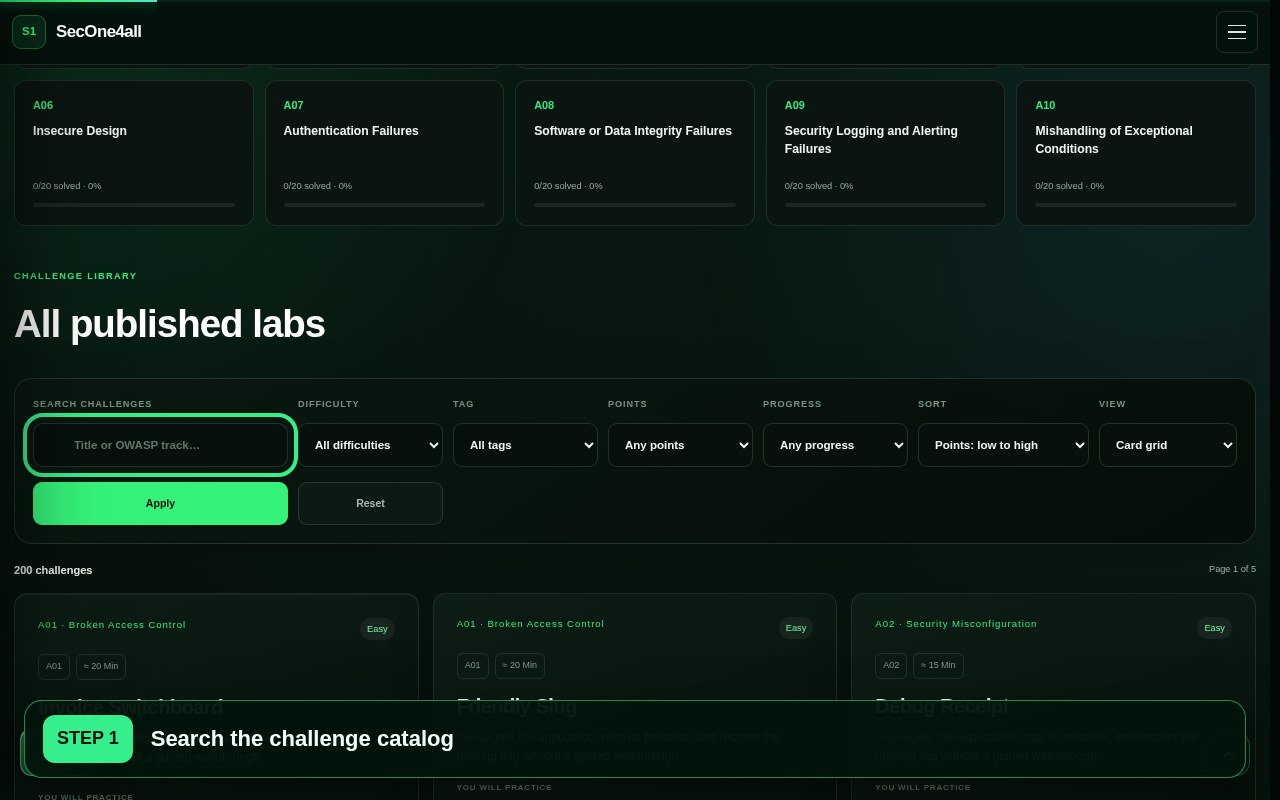
Step 1: Search the challenge catalog
Search by challenge name or a phrase from the challenge description.
What you will see: Only matching missions remain visible.
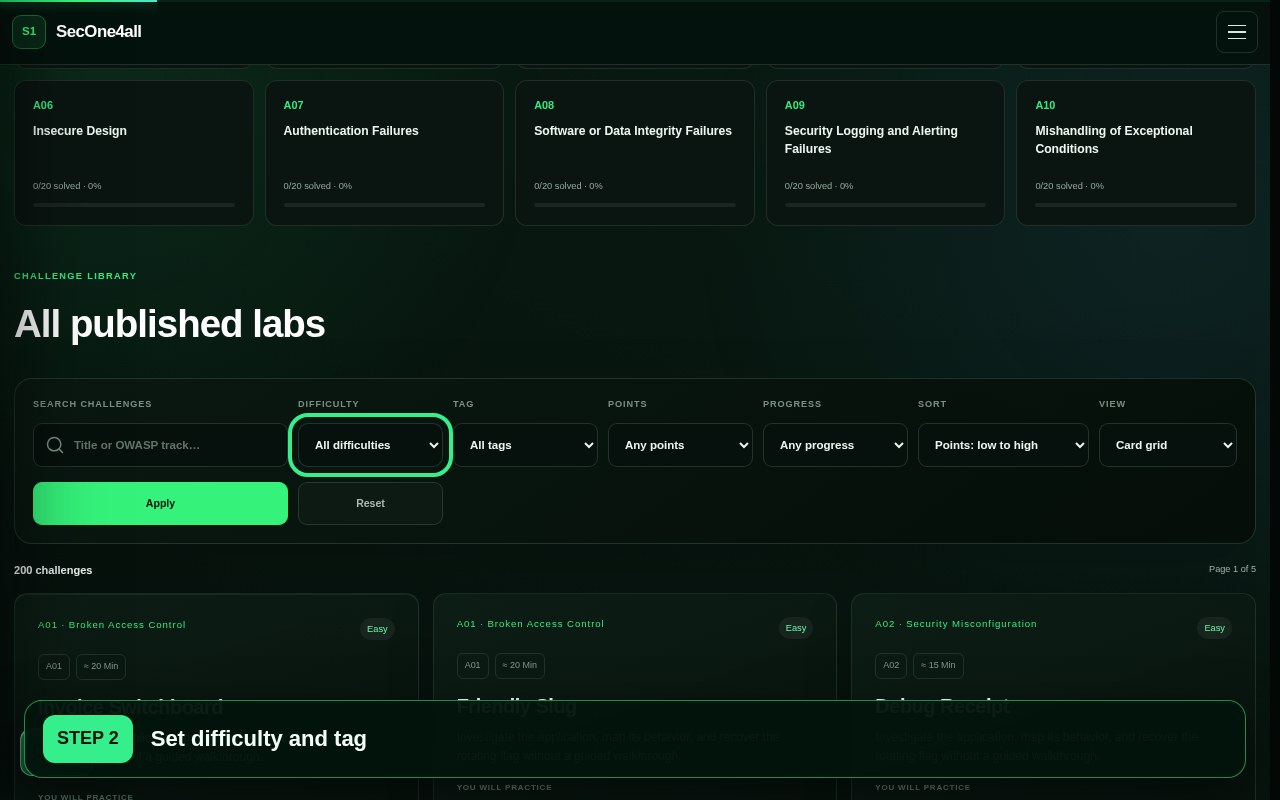
Step 2: Set difficulty and tag
Choose a difficulty and tag to focus on the kind of challenge you want to solve.
What you will see: The catalog combines both classifications.
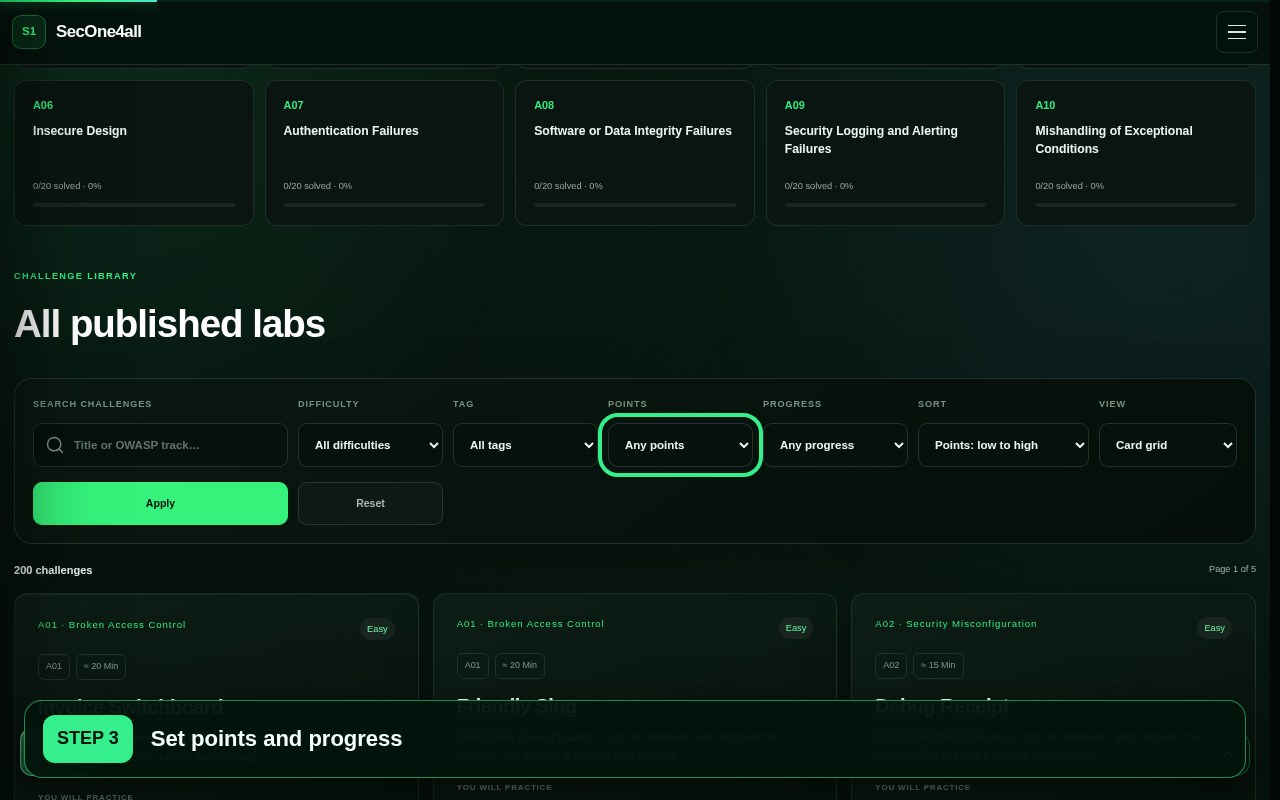
Step 3: Set points and progress
Use the points and progress filters to separate open work from completed challenges.
What you will see: The result set now reflects both score range and your current state.
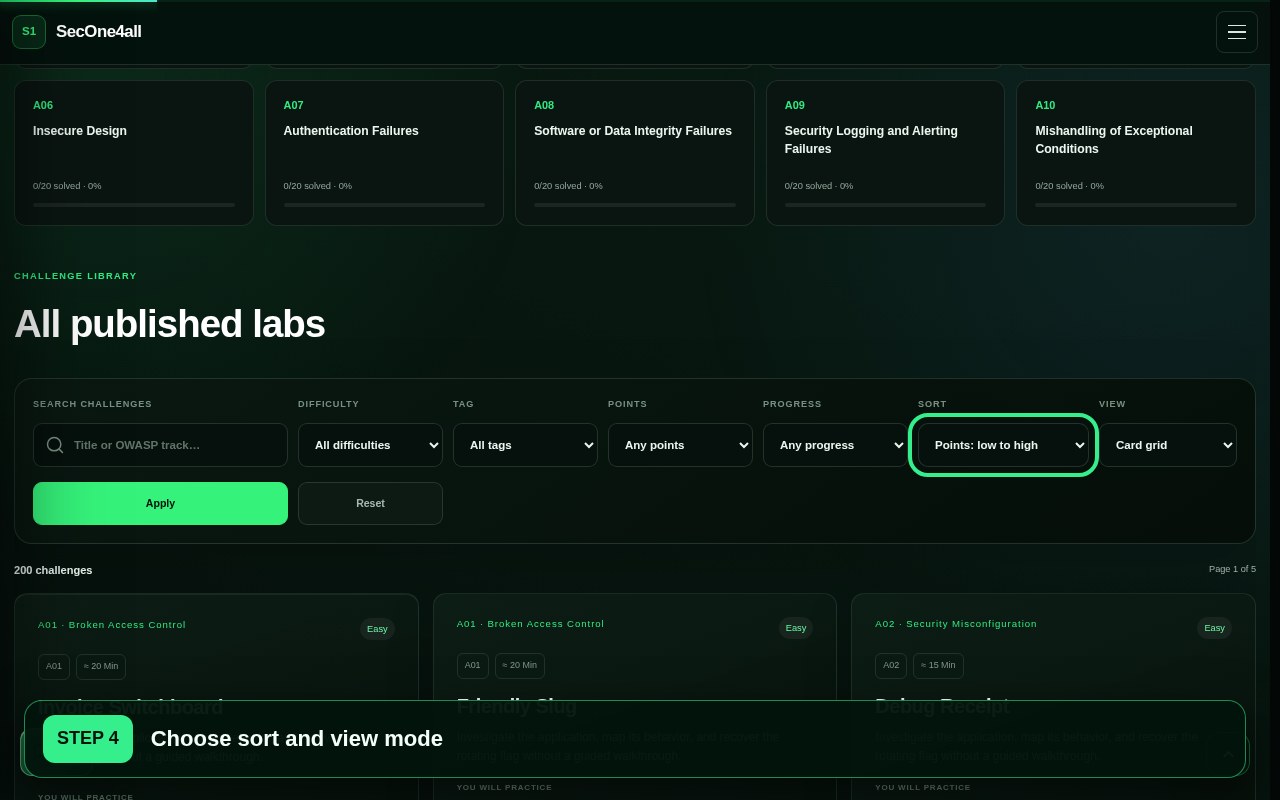
Step 4: Choose sort and view mode
Select a sort order and switch between the available layouts.
What you will see: The filtered challenges are presented in the format you prefer.
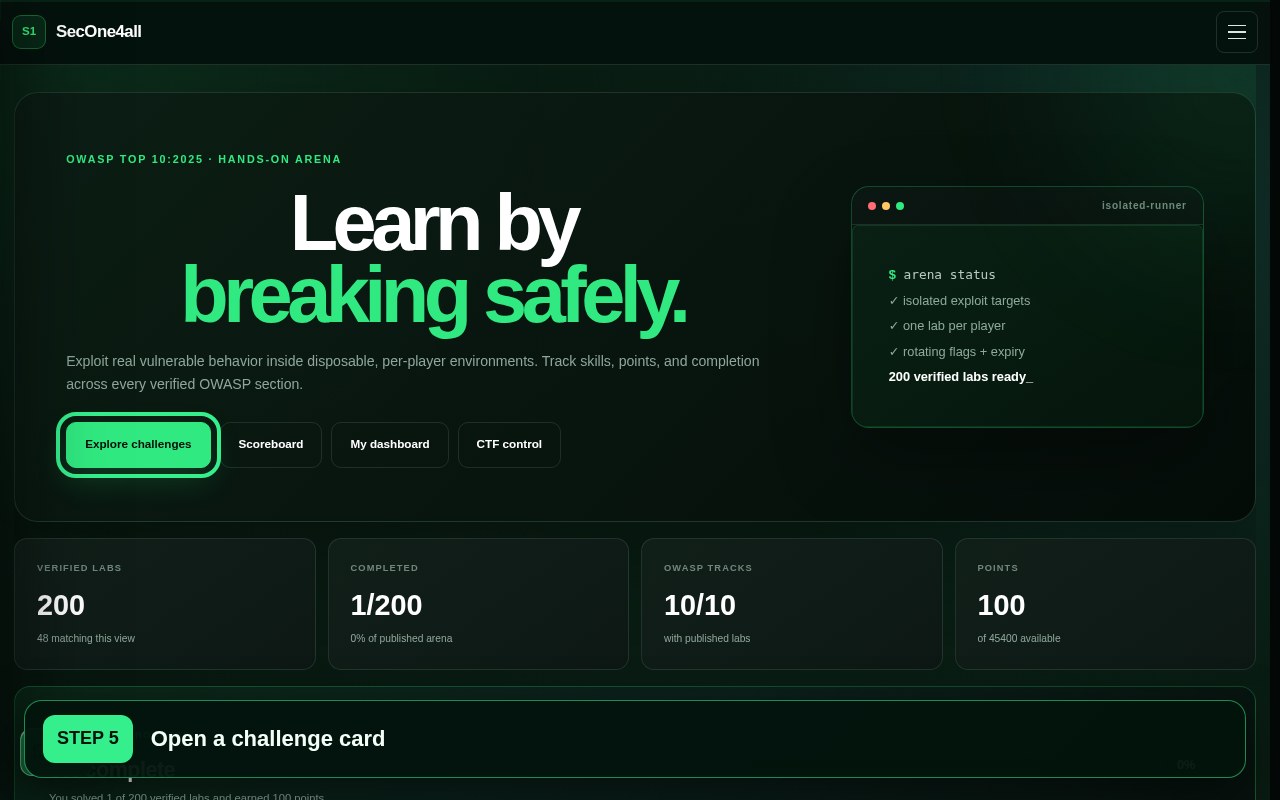
Step 5: Open a challenge card
Open a challenge card to read its mission, metadata, and available actions.
What you will see: The challenge detail becomes the working page for the selected mission.
Open the feature
Use the button below to open the current SecOne4all interface and follow the same five steps.
Leave a Reply