Security Oneliners: Save and Search Command References

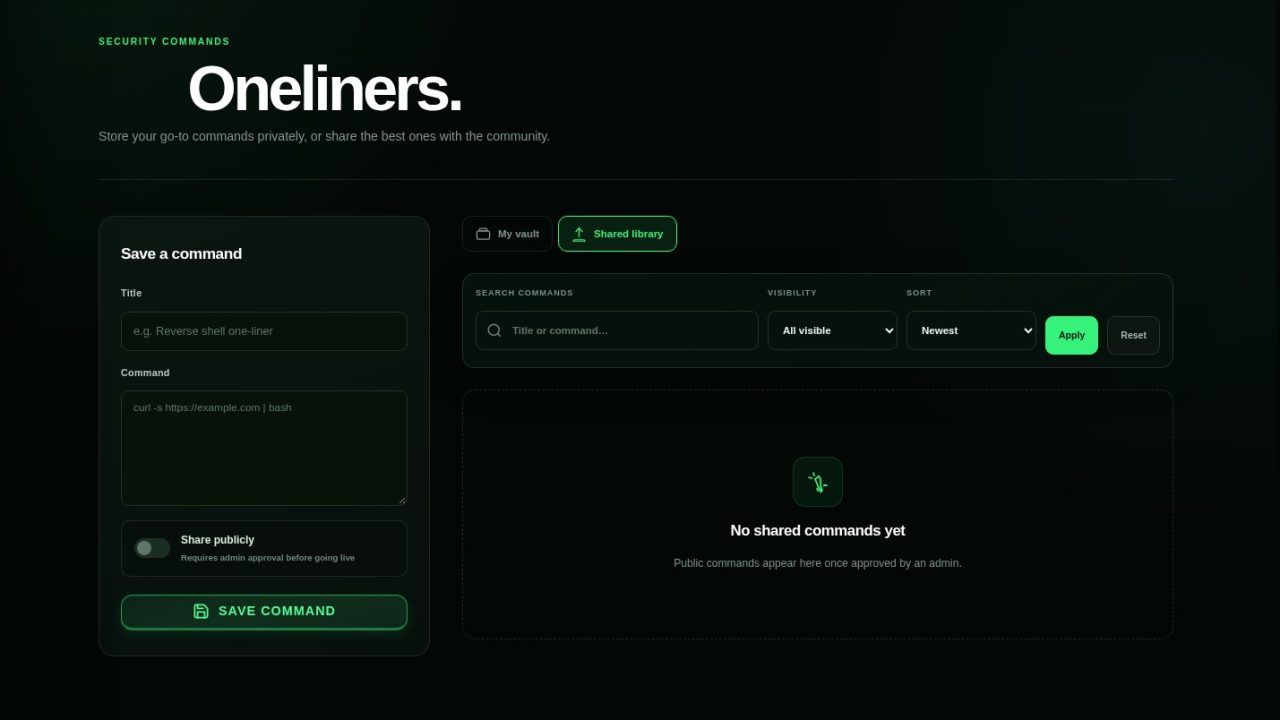
Security Oneliners is a community command reference with a submission form and searchable published list. Visibility and sorting controls separate personal entries from shared approved commands.
What this feature does
Security Oneliners is a community command reference with a submission form and searchable published list. Visibility and sorting controls separate personal entries from shared approved commands. The walkthrough below follows the current interface in the order shown on screen, and each step includes its own matching image.
Workflow at a glance
- 1.Open the command form
- 2.Add the title and command
- 3.Search saved commands
- 4.Filter by visibility
- 5.Review the current list state
How to use the feature
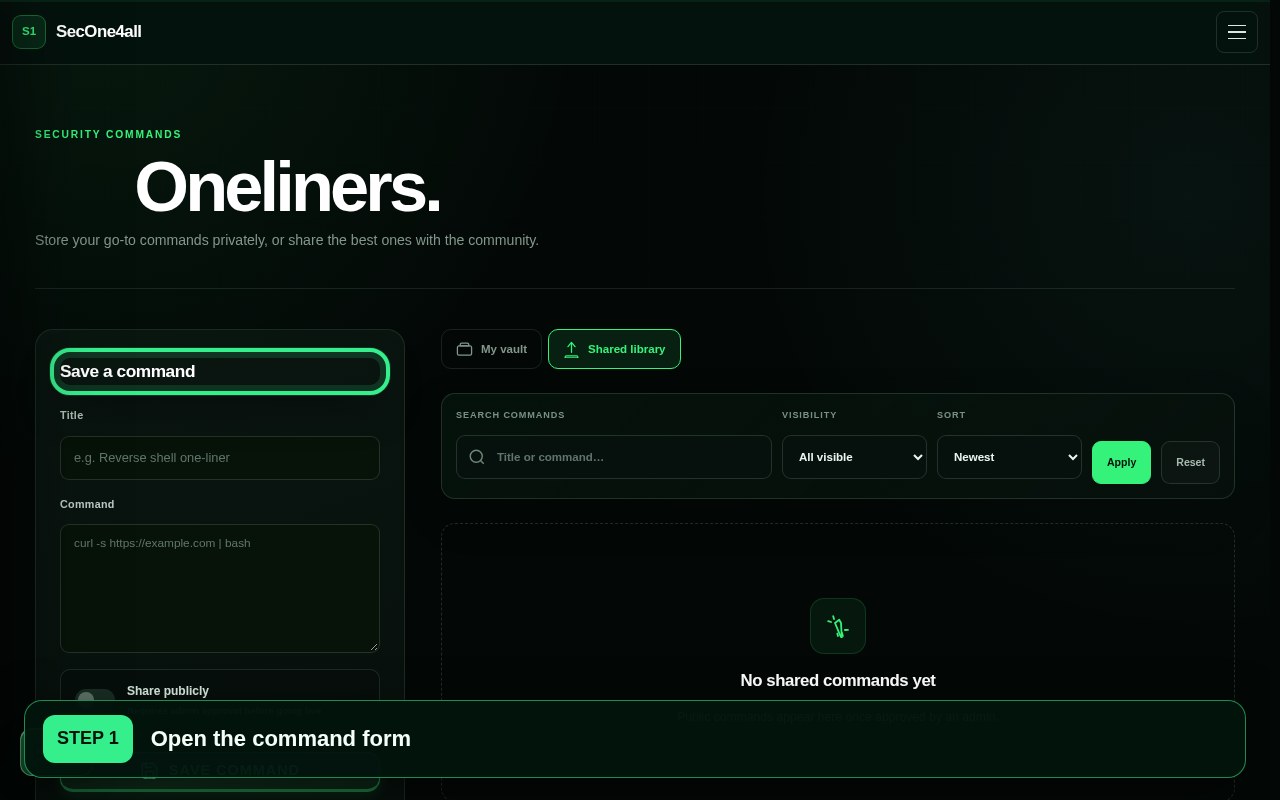
Step 1: Open the command form
Use Save a command to open the title and command fields.
What you will see: The page is ready to store a new command reference.
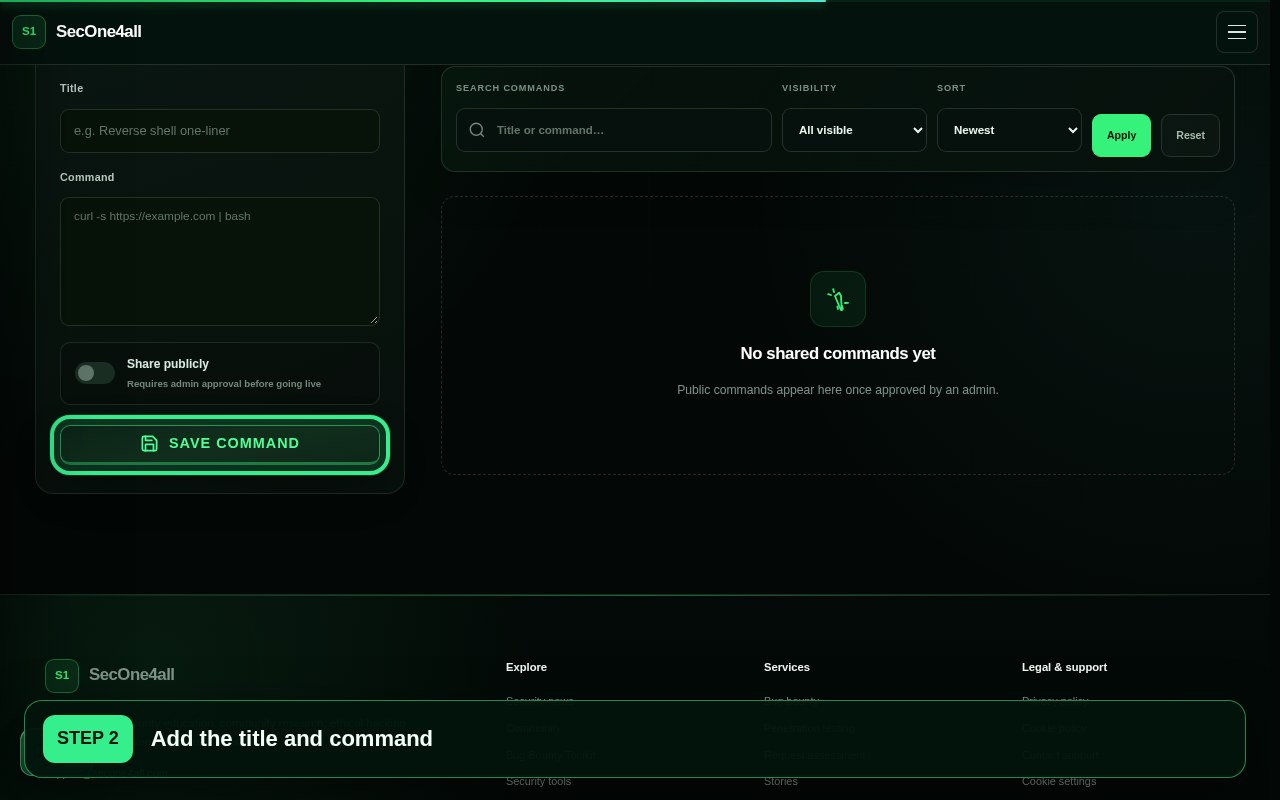
Step 2: Add the title and command
Enter a concise title and the full command text, then choose its visibility.
What you will see: The command has the information required for the list.
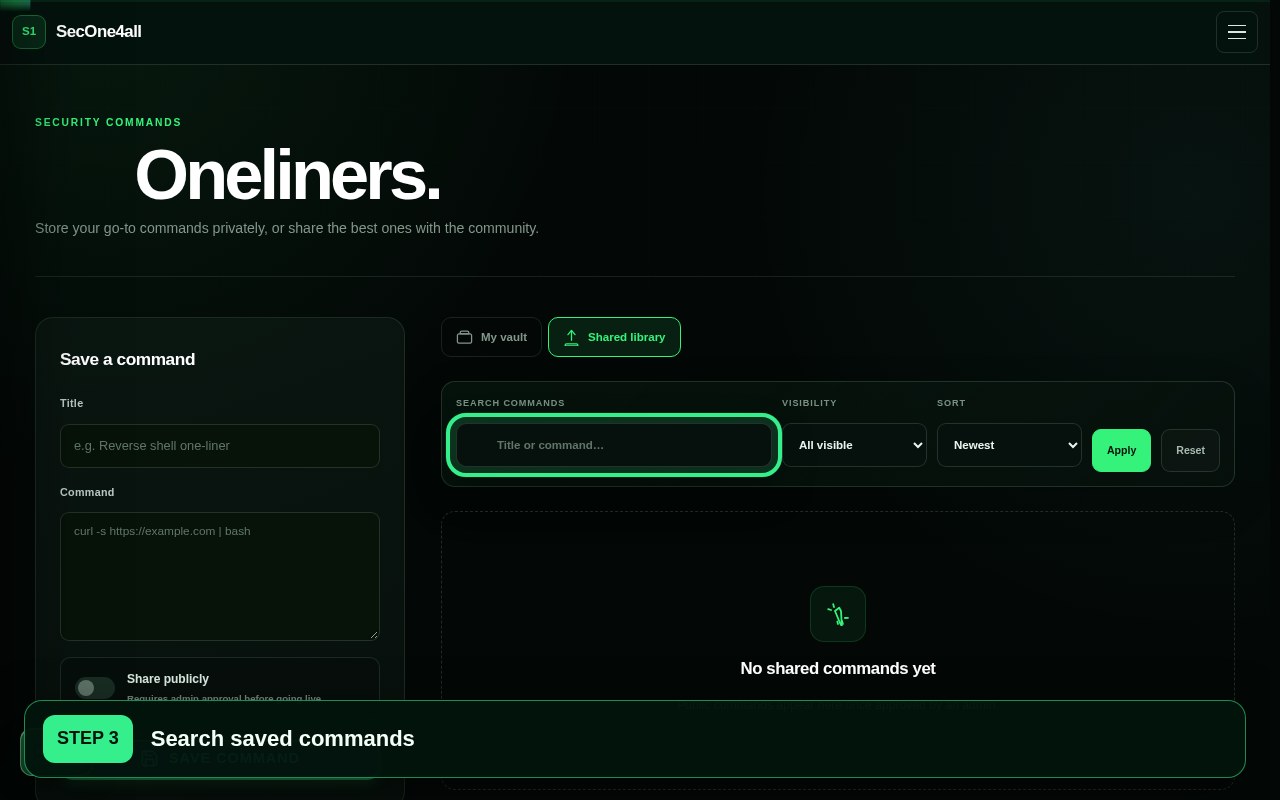
Step 3: Search saved commands
Enter a task, tool, or command fragment.
What you will see: The list narrows to matching oneliners.
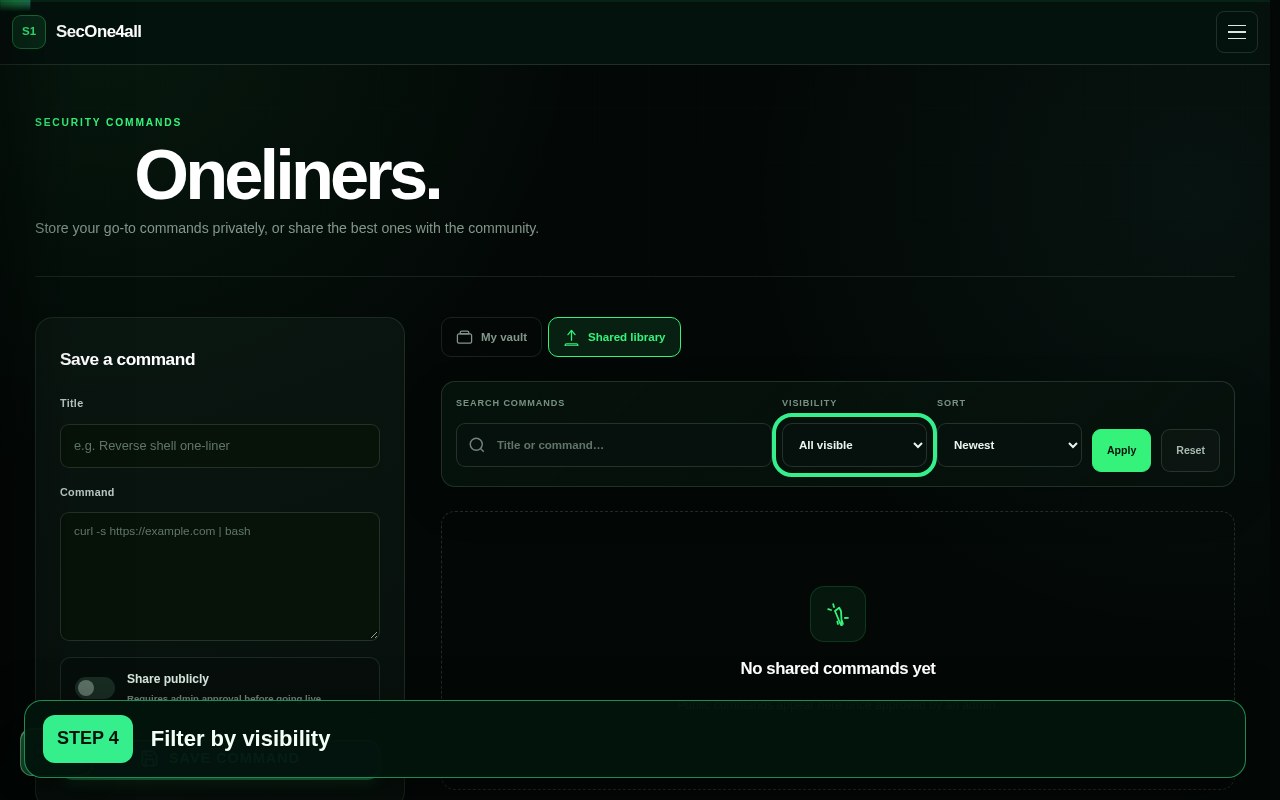
Step 4: Filter by visibility
Choose whether to view private, shared, or all available entries.
What you will see: The list reflects the selected ownership scope.
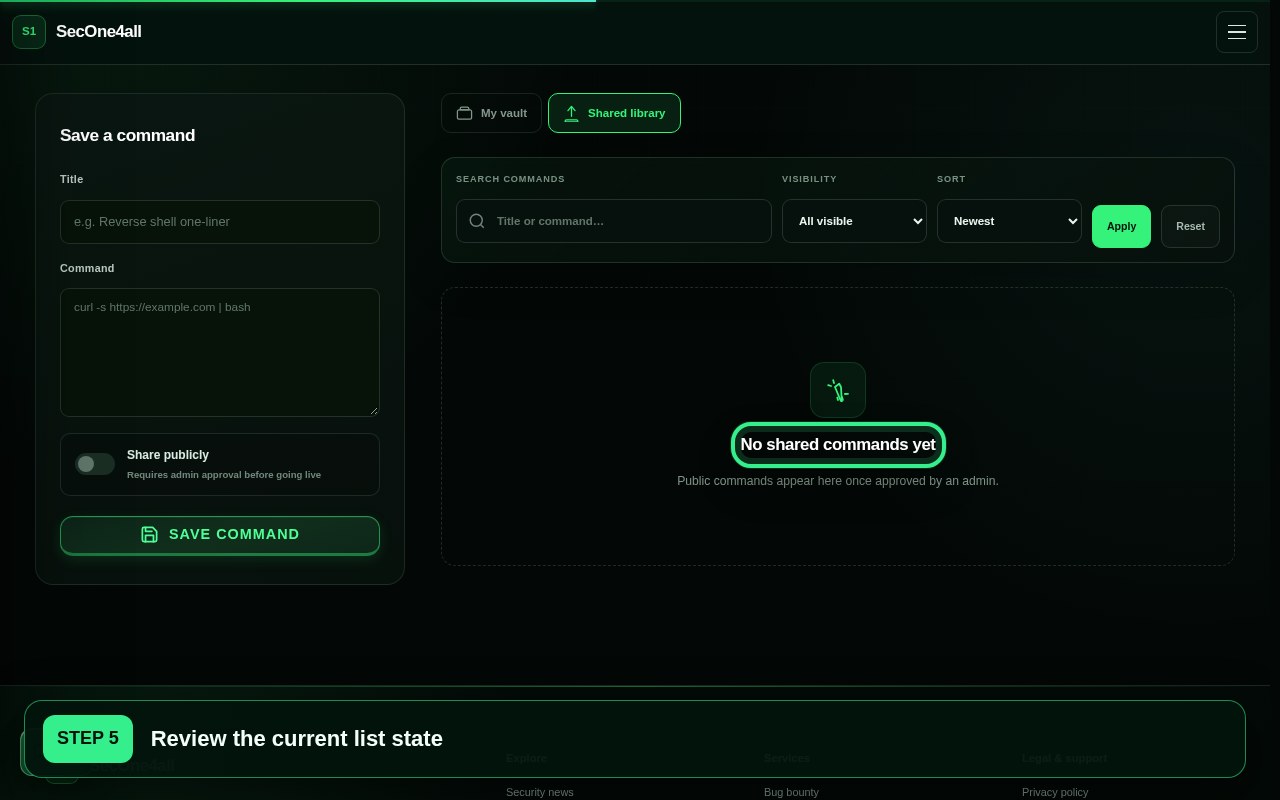
Step 5: Review the current list state
Apply the sort order and read the result area.
What you will see: If this message appears, the shared catalog has no approved command entries yet.
Open the feature
Use the button below to open the current SecOne4all interface and follow the same five steps.
Leave a Reply