Profile Settings: Identity, Professional Links, and Privacy

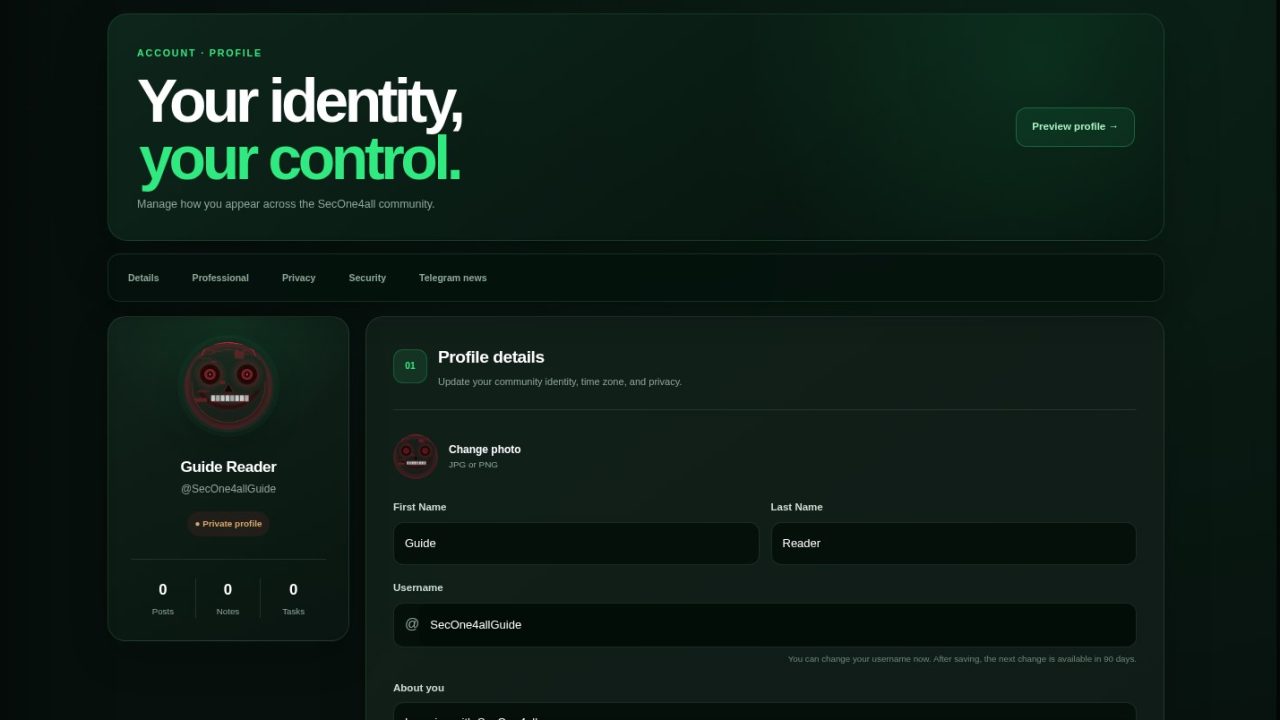
Profile Settings controls the account identity shown across the site, optional professional links, messaging privacy, notification preferences, and account actions.
What this feature does
Profile Settings controls the account identity shown across the site, optional professional links, messaging privacy, notification preferences, and account actions. The walkthrough below follows the current interface in the order shown on screen, and each step includes its own matching image.
Workflow at a glance
- 1.Edit profile details
- 2.Add professional profiles
- 3.Control public visibility
- 4.Set messaging privacy
- 5.Save notification and account preferences
How to use the feature
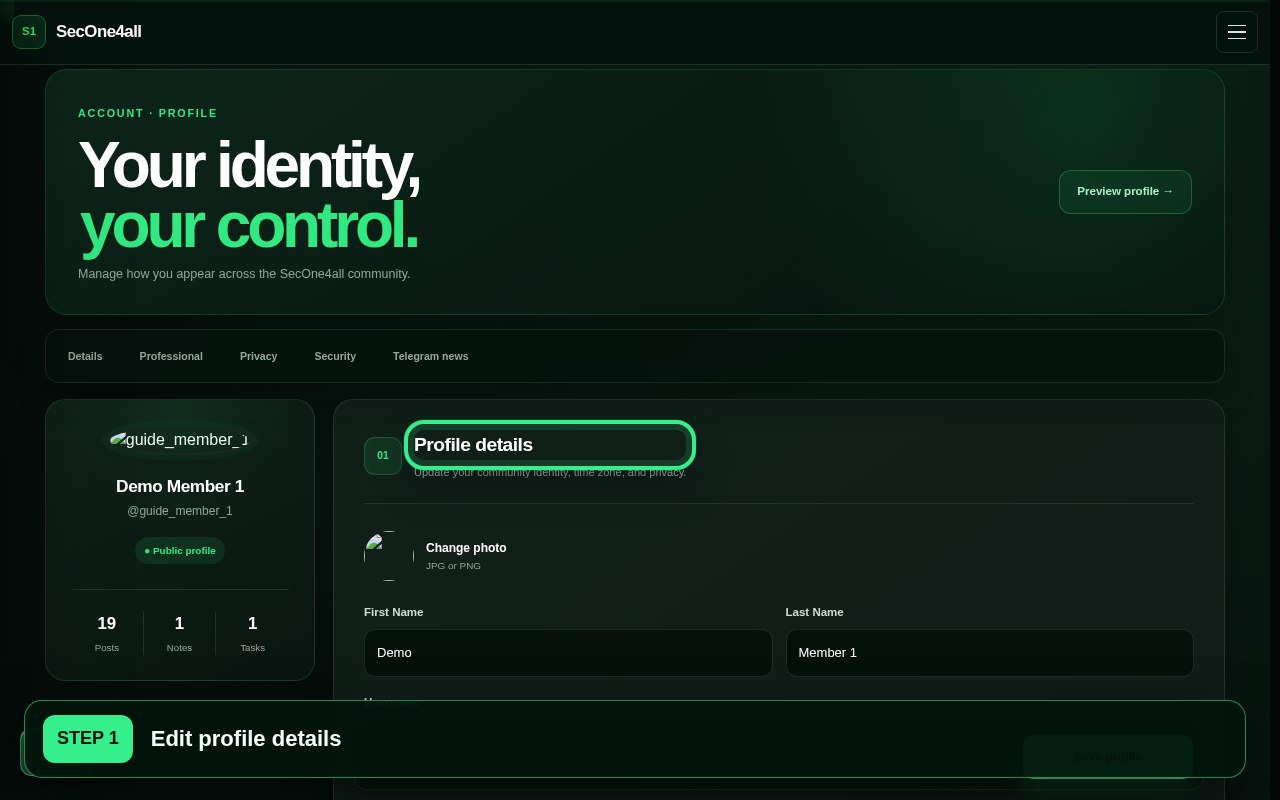
Step 1: Edit profile details
Update the name, username, biography, image, and timezone fields shown in Profile details.
What you will see: The saved values become the account’s current identity settings.
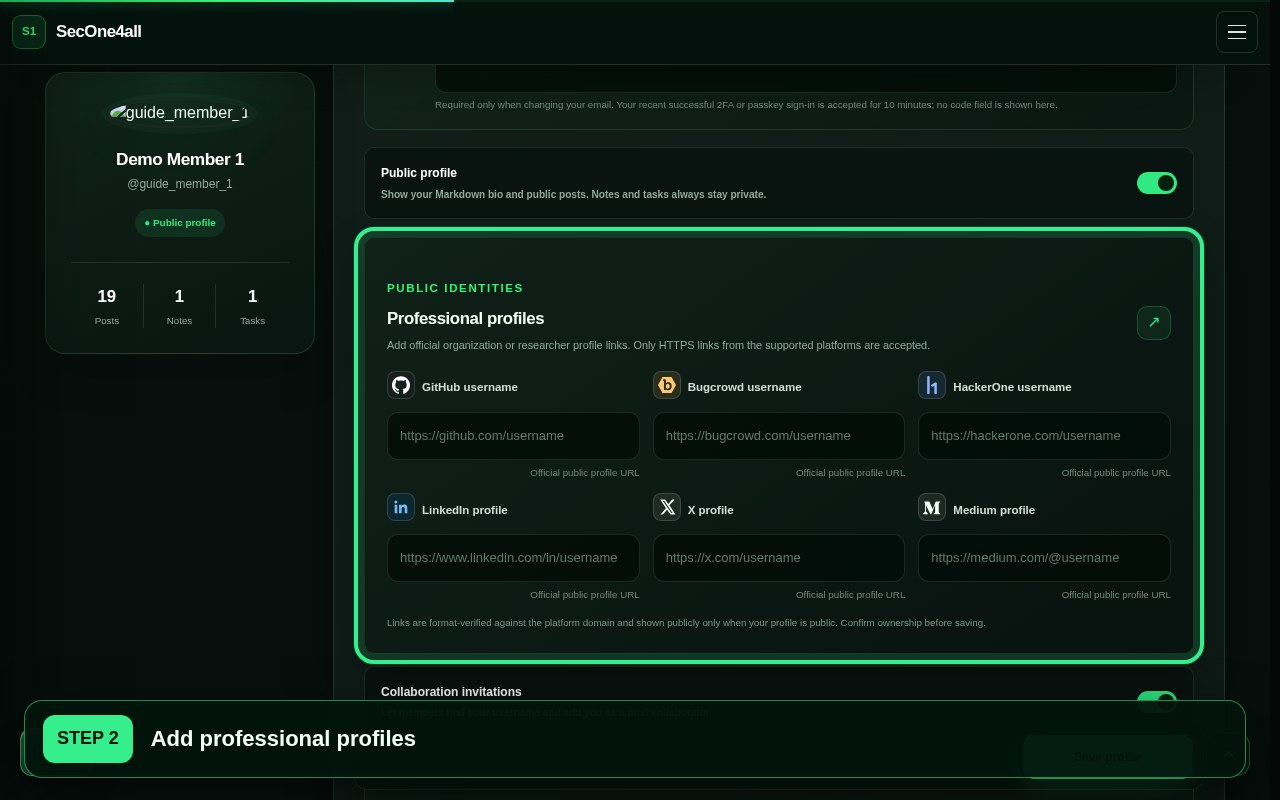
Step 2: Add professional profiles
Enter any GitHub, Bugcrowd, HackerOne, LinkedIn, X, or Medium links you want associated with the profile.
What you will see: Saved links can appear in the public professional profile and author card when visibility allows it.
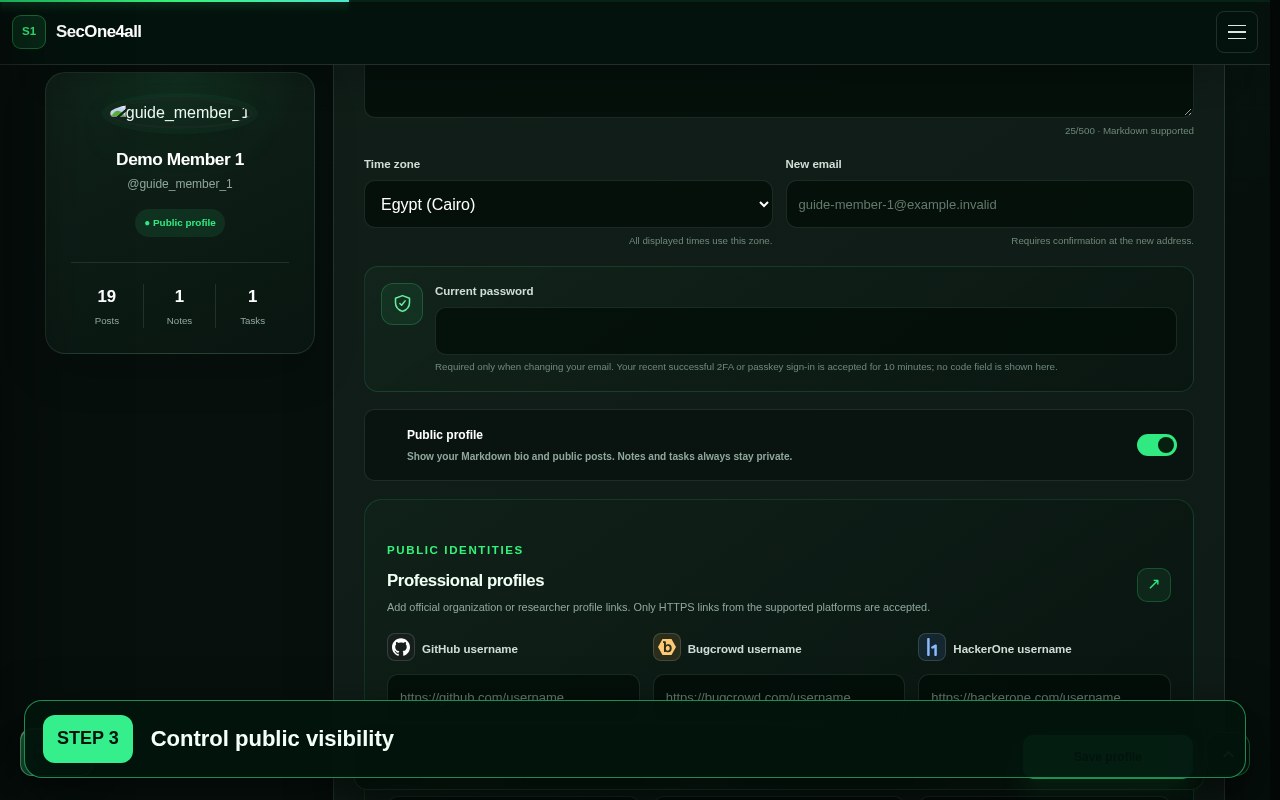
Step 3: Control public visibility
Choose whether the professional profile is public.
What you will see: The profile page follows the visibility choice stored here.
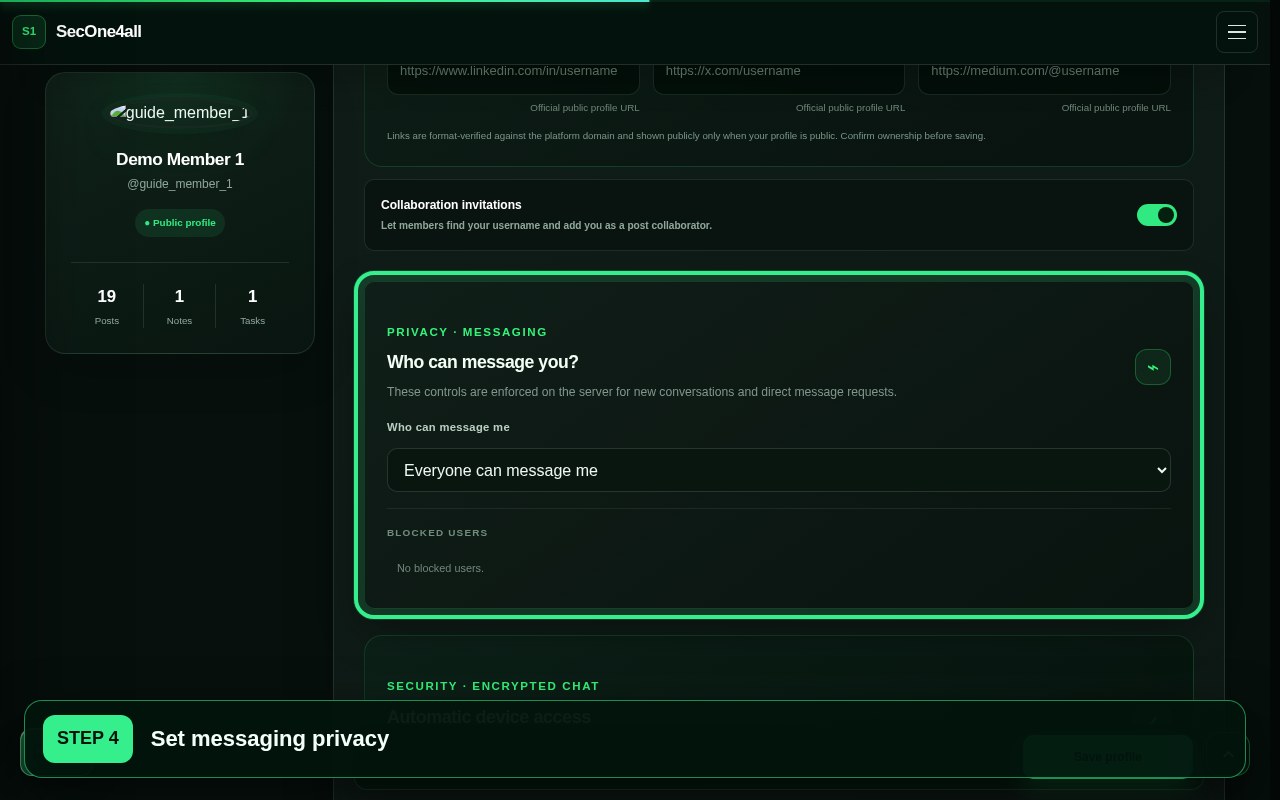
Step 4: Set messaging privacy
Choose who can start a conversation and whether collaboration is enabled.
What you will see: Incoming chat behavior follows the selected privacy mode.
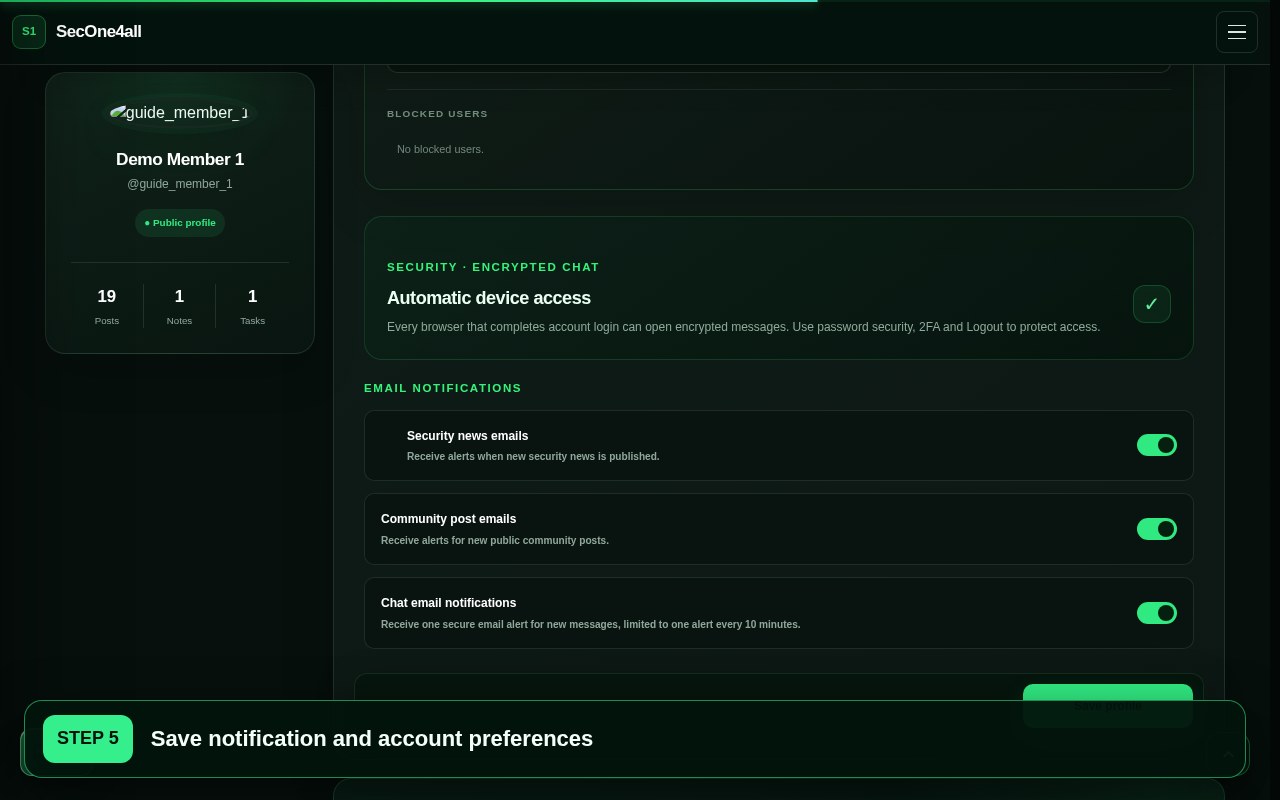
Step 5: Save notification and account preferences
Review the email-notification options and save the profile form.
What you will see: All selected profile and communication preferences are stored together.
Open the feature
Use the button below to open the current SecOne4all interface and follow the same five steps.
Leave a Reply