CTF Scoreboard: Read Rankings and Activity

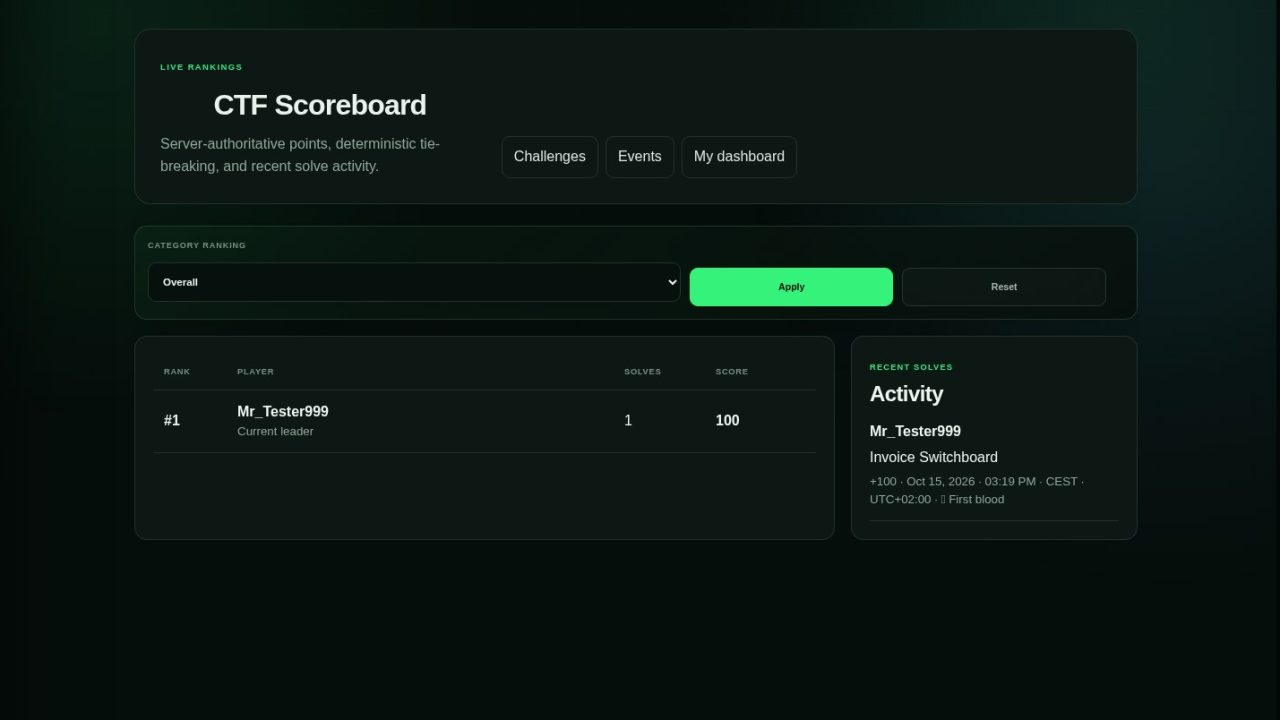
The CTF Scoreboard presents ranking and activity for the selected scoring context. Category filtering helps focus the table when several challenge groups contribute to the score.
What this feature does
The CTF Scoreboard presents ranking and activity for the selected scoring context. Category filtering helps focus the table when several challenge groups contribute to the score. The walkthrough below follows the current interface in the order shown on screen, and each step includes its own matching image.
Workflow at a glance
- 1.Open the scoreboard
- 2.Choose a category
- 3.Apply the category filter
- 4.Read the ranking table
- 5.Review recent activity
How to use the feature
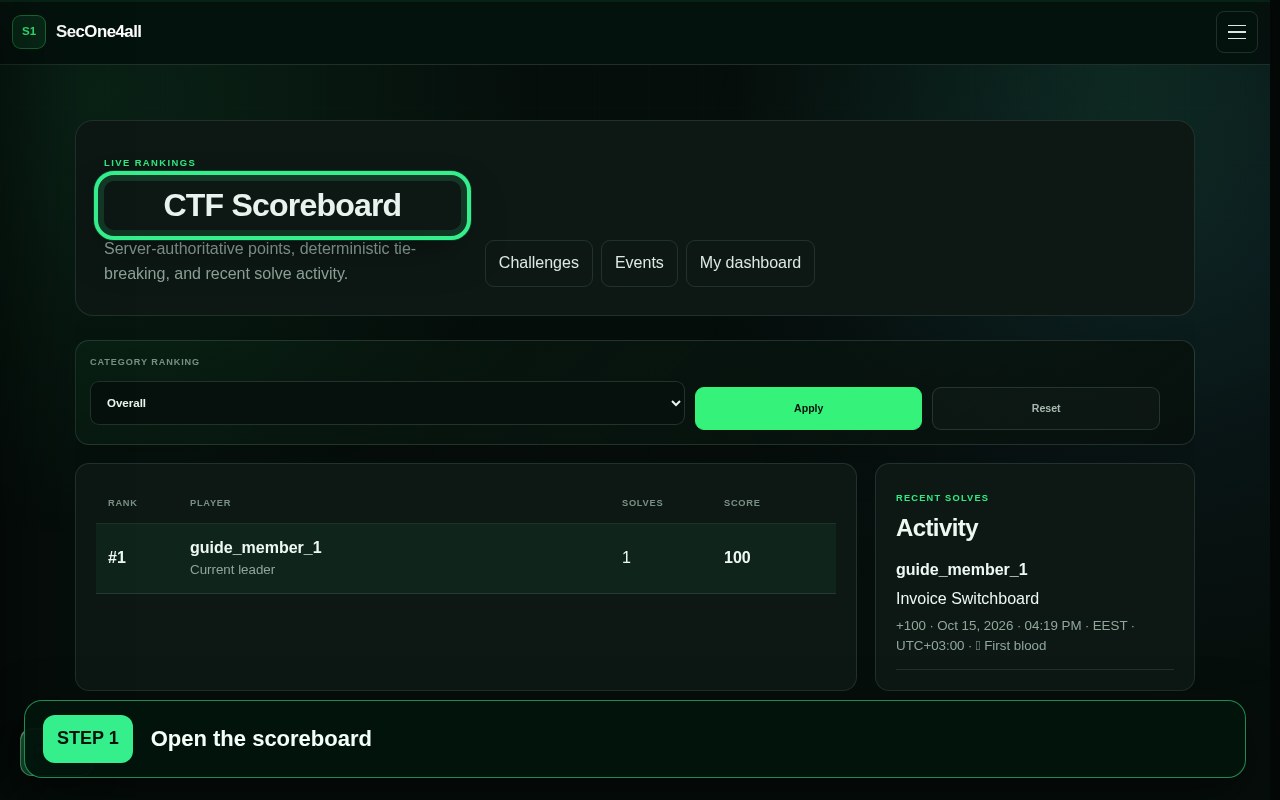
Step 1: Open the scoreboard
Choose Scoreboard from the CTF navigation.
What you will see: The rankings page and its current scoring context appear.
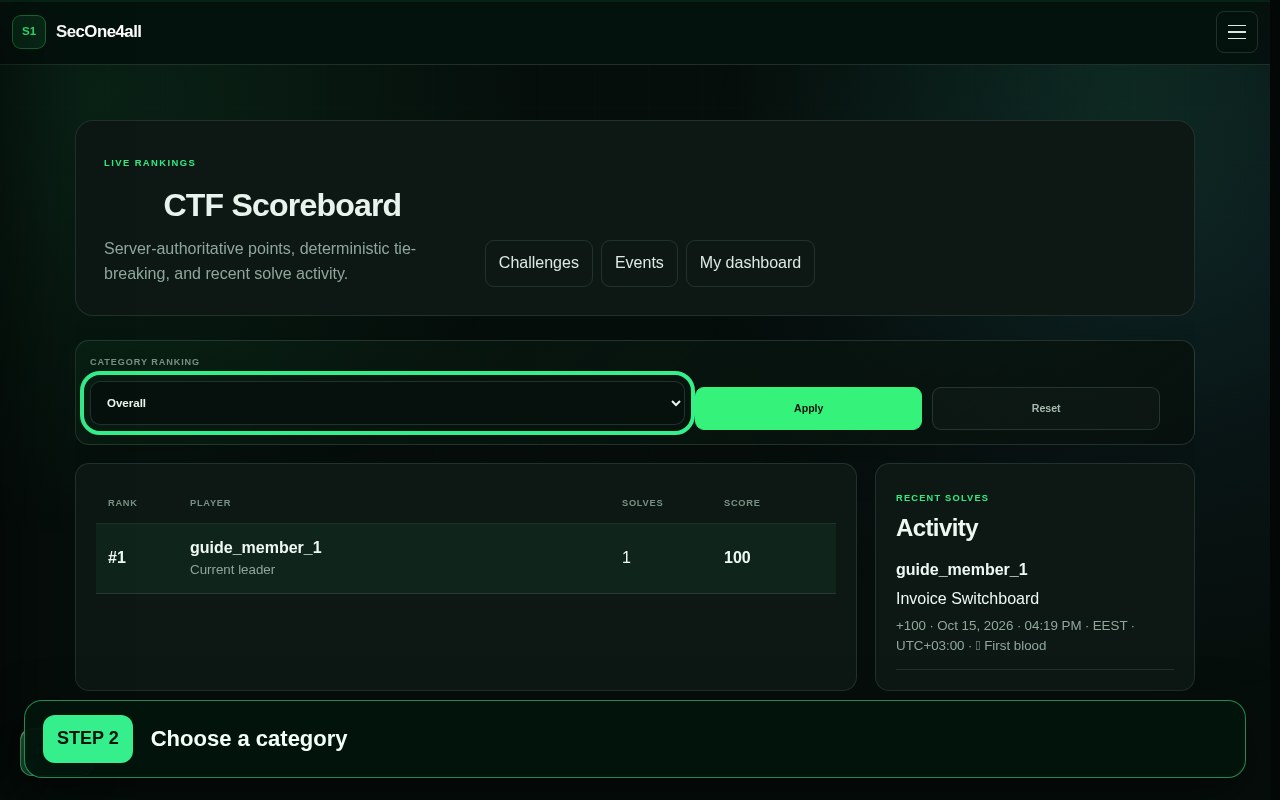
Step 2: Choose a category
Select a category when you want to isolate a specific class of challenges.
What you will see: Only the matching scoring activity is included in the view.
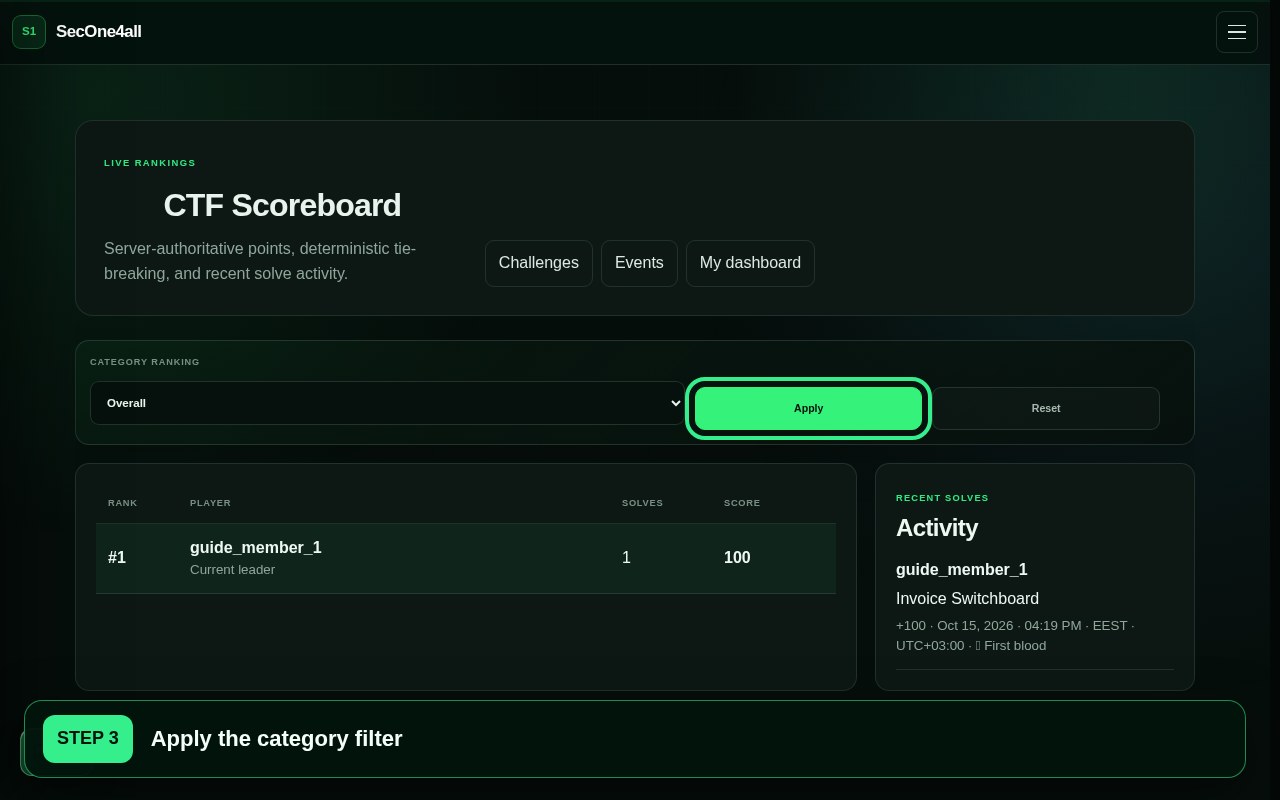
Step 3: Apply the category filter
Press Apply after choosing the category.
What you will see: The scoreboard refreshes using the selected filter.
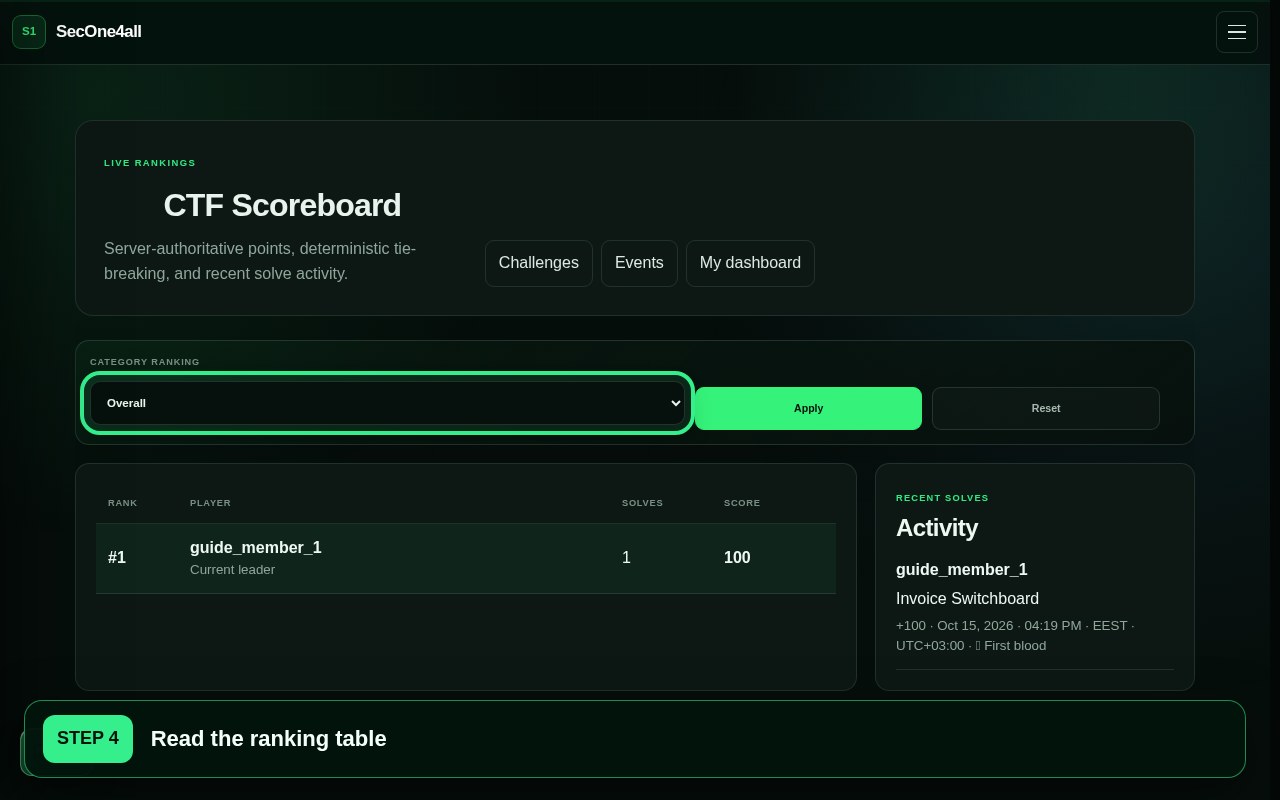
Step 4: Read the ranking table
Compare the rank, participant identity, and score columns shown in the table.
What you will see: You can see how total points translate into placement.
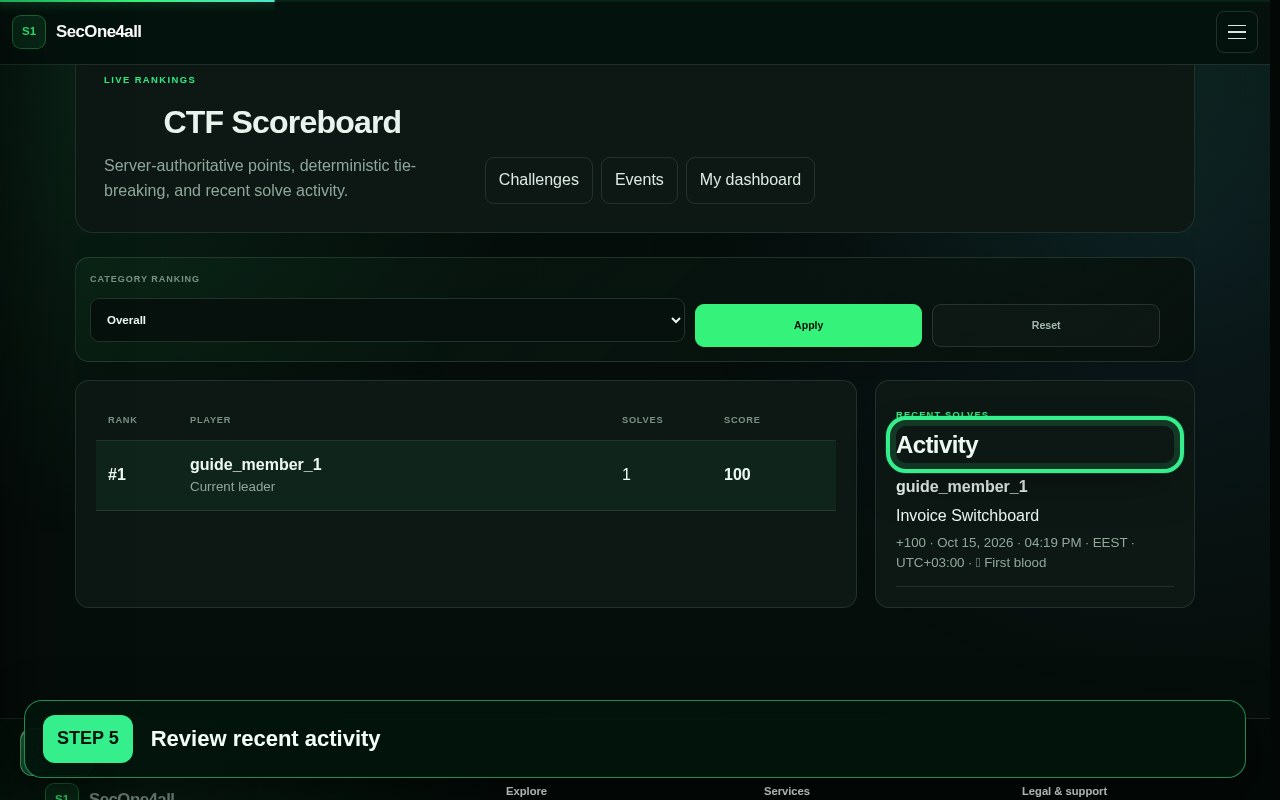
Step 5: Review recent activity
Use Activity to inspect the visible solve or score updates associated with the board.
What you will see: The activity context explains recent movement in the ranking.
Open the feature
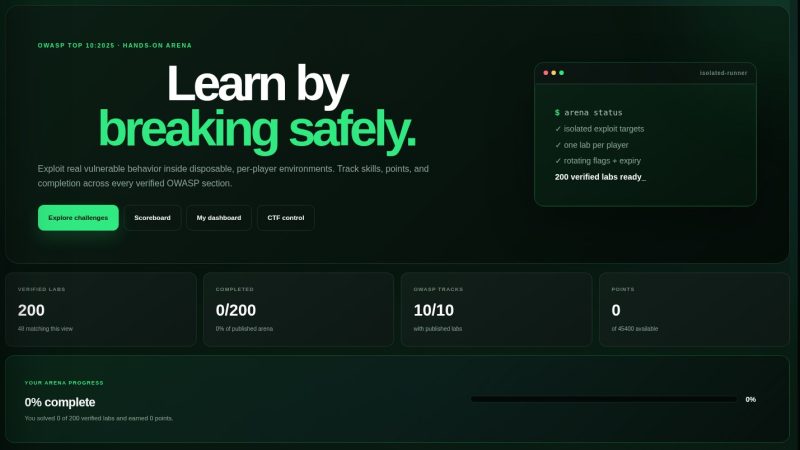
Use the button below to open the current SecOne4all interface and follow the same five steps.
Leave a Reply